How to ask the AI assistant about your Amazon ads
Use the RedHen Labs AI assistant (Professional plan): accept how its use is billed, ask about your profit and campaigns, pick a model, set a spending limit.
RedHen AI is an assistant you can ask about your own Amazon business in plain words: how yesterday went, where your profit stands this month, which campaigns or keywords are wasting money, how to do something in the app. It reads your synced Amazon data to answer, and it's part of the Professional plan.
This guide goes through it with a screenshot of each step (the control to use is ringed and numbered). It takes about four minutes.
Step 1 · Open RedHen AI
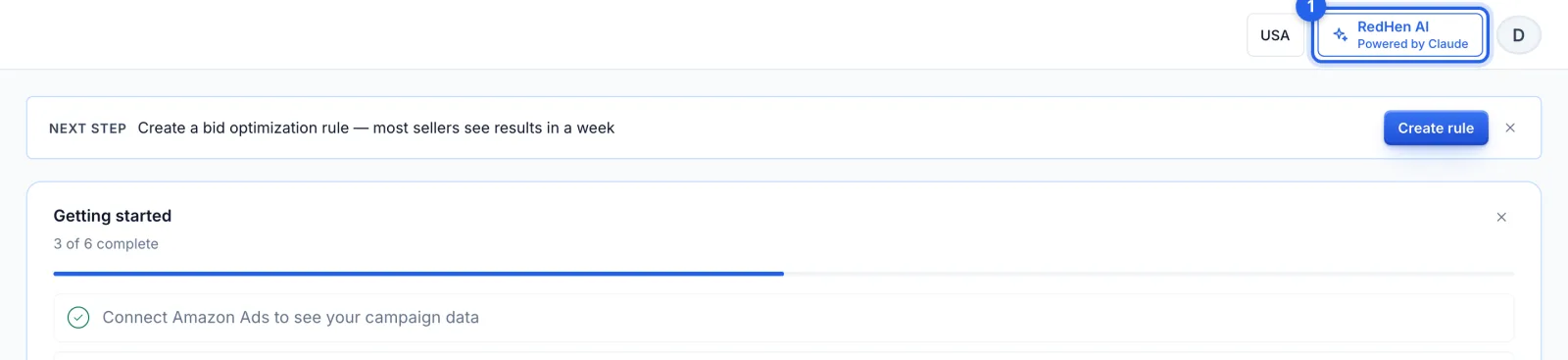
On the Professional plan, click RedHen AI (1) at the top of any page. The assistant opens beside the page and stays open as you move between pages; the ✕ closes it.
Step 2 · Accept how its use is billed (first time)
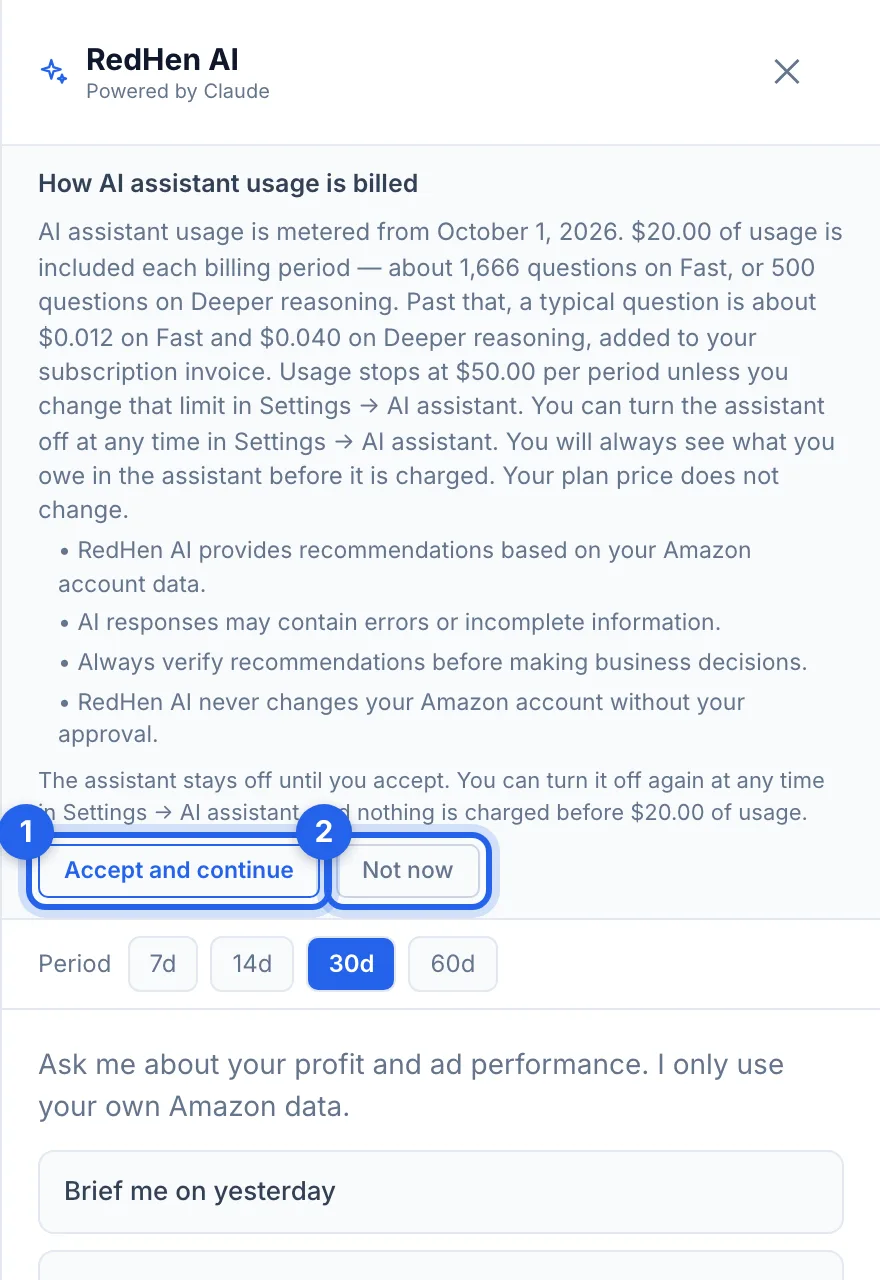
The first time, the panel shows how the assistant's use is billed: $20 of use is included each billing period; past that, use is added to your subscription invoice, and it stops at $50 a period unless you change that limit. The price of a typical question is shown for each model. Click Accept and continue (1) to turn it on, or Not now (2): it stays off until you accept, and nothing is charged before you've used the $20.
Step 3 · Ask a question
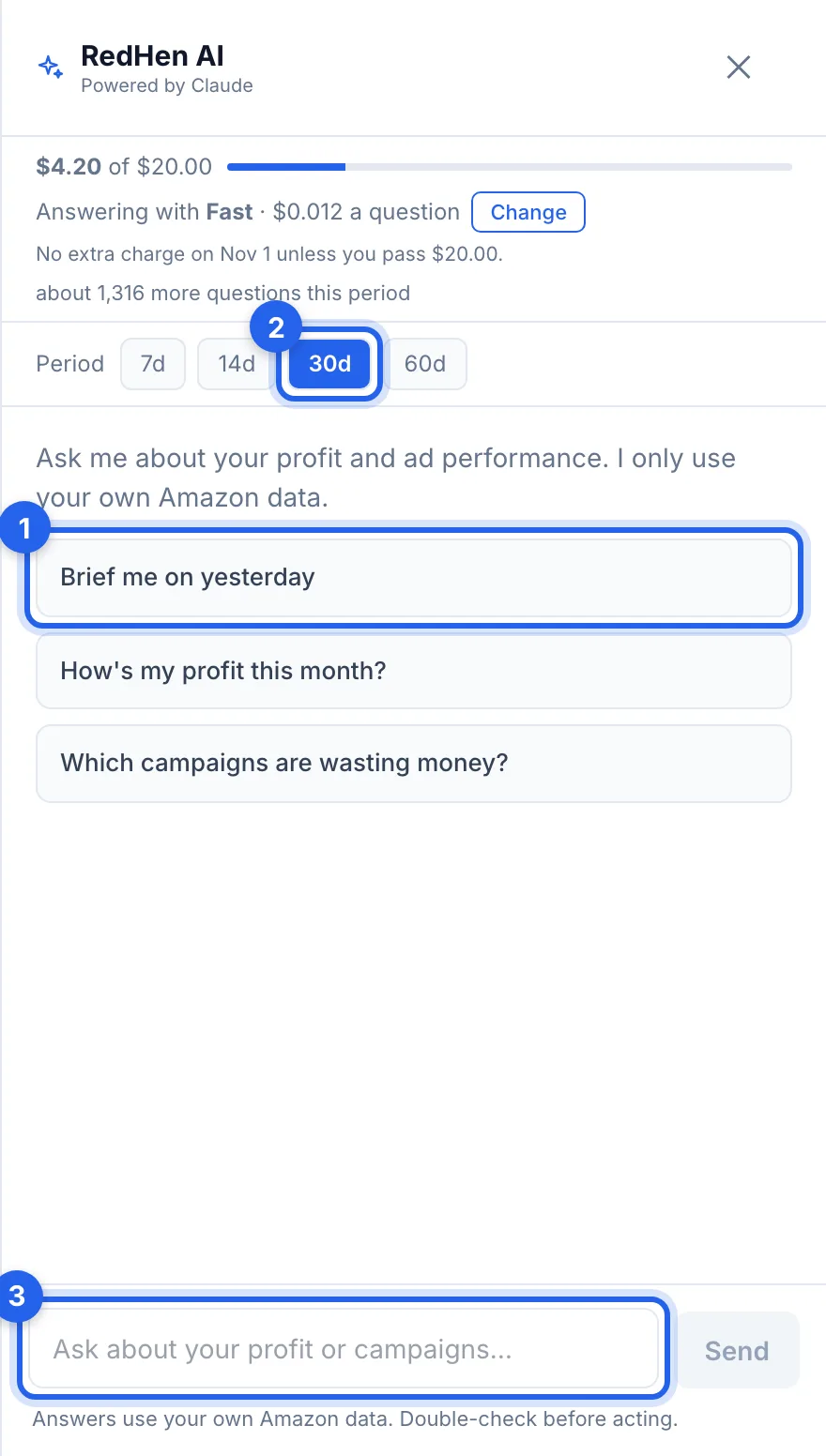
Click a starter question (1), or type your own in the box at the bottom (3). Period (2) sets how many days of your data it looks at: 7, 14, 30 or 60. It answers from your own Amazon data.
Step 4 · Read the answer
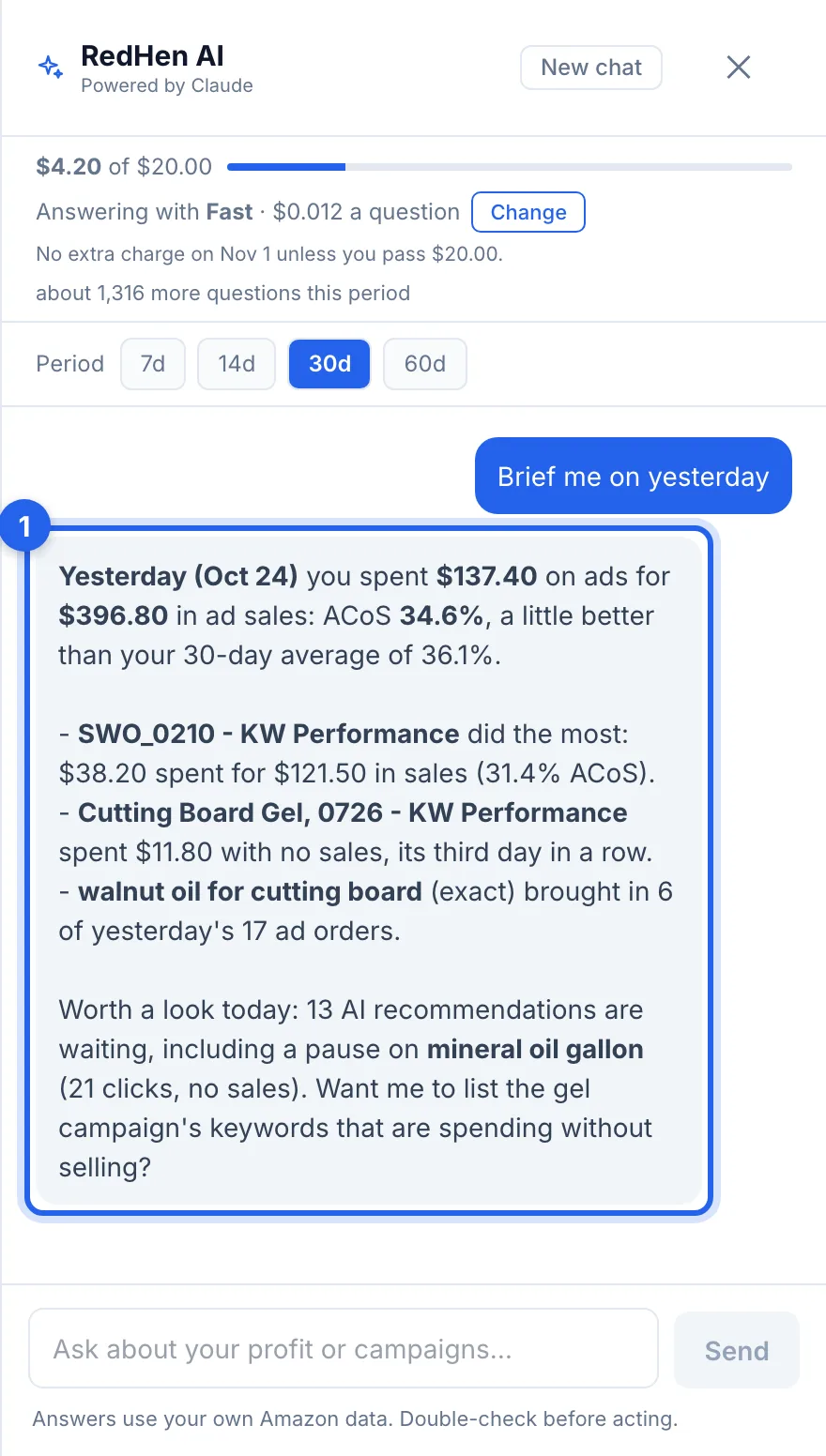
The answer (1) puts names and key figures in bold. Ask follow-up questions in the same chat: it keeps the conversation until you start a New chat or close the browser tab. Double-check an answer before acting on it.
Step 5 · See your use, and pick the model
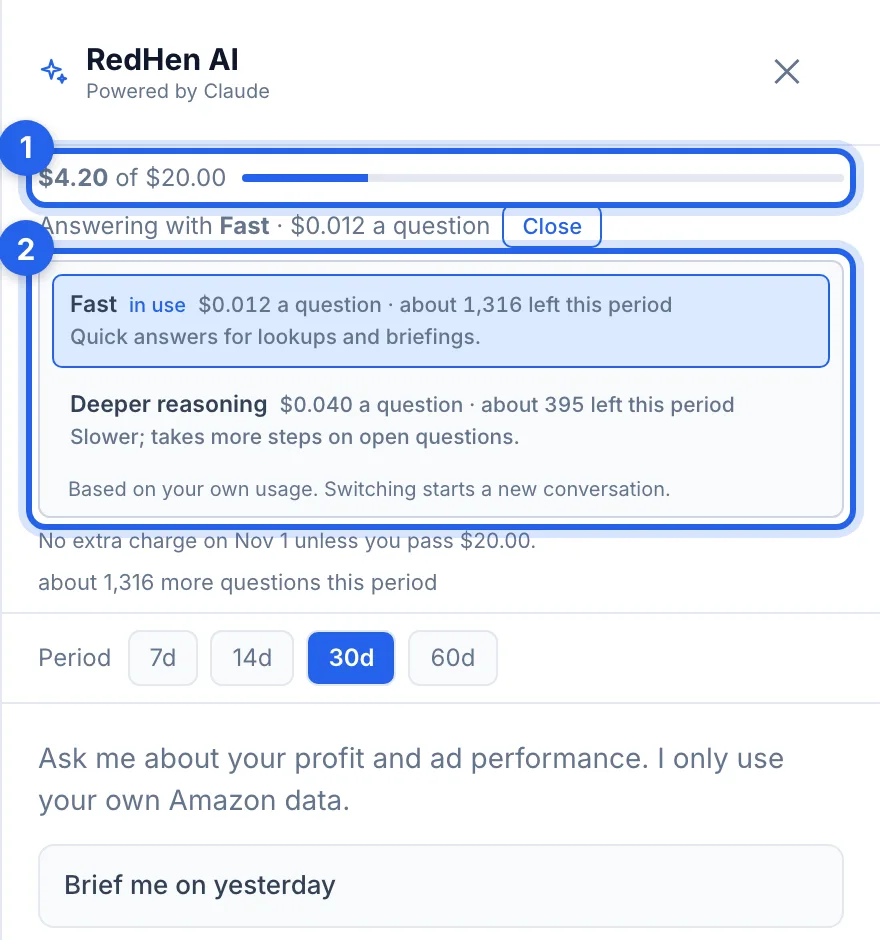
The top line shows this period's use against the $20 included (1). Change opens the models (2): Fast, for quick answers and lookups, or Deeper reasoning, slower and dearer per question. Each shows its price per question and about how many questions are left this period. Switching starts a new conversation.
Step 6 · Set a spending limit, or turn it off
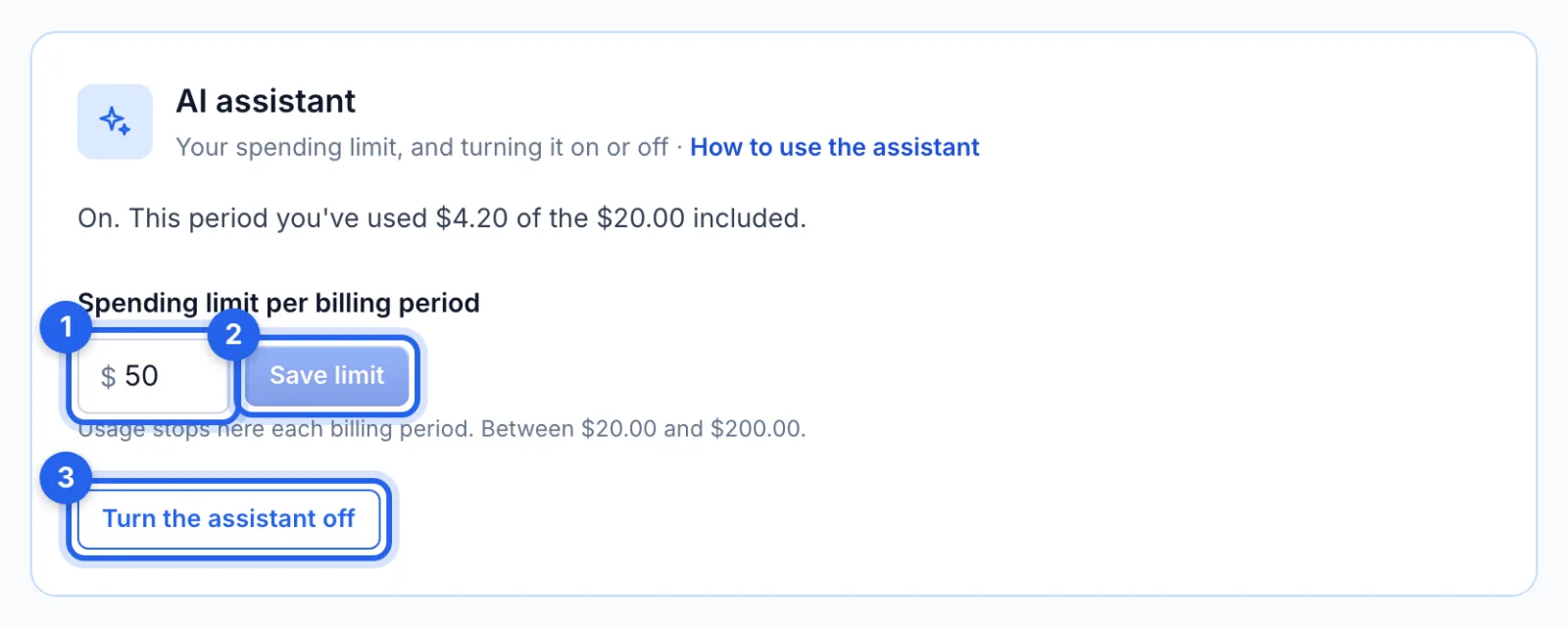
In Settings (the account menu, top right), the AI assistant card sets your spending limit per billing period (1), from $20 to $200; click Save limit (2). Use stops at the limit until the next period. Turn the assistant off (3) stops new questions and charges; anything already used stays on the next invoice.
Good to know
- What it can look up. Profit, campaigns, keywords and search terms, products, inventory, traffic, Insights and waiting recommendations; a briefing on yesterday; and how-to questions about the app, where it points you to these guides.
- It never changes your Amazon account. Ask it to make a change (a bid, a pause, a negative, a keyword to harvest or a placement adjustment) and it saves it to AI Recommendations, under the AI Assistant profile. Nothing is sent until you apply it there, and its changes never apply themselves.
- What it leaves to you. It doesn't pause whole campaigns or change budgets; it tells you where to do that in the app.
Tips
- Name the campaign, keyword or product you mean, and the period, for a sharper answer.
- Start the day with Brief me on yesterday.