How to review and apply AI bid recommendations
Review the AI's bid, pause, harvest, negative and placement recommendations in RedHen Labs: read the reason, edit bids, apply or reject, see Amazon's answer.
AI Recommendations is where the changes your AI profiles recommend wait for you: bid raises and cuts, pauses, keywords and ASINs to harvest, searches to block and placement adjustments. Each one says why. You can change a bid before sending it, apply or reject many at once, and see what Amazon said about each change you sent.
This guide goes through the page with a screenshot of each step (the control to use is ringed and numbered). It takes about five minutes.
Step 1 · Open AI Recommendations
In the side menu, under To review, click AI Recommendations (Growth and Professional plans); the number beside it is how many are waiting. Pending (1) lists them; Applied shows what went to Amazon and what Amazon said; Rejected, what you turned down; All, everything. Queued appears only when a send stopped part-way: those changes were approved but haven't reached Amazon. The filter (2) shows one AI profile's recommendations.

Step 2 · Read a recommendation
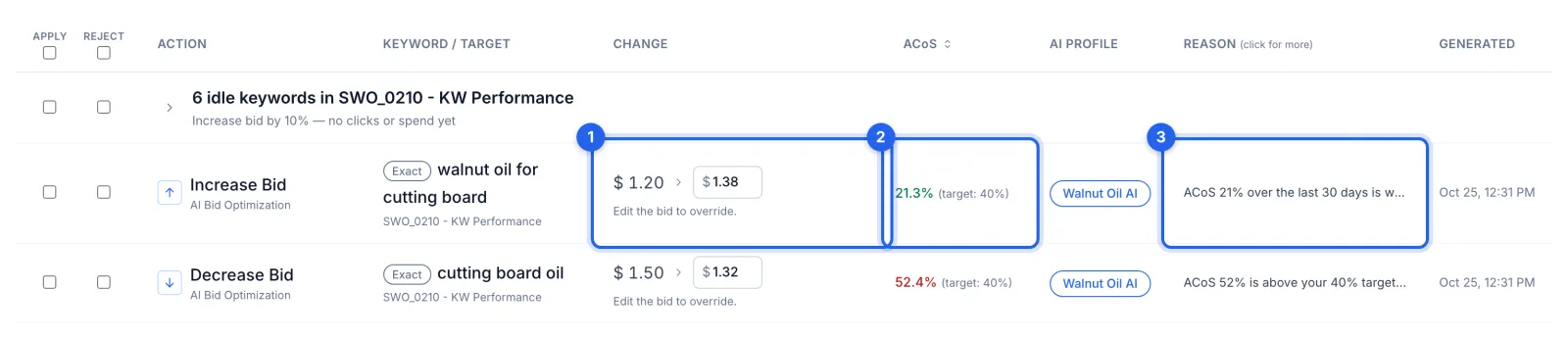
Each row is one change the AI recommends. Change (1) is the bid now and the bid it recommends. ACoS (2) is the keyword's ACoS over the days the AI looked at, beside your target. Reason (3) says why.
Step 3 · Read the full reason
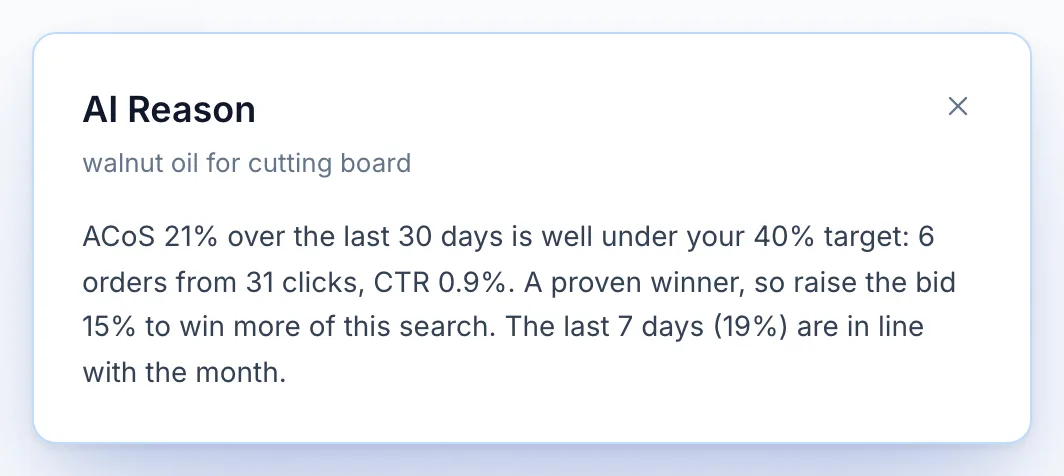
Click a reason to read all of it: the numbers the AI weighed and what it concluded.
Step 4 · Change a bid before you apply it
Type your own bid over the recommended one (1): it turns orange, and the row is ticked to apply (3). On a pause, click the pause sign to set a bid instead (2), and the keyword gets that bid rather than being paused. Bids stay between $0.02 and $31.

Step 5 · Open a group
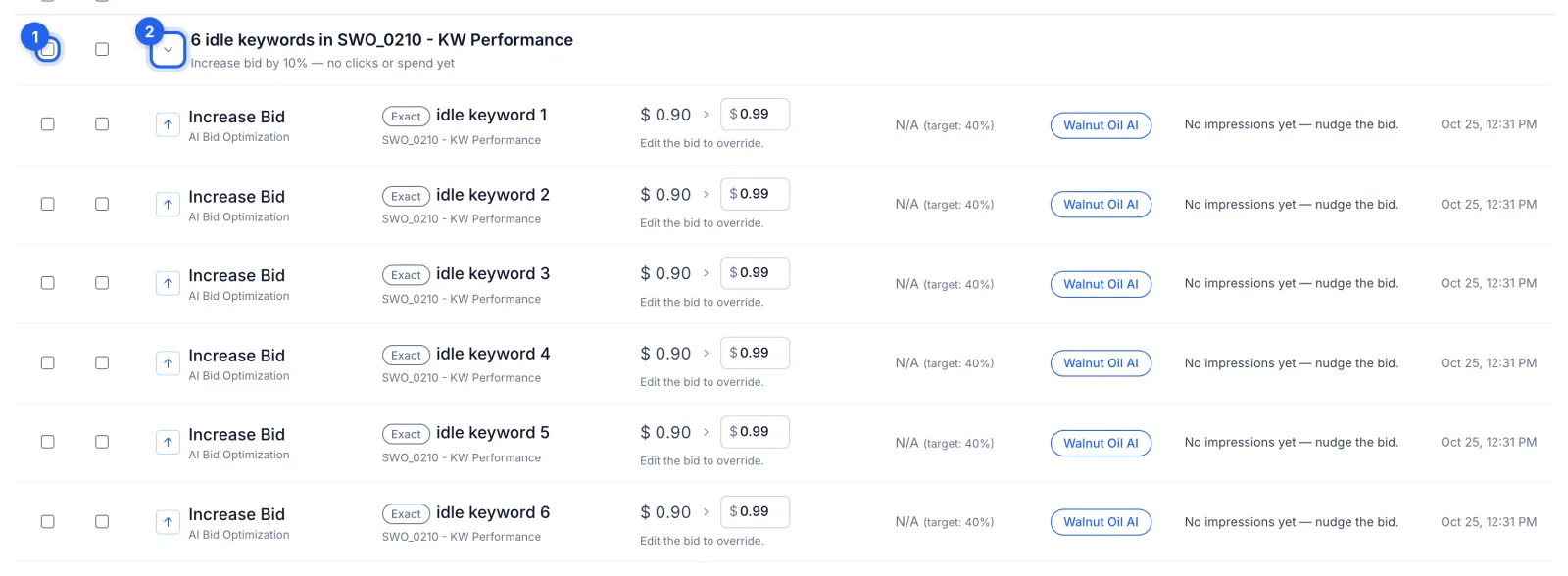
When the same change applies to many keywords in one campaign, they're grouped: here, 6 idle keywords (no clicks or spend yet) each raised 10%. Tick the group (1) to apply or reject all of them at once, or open it (2) to see each one.
Step 6 · Apply or reject
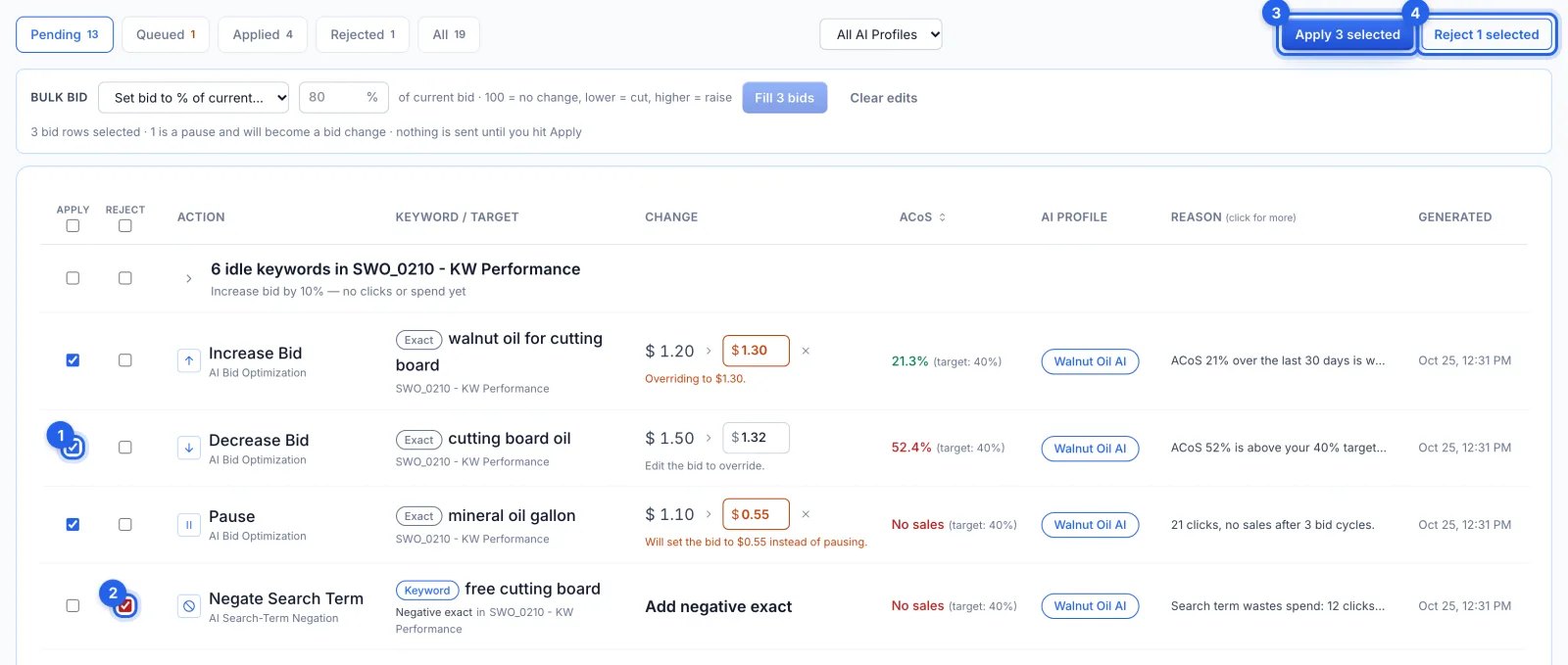
Tick APPLY on the rows to send (1) and REJECT on those you don't want (2), then click Apply N selected (3) or Reject N selected (4). Apply sends the changes to Amazon straight away. With rows ticked, Bulk bid sets all their bids at once, as a percentage of each current bid: click Fill bids, and nothing is sent until you click Apply.
Step 7 · Know what each kind does
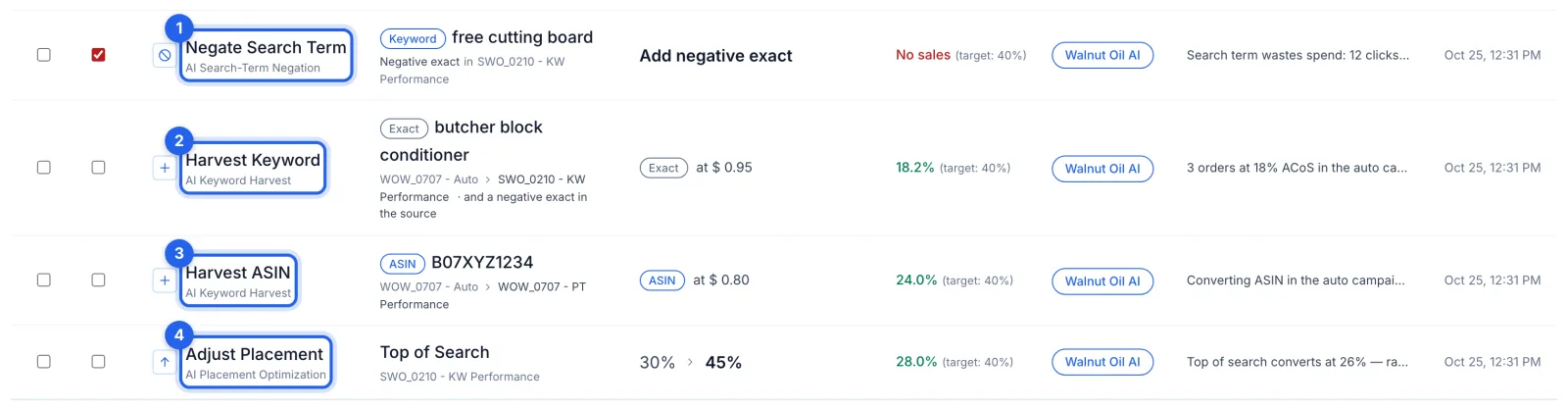
Negate Search Term (1) adds the search as a negative exact keyword in that campaign. Harvest Keyword (2) adds a converting search as a keyword in the destination campaign, and a negative exact in the campaign it came from when the profile says so. Harvest ASIN (3) does the same for a product. Adjust Placement (4) changes a placement's bid adjustment, here top of search from 30% to 45%.
Step 8 · See what Amazon said
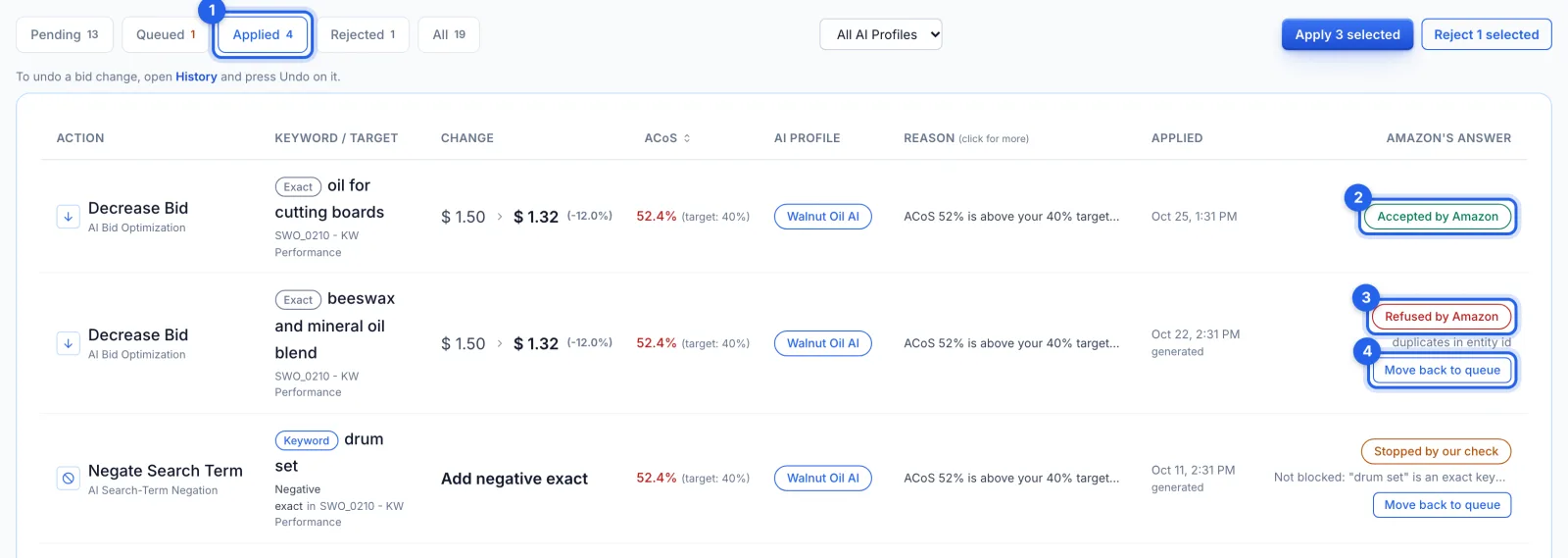
The Applied tab (1) lists what was sent, with Amazon's answer: Accepted by Amazon (2), or Refused by Amazon (3) with its reason. Move back to queue (4) returns a refused change to Pending, up to 21 days after it was made. Stopped by our check means the app held the change back before it reached Amazon, and says why.
Good to know
- Recommendations don't wait forever. A pending recommendation expires after 21 days, and a newer one for the same keyword replaces the older one.
- Undo. Bid changes and pauses can be undone in History. Negatives, harvested keywords and placement changes are listed there without Undo.
- Profiles that apply changes themselves. A profile with Apply automatically on sends bid changes from a 25% cut to a 15% raise straight to Amazon; those are in History, not here. Everything else still waits here, with the reason it was held.
- From the AI assistant. On the Professional plan, changes the assistant suggests in chat wait here too, under the AI Assistant profile, and nothing is sent until you apply them.
Tips
- Read the reason on any big change before you apply it, and lower the bid if you'd rather move more slowly.
- Reject what you don't want: if the numbers still call for it, the AI can recommend it again on a later run.