How to set up AI bid management for Amazon ads
Set up an AI profile in RedHen Labs: target ACoS, product price, aggression, bid guardrails, campaigns, keyword harvesting, negatives, placements, auto-apply.
An AI profile manages the bids of the campaigns you give it. Every morning it reads each keyword's and product target's numbers against your target ACoS and recommends what to change: bids, pauses, and if you want them, keywords to harvest, searches to block and placement adjustments. You approve each change, or let it send bid changes itself within set limits.
This guide builds one profile from start to finish, with a screenshot of each step (the control to use is ringed and numbered). It takes about six minutes.
Step 1 · Open AI Automations
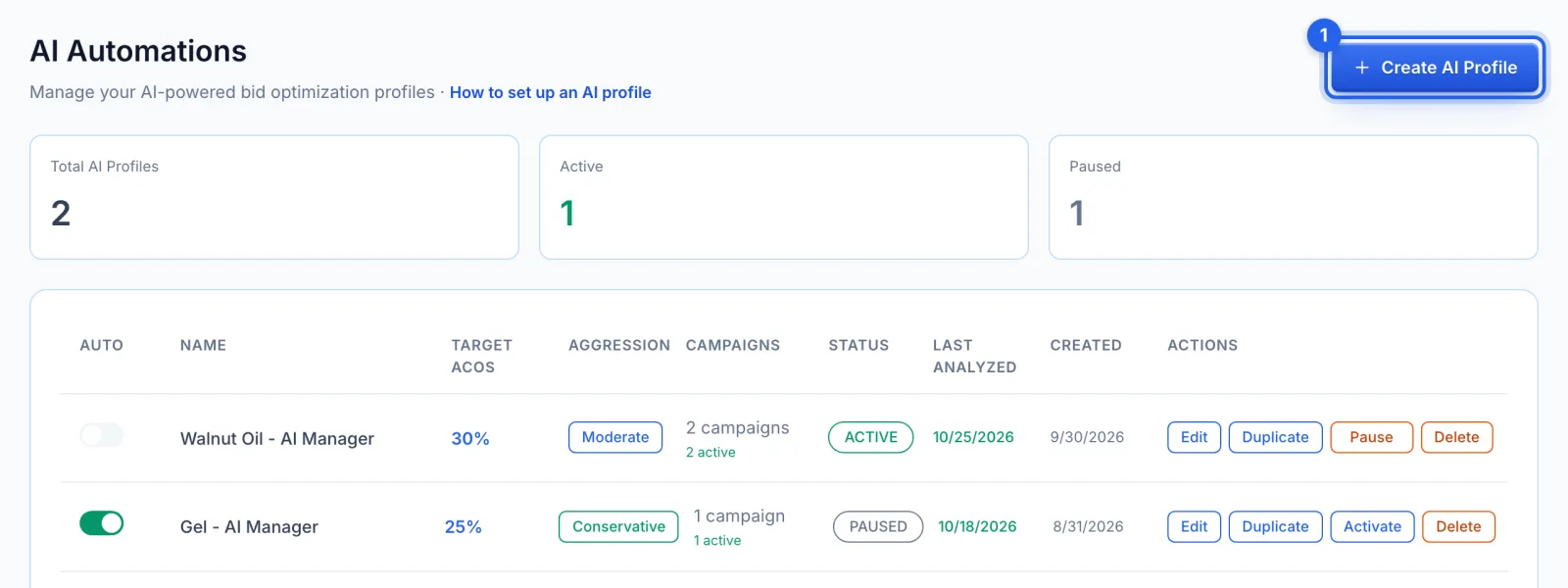
In the side menu, under Automation, click AI Automations (Growth and Professional plans). It lists your AI profiles with their target ACoS, aggression, campaigns and status. Click Create AI Profile (1).
Step 2 · Name it and set the target ACoS
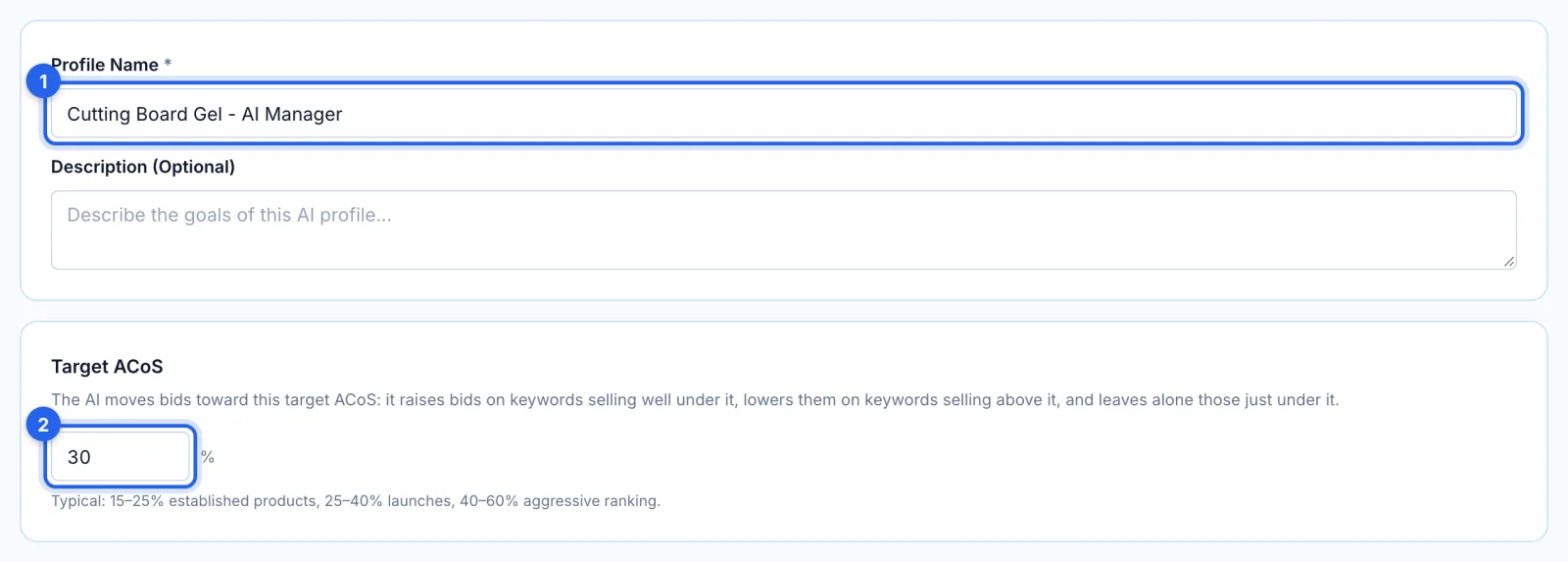
Give the profile a name (1); a description is optional. Set the Target ACoS (2): the AI raises bids on keywords selling well under it, lowers them on keywords selling above it, and leaves alone those just under it.
Step 3 · Enter your product price
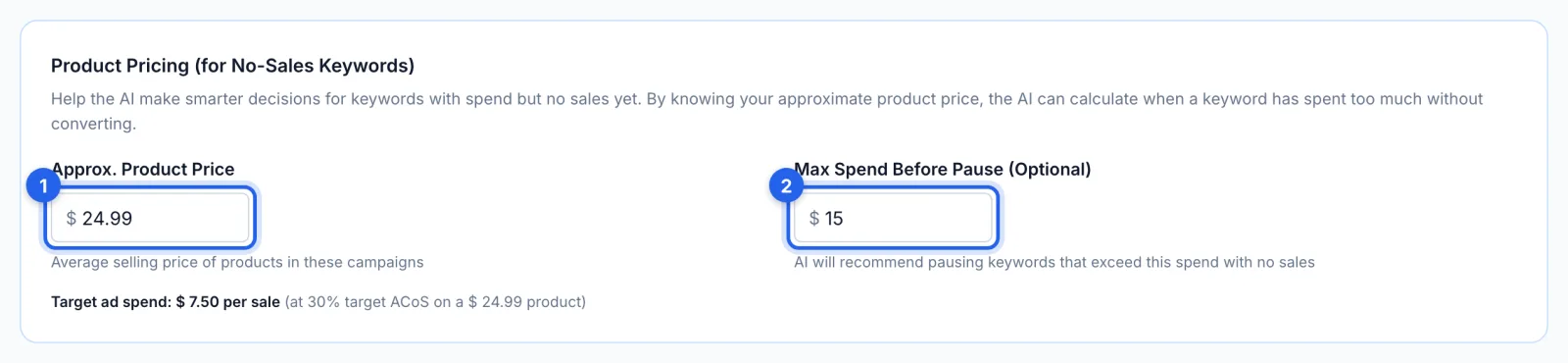
Approx. Product Price (1) tells the AI what one sale may cost in ads: your price times your target ACoS ($7.50 on a $24.99 product at 30%). A keyword with 10 or more clicks and no sale is recommended for pausing once it has spent 1.5 times that, or the Max Spend Before Pause (2) you set; one that has spent 3 times that is recommended for pausing whatever its clicks. Left blank, the AI uses a fixed amount by aggression level instead: $10, $15 or $20.
Step 4 · Choose how boldly it moves
Aggression Level sets how much evidence the AI waits for and how big its changes are. Conservative (1) acts earlier, at 75% of break-even spend, with smaller changes. Moderate (2), the default, acts at break-even. Aggressive (3) gives keywords more room, up to 125% of break-even, and makes larger changes.

Step 5 · Set the bid guardrails
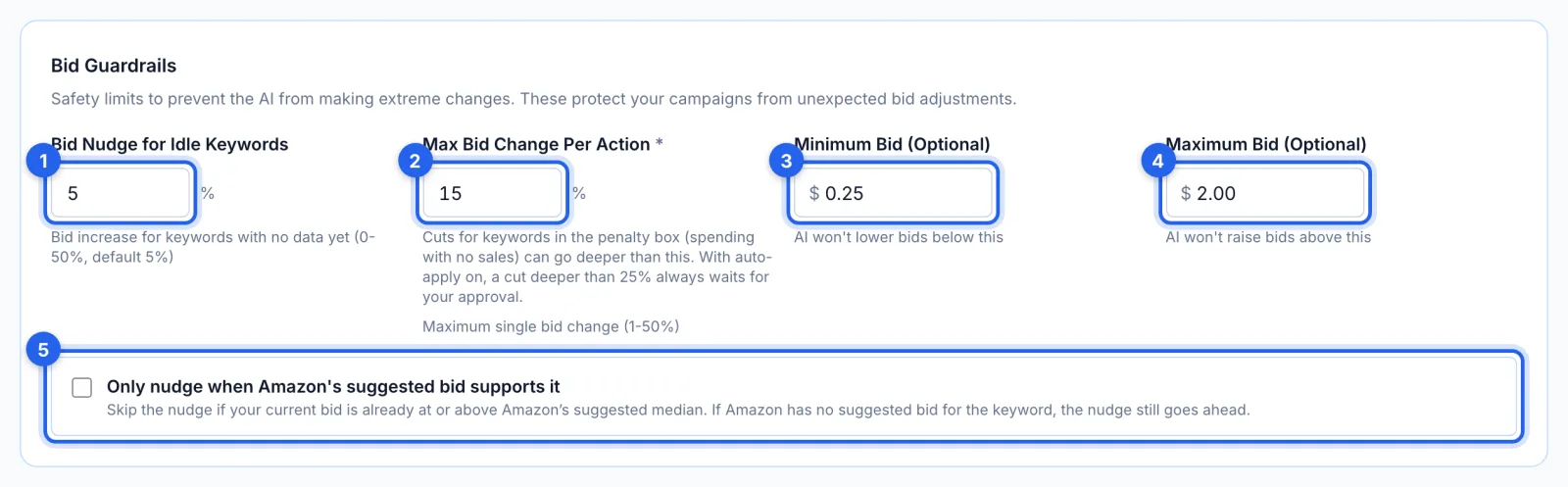
Bid Nudge for Idle Keywords (1) raises keywords with no clicks or spend yet, 5% at a time by default, to see whether they can win traffic. Max Bid Change Per Action (2) caps any one change (15% by default); a cut on a keyword spending with no sales can go deeper. The AI keeps bids between your Minimum Bid (3) and Maximum Bid (4). Tick Only nudge when Amazon's suggested bid supports it (5) to skip the nudge when your bid is already at or above Amazon's suggested bid.
Step 6 · Pick the lookback and the campaigns
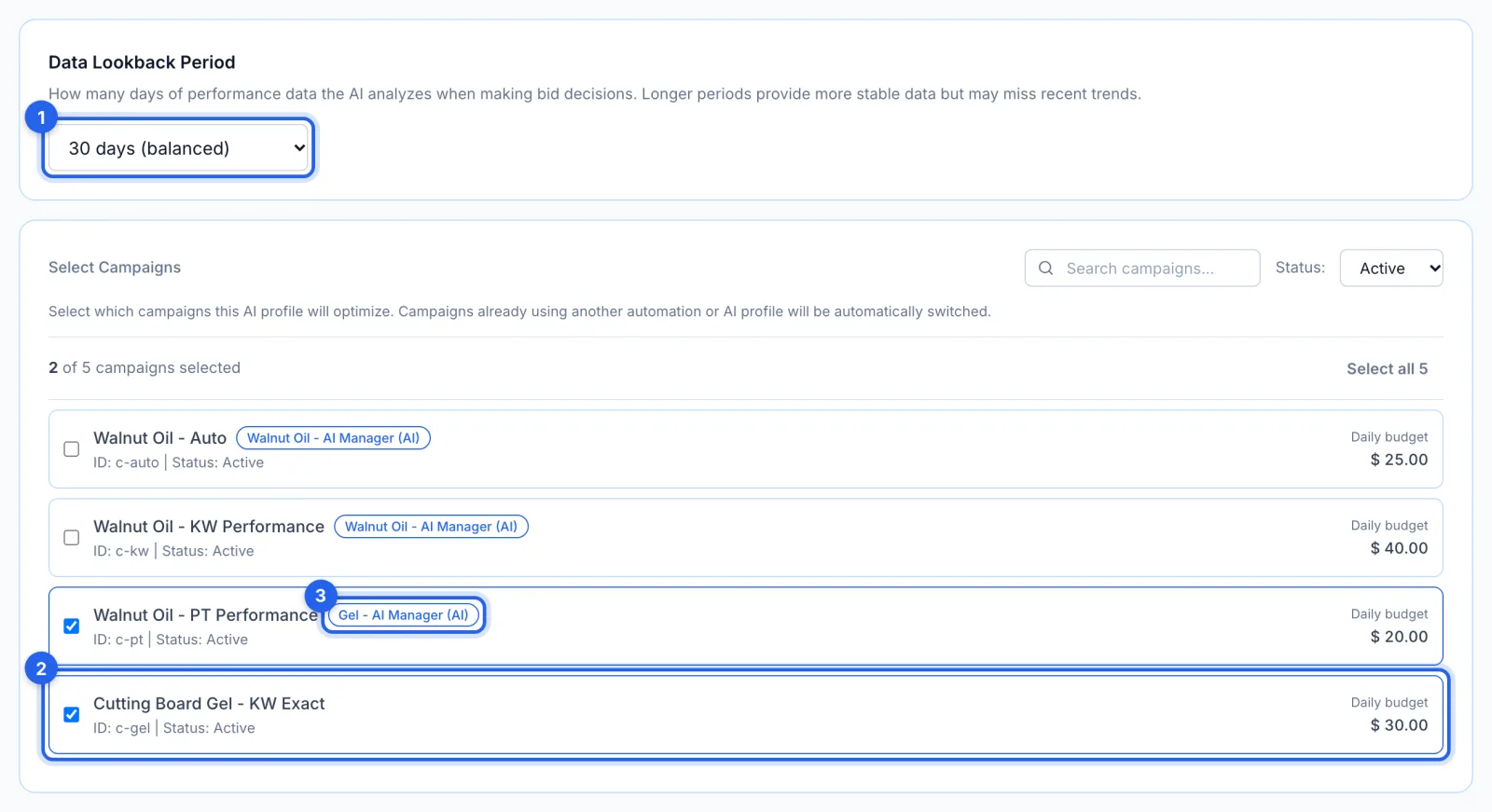
Data Lookback Period (1) is how many days of numbers each decision rests on: 14, 30 (the default), 60 or 90. Tick the campaigns this profile manages (2). A campaign already managed by another AI profile or rule set shows its name (3), and moves to this profile when you save: each campaign has one manager at a time.
Step 7 · Turn on keyword harvesting (optional)
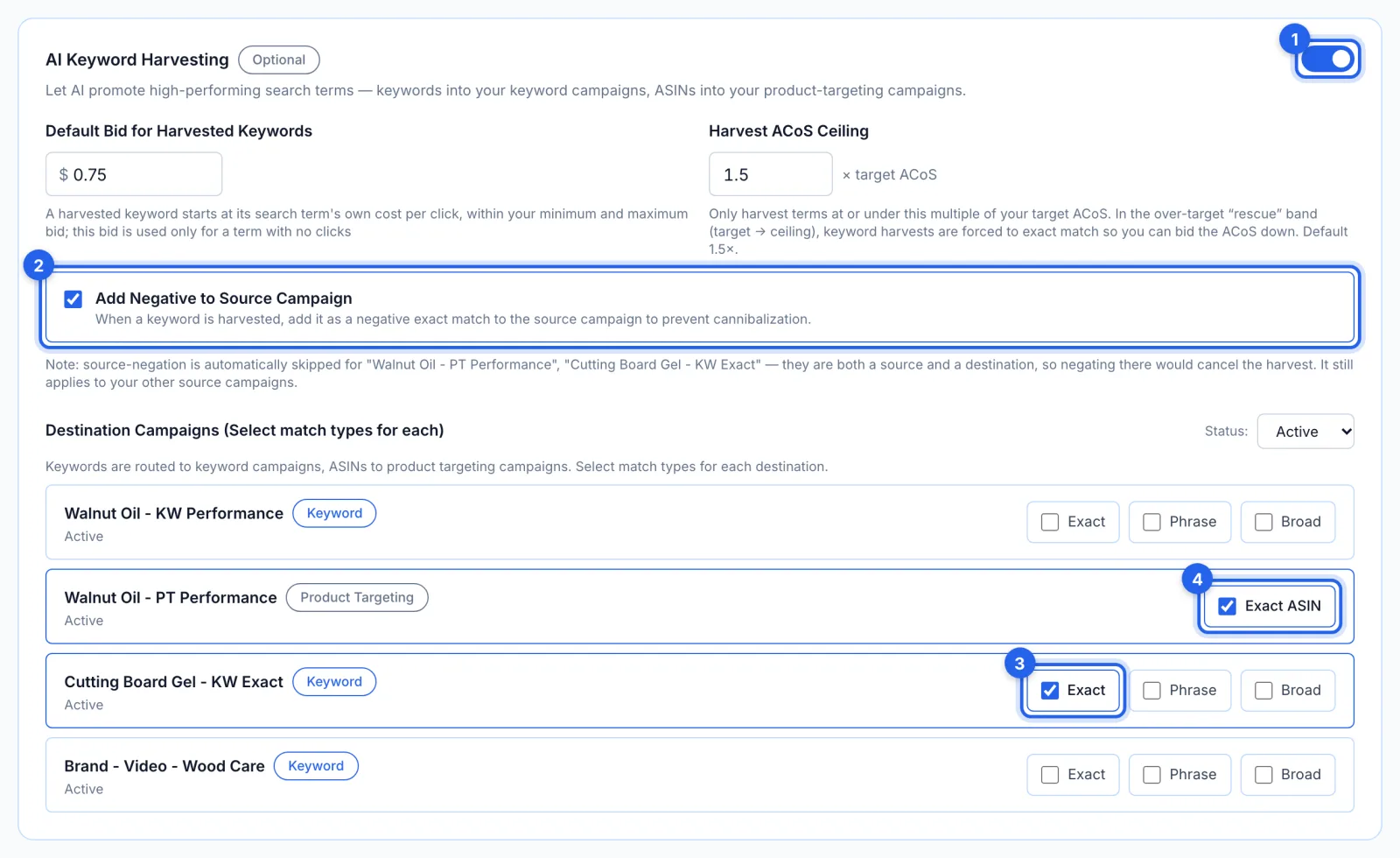
Switch on AI Keyword Harvesting (1) to have the AI move converting searches into the campaigns you choose: keywords into keyword campaigns, ASINs into product-targeting campaigns. It harvests terms at or under 1.5 times your target ACoS; one between your target and that ceiling goes in as exact match, so you can bid it down. A harvested keyword starts at its search's own cost per click, within your minimum and maximum bid. Add Negative to Source Campaign (2) blocks the search where it came from, so the two don't compete. Tick a match type for each destination (3, 4).
Step 8 · Choose what else it suggests
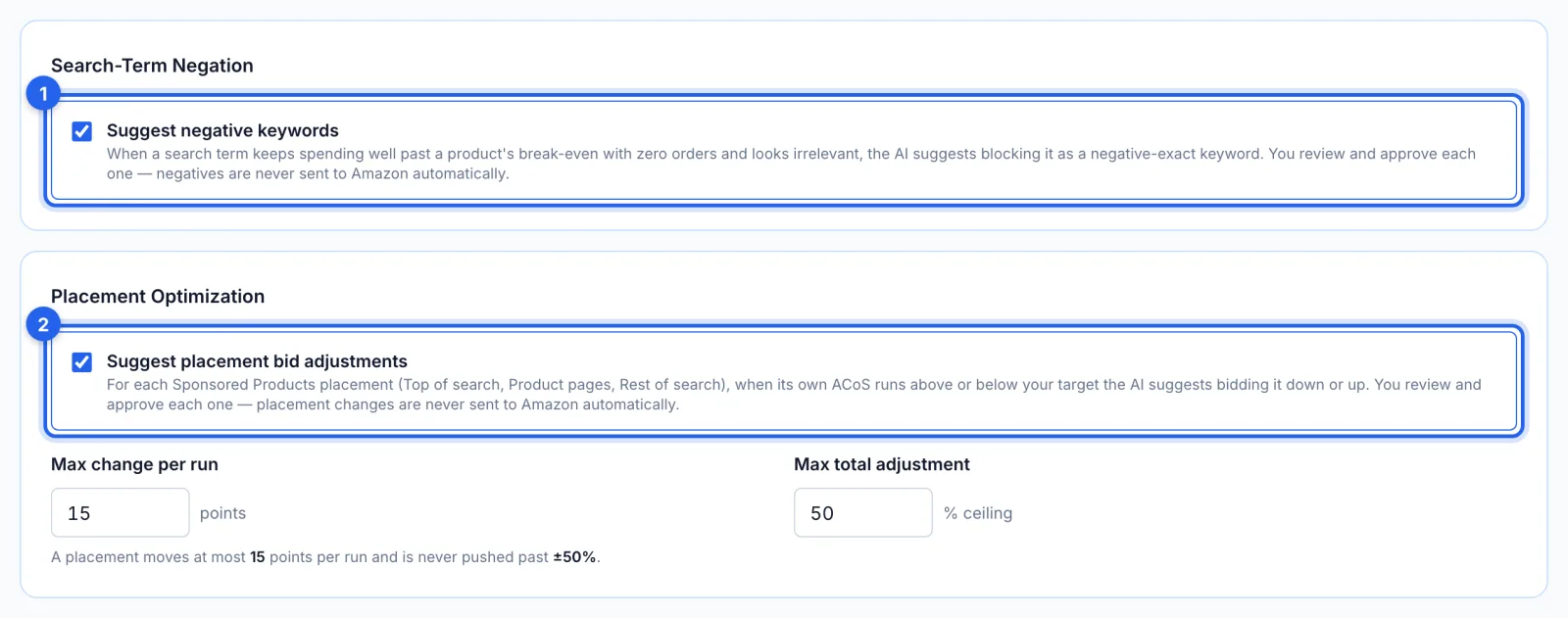
Suggest negative keywords (1) is on by default: when a search keeps spending well past break-even with no orders and looks irrelevant, the AI suggests blocking it as a negative exact keyword. Suggest placement bid adjustments (2), for Sponsored Products, raises or lowers a placement's bid adjustment when its own ACoS runs below or above your target: at most 15 points a run, and never past 50%. Both always wait for your approval.
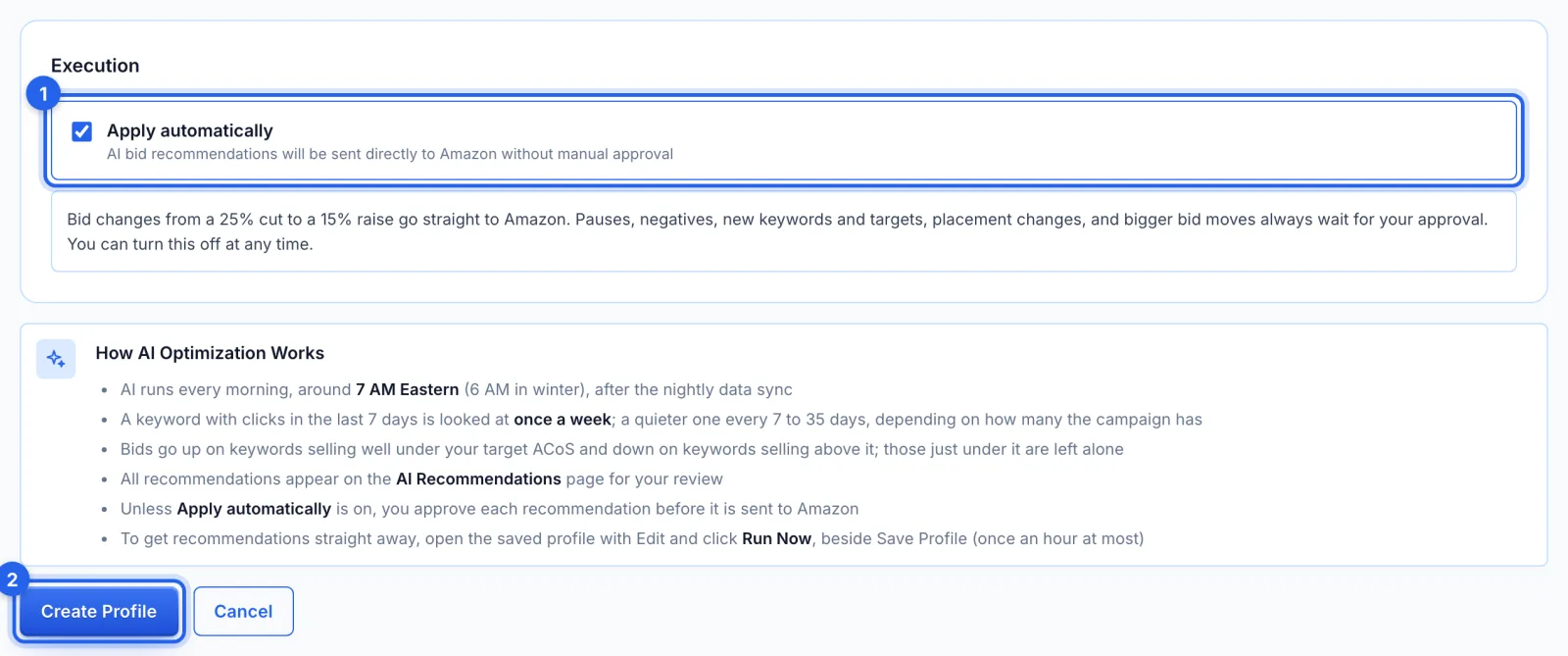
Step 9 · Decide whether it applies changes itself
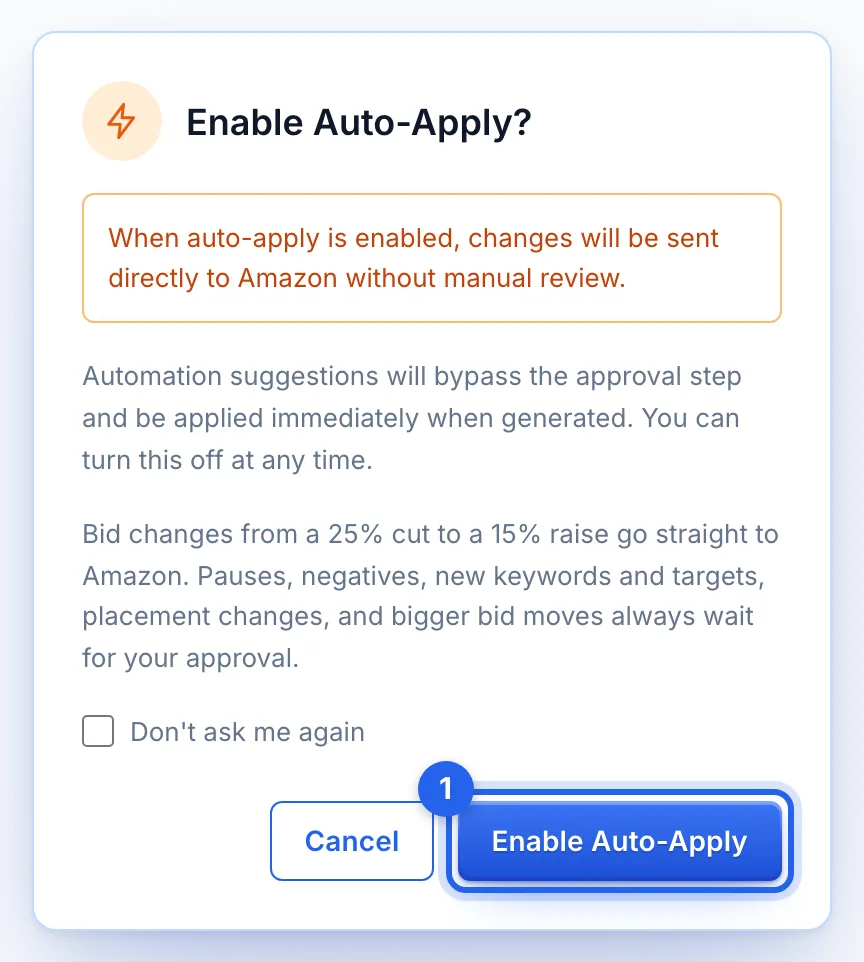
With Apply automatically off, every change waits on AI Recommendations for you. Turn it on and it asks first (1): bid changes from a 25% cut to a 15% raise then go straight to Amazon, while pauses, negatives, new keywords and targets, placement changes and bigger bid moves still wait for your approval.
Step 10 · Create the profile
With Apply automatically on (1), the card repeats what goes straight to Amazon and what waits. Click Create Profile (2). The profile runs every morning around 7 AM Eastern (6 AM in winter), after the nightly data sync.
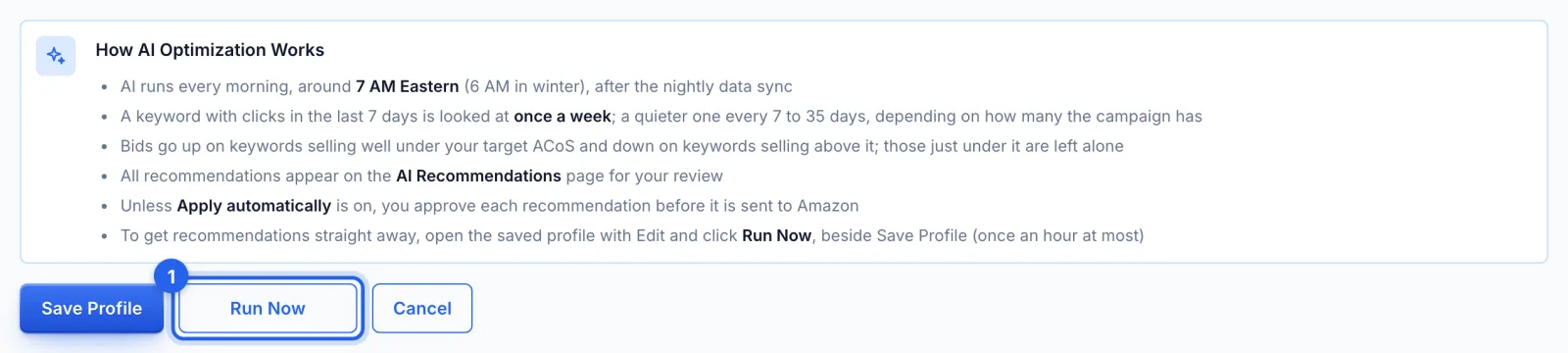
Step 11 · Run it now (optional)
To see recommendations without waiting for the morning, open the profile with Edit and click Run Now (1), beside Save Profile. A profile can run at most once an hour. The result counts everything it recommended: bid changes, harvests, negatives and placement changes.
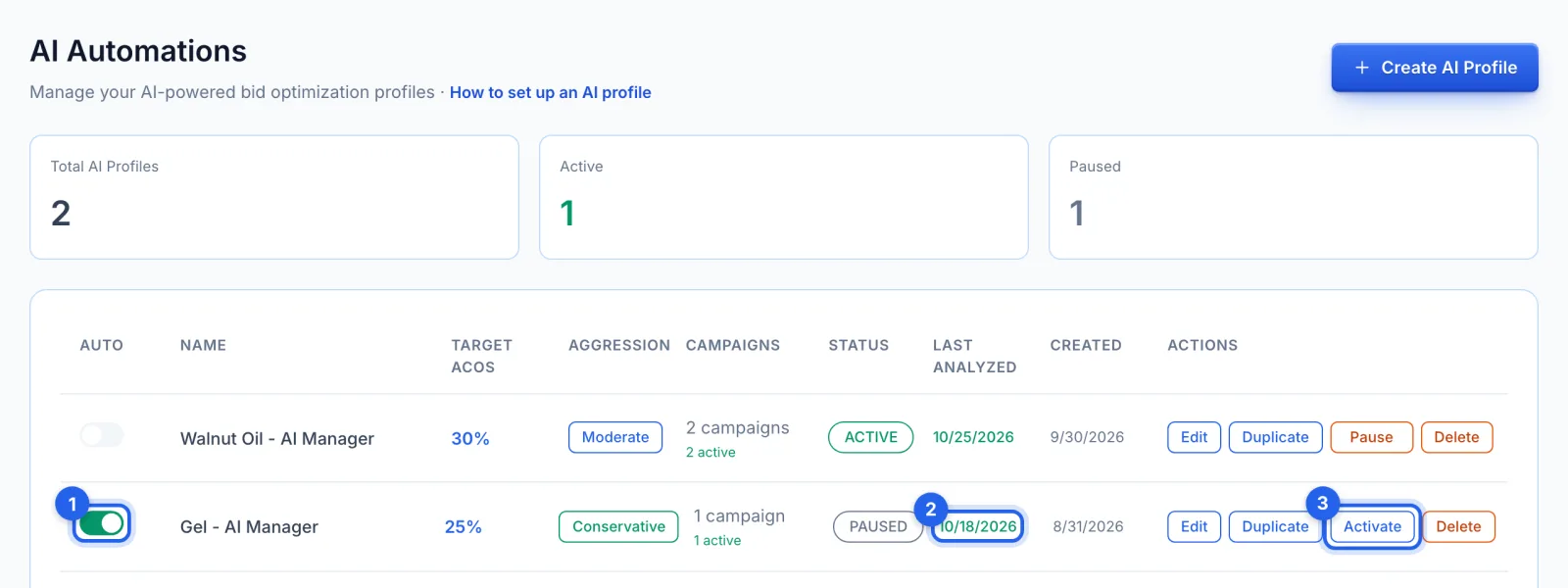
Step 12 · Manage it from the list
On AI Automations, the Auto switch (1) turns auto-apply on or off for a profile (it asks before turning it on), Last Analyzed (2) is when the AI last ran it, and Pause or Activate (3) stops or restarts it. Edit, Duplicate and Delete sit beside them; a duplicate starts paused, with no campaigns.
Good to know
- What it looks at. Each keyword and product target on its own numbers over the lookback days, in enabled campaigns and ad groups. Targets whose ad group is paused, or whose product ads are all paused, are skipped until the product is live again.
- When Amazon's data is late. If yesterday's data hasn't arrived by the morning run, the AI waits for the next day rather than act on old numbers.
- Sponsored Display. Its campaigns get bid recommendations too, on each target's own bid, but they always wait for your approval, even with Apply automatically on.
- Where its changes go. Recommendations wait on AI Recommendations (see How to review and apply AI bid recommendations). Changes sent to Amazon are in History, where bid changes and pauses can be undone.
- The daily email says what each profile did that morning: how many recommendations it made, that it looked and found nothing to change, or that it didn't run.
Tips
- Leave Apply automatically off for the first week or two, to see what the AI recommends before it acts on its own.
- Set the target ACoS from your margins. Your break-even ACoS is your profit margin before ad spend (the break-even ACoS calculator works it out); a target below it leaves a profit on every ad sale.
- Prefer rules you write yourself? A campaign can be run by a bid rule instead, but not by both at once.