How to set up an Amazon bid rule, step by step
Create a keyword bid rule in RedHen Labs with screenshots of each step: pick campaigns, set conditions and actions, schedule it and approve its changes.
A bid rule watches your keywords and product targets and changes their bids when the numbers say so: for example, lowering the bid on any keyword whose ACoS is above 40% after 10 clicks. You decide the conditions, the change, and whether you approve each change before it reaches Amazon.
This guide builds one rule set from start to finish, with a screenshot of every step (the control to use is ringed and numbered). It takes about five minutes.
Step 1 · Open Automations
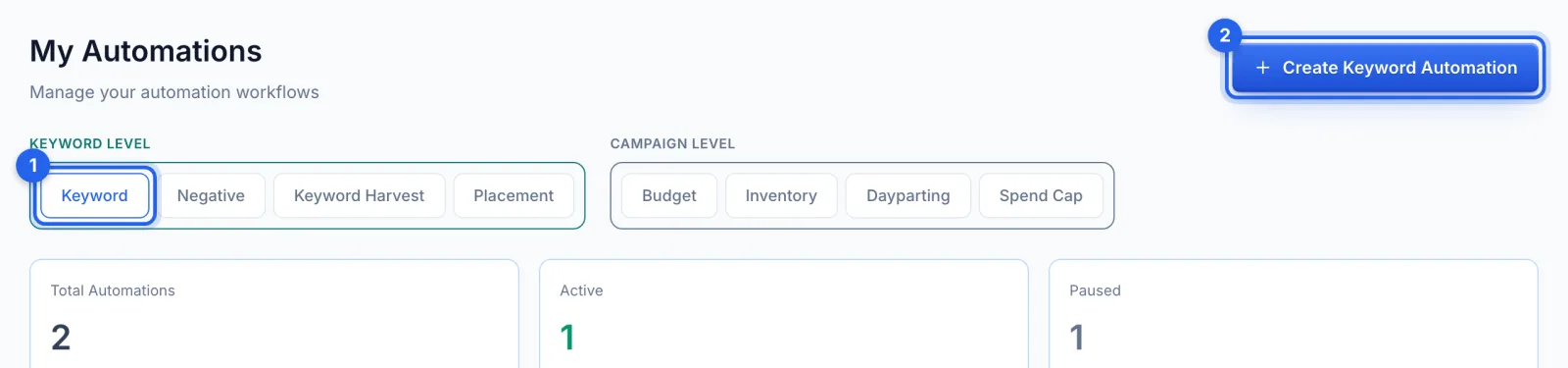
In the side menu, under Automation, click Automations. Stay on the Keyword tab (1) and click Create Keyword Automation (2). Bid rules are part of the Professional plan.
Step 2 · Name the rule set
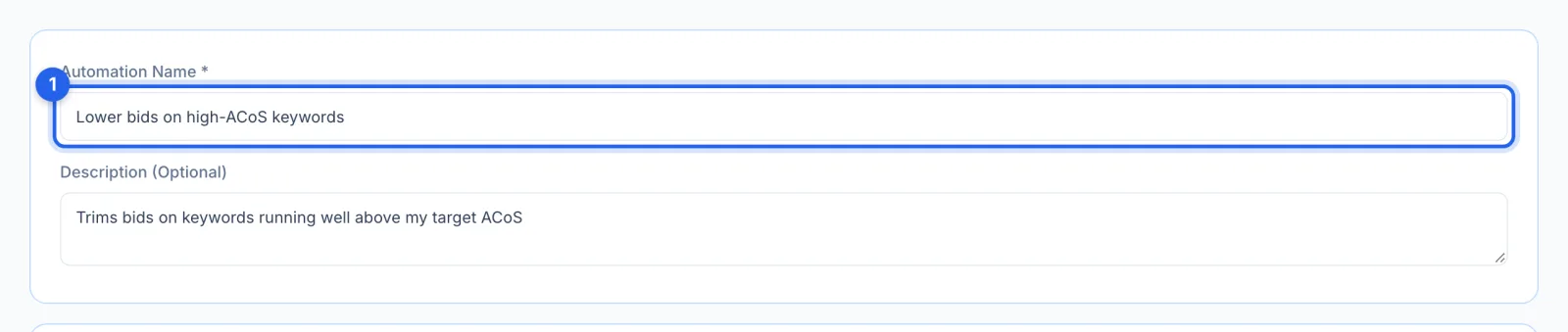
Give it a name you'll recognise in the review queue, such as "Lower bids on high-ACoS keywords", and an optional description.
Step 3 · Pick the campaigns
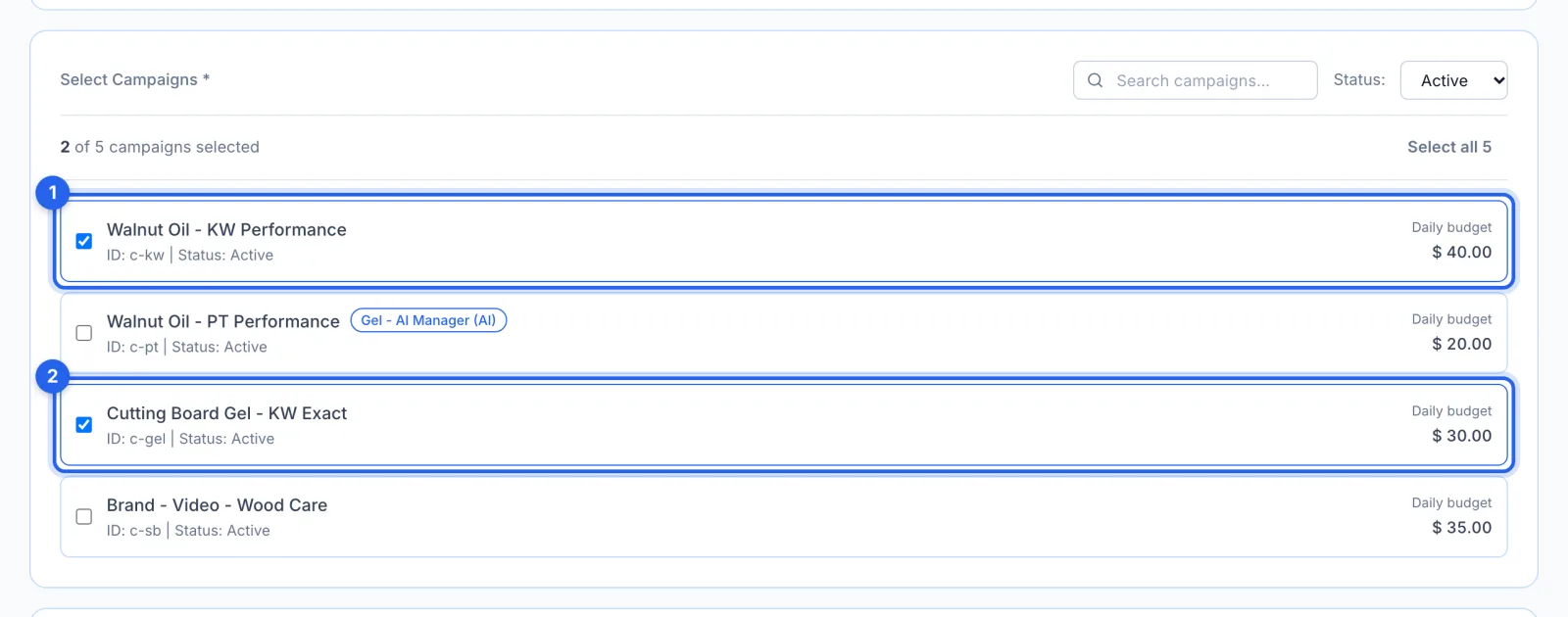
Tick the campaigns this rule set should manage. The list shows active campaigns; switch Status to see paused ones. Sponsored Products and Sponsored Brands campaigns are listed, but Sponsored Display campaigns aren't, because bid rules don't cover Sponsored Display. A campaign can be in only one bid rule set, and saving moves any campaign you pick out of an AI profile that manages it.
Step 4 · Set the conditions (IF)
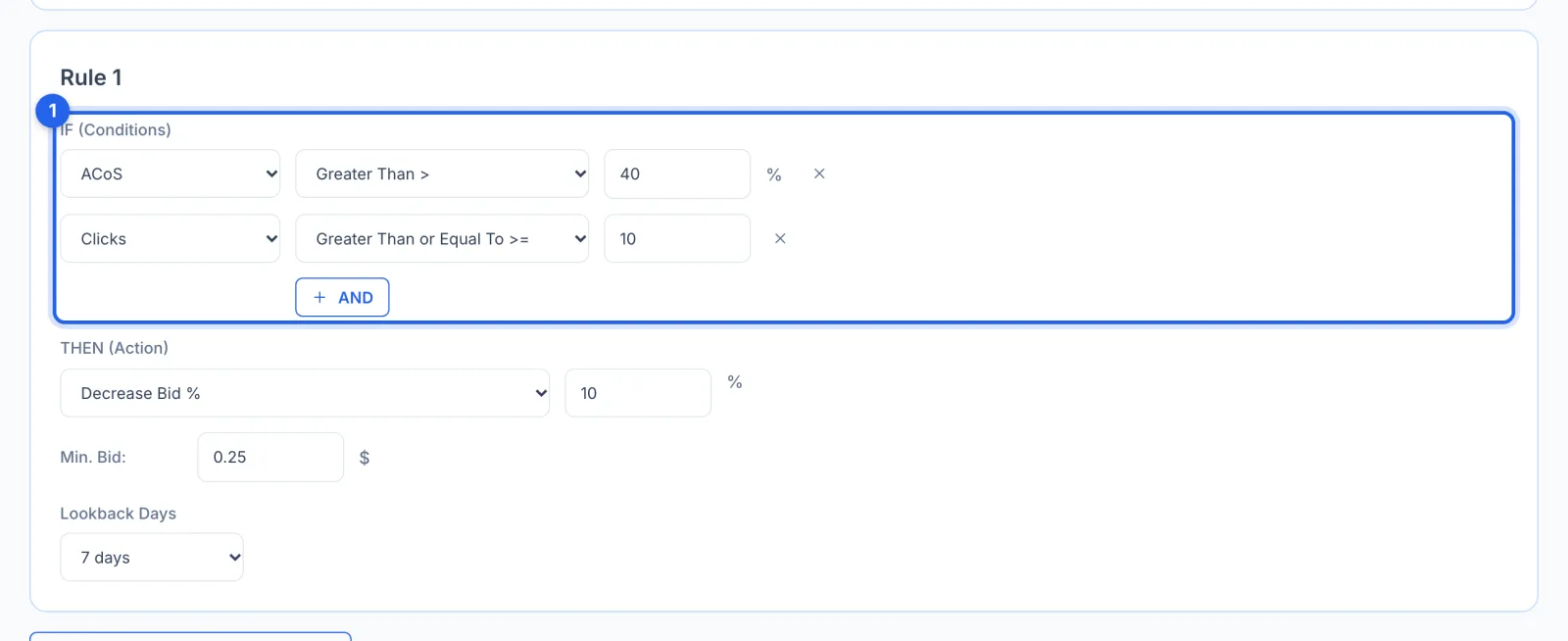
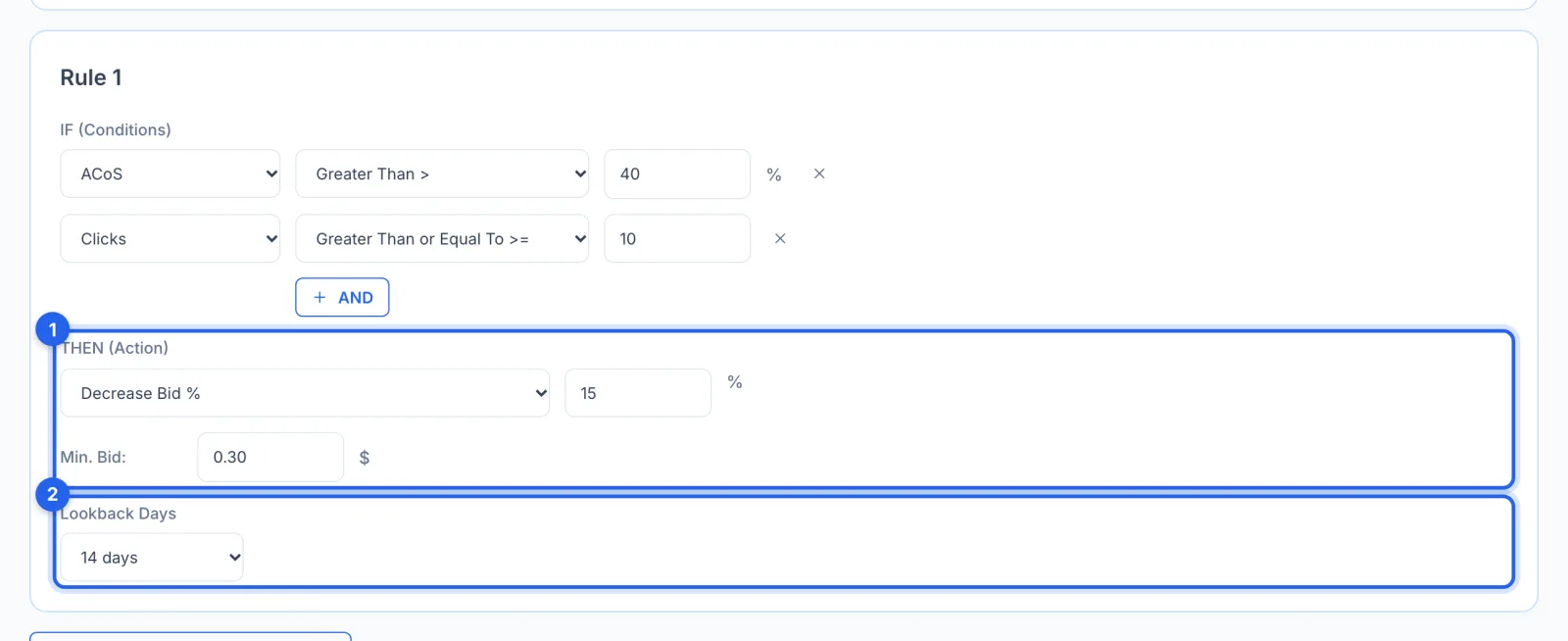
Choose a measure, a comparison and a value, and click AND to add another condition. Every condition must be true for the rule to act. This example acts on keywords and targets with ACoS above 40% and at least 10 clicks. A keyword that spent money with no sales counts as having infinitely high ACoS, so it matches an "ACoS greater than" condition.
Step 5 · Choose the action (THEN) and the lookback
Pick what the rule does: lower or raise the bid by a percentage or an amount, set a fixed bid, set it to the average cost per click, use a target-ACoS formula, or pause the keyword. Lowering takes a minimum bid (1); raising takes a maximum bid. Lookback Days is how much history each keyword is judged on (2): 14 days here. Amazon's own minimum bids still apply ($0.02 for Sponsored Products, $0.25 for Sponsored Brands).
Step 6 · Set the schedule and approval
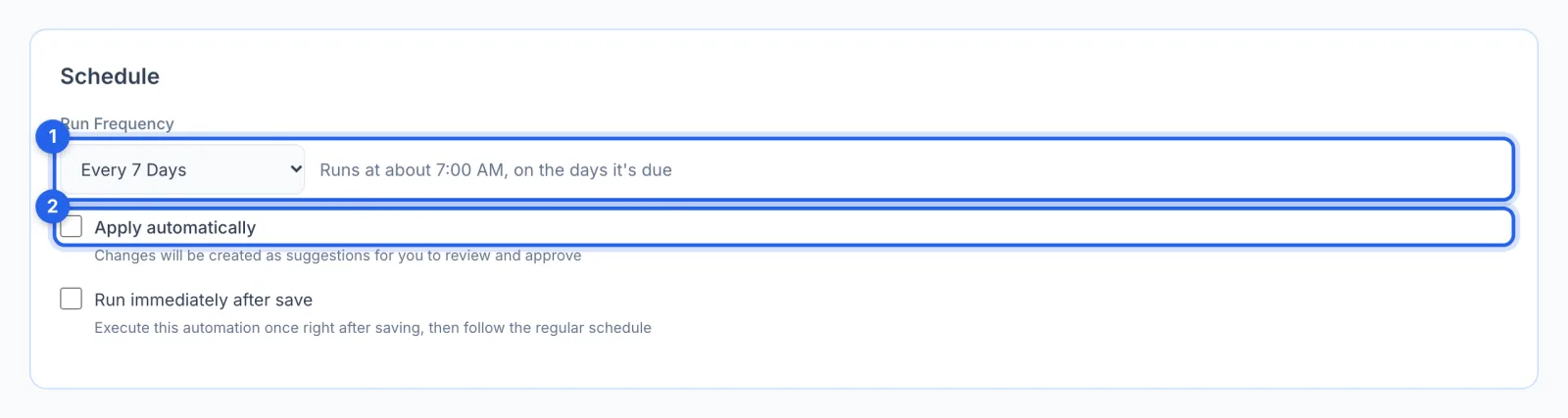
Run Frequency sets how often the rule set runs, from daily to every 30 days (1). Rules are checked once a day at 11:00 UTC (early morning in the US; the form shows it on your own clock) and run on the days they're due, once yesterday's Amazon data has arrived. Leave Apply automatically unticked (2) to approve every change yourself; tick it and bid changes and pauses go straight to Amazon. Run immediately after save runs it once straight away.
Step 7 · Save
Click Save Automation. You're taken back to My Automations, where the new rule set shows as Active.
Step 8 · Approve its changes
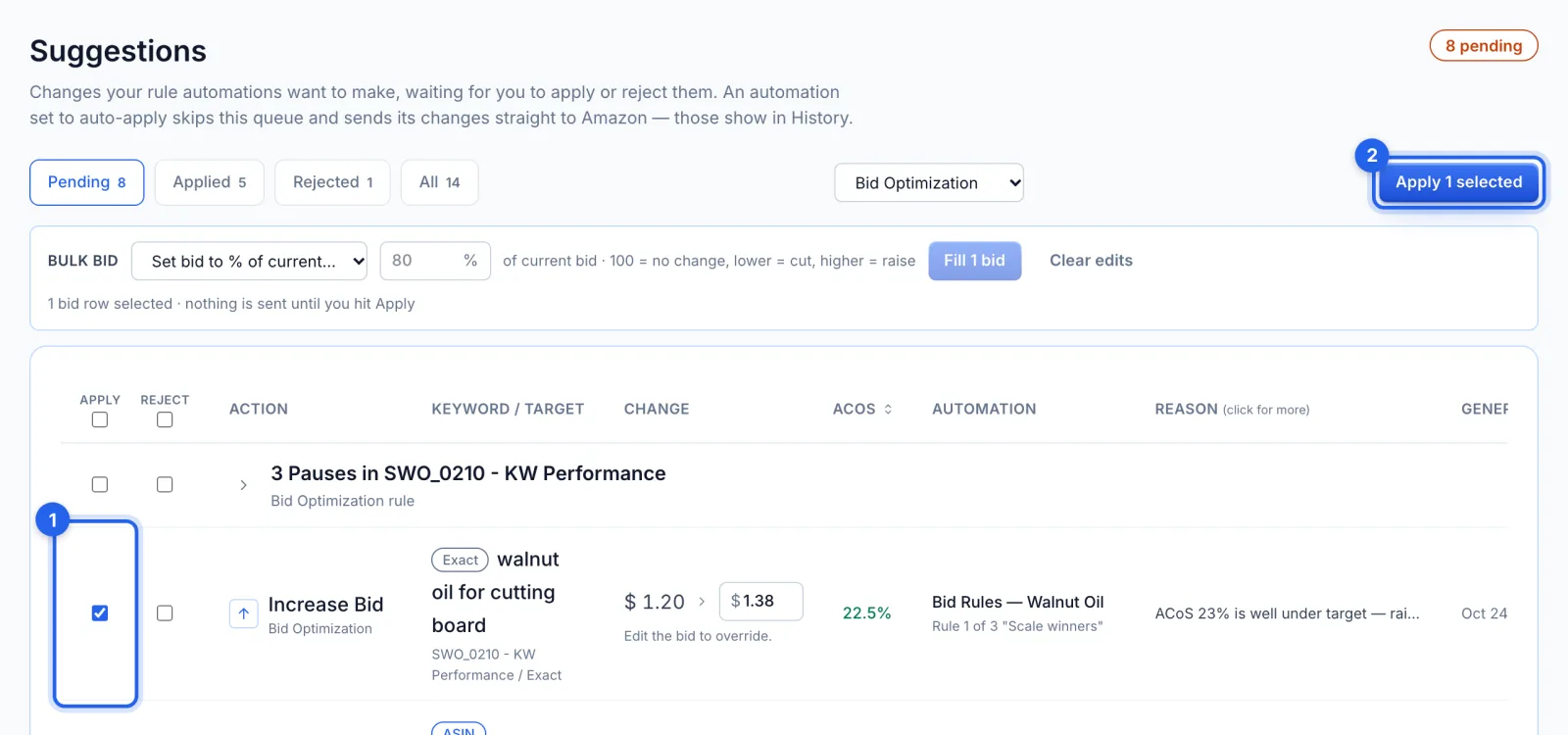
After a run, the changes wait under To review, then Suggestions, in the side menu. Each row shows the keyword, the current and suggested bid, its ACoS and the rule that matched; you can type a different bid. Tick Apply (1) on the ones you want, or Reject, then click Apply selected (2). Changes nobody reviews expire after 7 days.
Step 9 · Undo a change if you need to
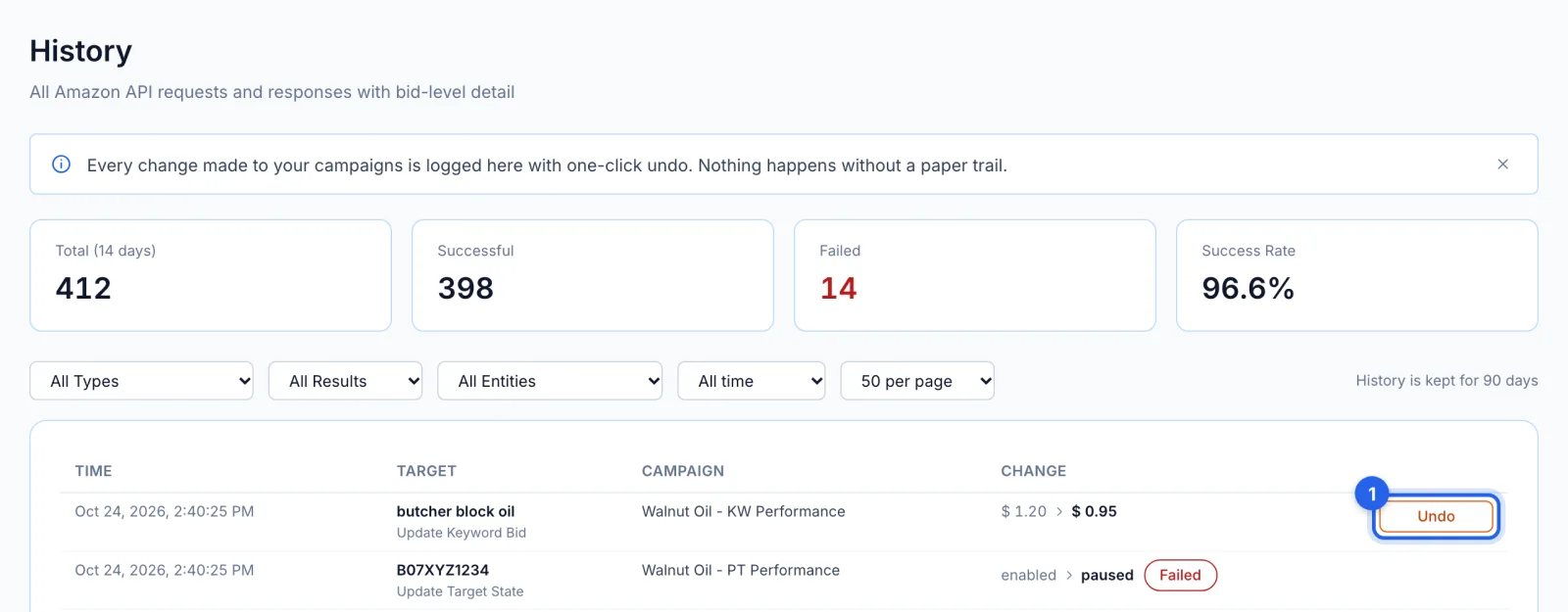
Every change sent to Amazon is listed in History. Click Undo on a bid or pause change to put the old value back on Amazon. Your rules and the AI then leave that bid or pause alone for 30 days, unless you change it again yourself. If you disagree with the rule itself, adjust it.
What happens next
- When it runs. On the days it's due, in the daily check at 11:00 UTC. If Amazon's data for yesterday hasn't arrived yet, it waits for the next day rather than act on old numbers.
- What it judges. Each keyword and product target on its own numbers over the lookback days, in enabled campaigns and ad groups only.
- More than one rule. A rule set can hold up to 20 rules (click Duplicate card to add another rule). Rules are checked in order: if two set the same bid differently, the higher one in the list wins (drag to reorder), and a pause wins over a bid change.
- Where to see what it did. Changes waiting for you are under Suggestions; changes sent to Amazon are in History, each with Undo.
Tips
- Start with Apply automatically off for the first week or two, so you can see what the rule wants to do before it does it on its own.
- A 14-day lookback lets late-arriving orders count; very short lookbacks can cut bids on keywords that are about to convert.
- Load from Template gives you a ready-made rule set as a starting point. Adjust its thresholds to your own products' margins before you save.