How to approve automation suggestions for Amazon ads
Use Suggestions in RedHen Labs: read each change your rules suggest and why, change a bid, apply or reject in bulk, and see Amazon's answer.
Your rule automations (Professional plan) don't change anything on their own unless you let them. Each change they want to make waits on the Suggestions page, with the numbers and the rule behind it, until you apply it or reject it.
This guide works through the page with a screenshot of each step (the control to use is ringed and numbered). It takes about four minutes.
Step 1 · Open Suggestions
In the side menu, under To review, click Suggestions. It holds the changes your rule automations want to make (bid, harvest, negative, budget, placement and inventory rules) until you apply or reject them. The tabs (1) show what's Pending, Applied, Rejected, or all of it; the menu (2) shows one automation at a time; the count (3) is what's waiting.

Step 2 · Read a suggestion
Each row is one change to one keyword, target or campaign. Change (1) runs from the current value to the suggested one; for a bid, type a different number in the box and that is what goes to Amazon. ACoS (2) is the keyword's when the rule ran, Automation (3) names the automation and the rule that matched, and Reason (4) says why.

Step 3 · See why in full
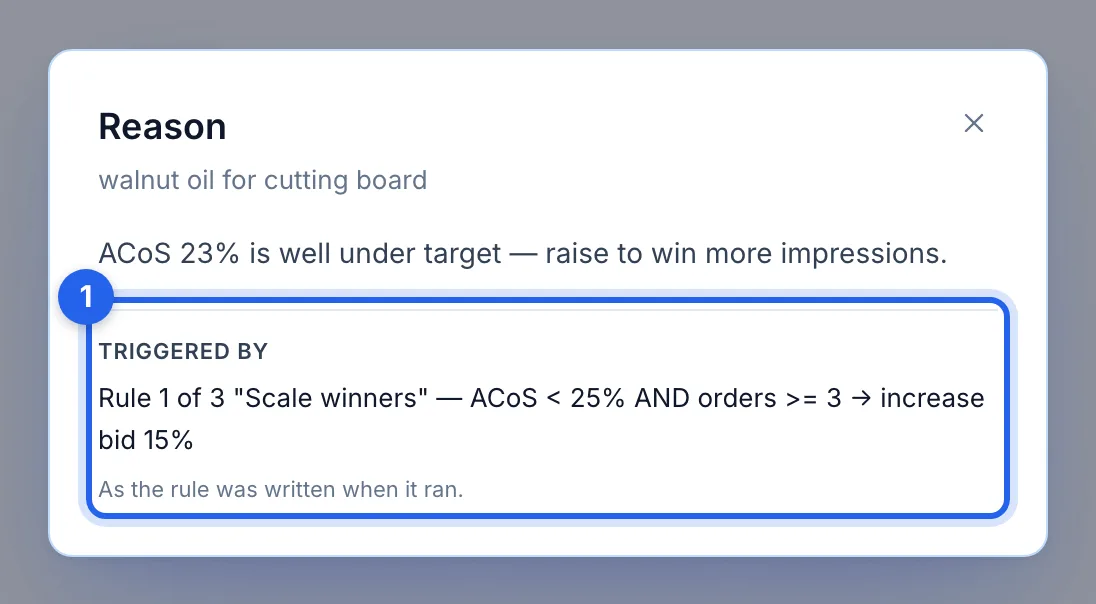
Click a reason to read all of it, with the rule that triggered it (1), as the rule was written when it ran.
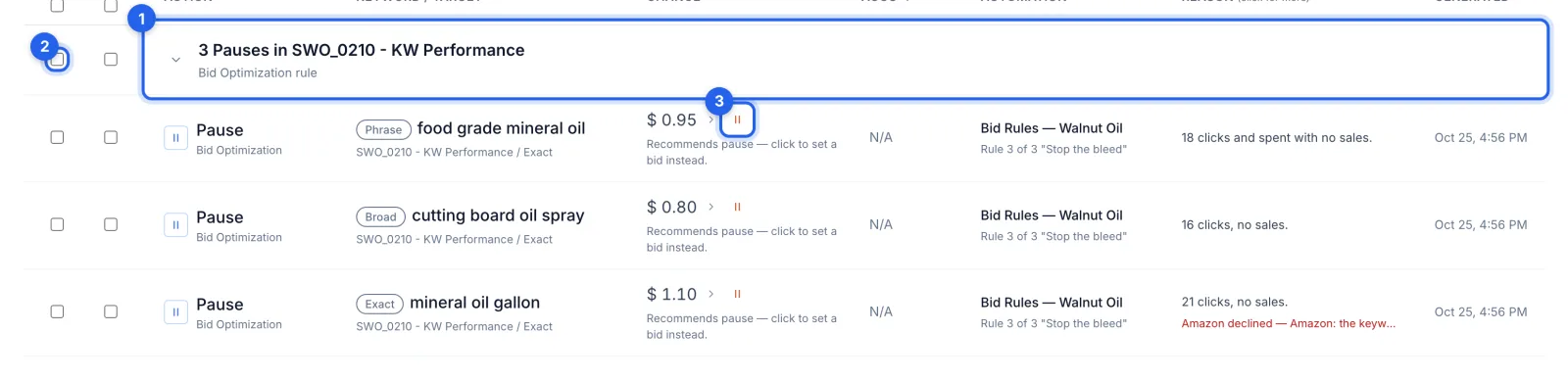
Step 4 · Work through a group
Two or more suggestions of the same kind, from the same kind of rule, are gathered into one row (1), such as 3 Pauses in one campaign. Click it to open it. Tick its APPLY box (2) to select every change in it. A pause can become a bid change instead: click its pause mark (3) and type a bid.
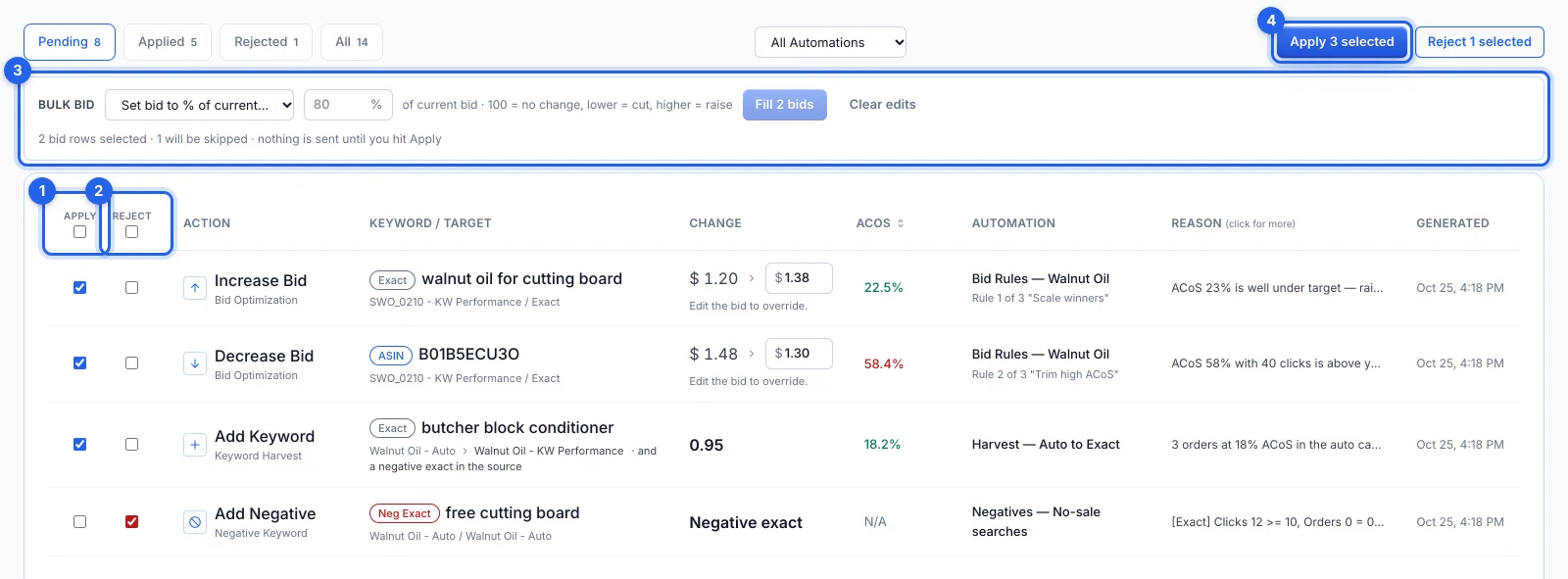
Step 5 · Apply or reject
Tick APPLY (1) on the changes to make and REJECT (2) on the ones to drop; the boxes in the headings tick a whole column. With bids selected, Bulk bid (3) fills them all at once, as a percentage of each current bid, one amount, or an adjustment; nothing is sent until you apply. Click Apply N selected (4) and the changes go to Amazon straight away; Reject N selected drops the others.
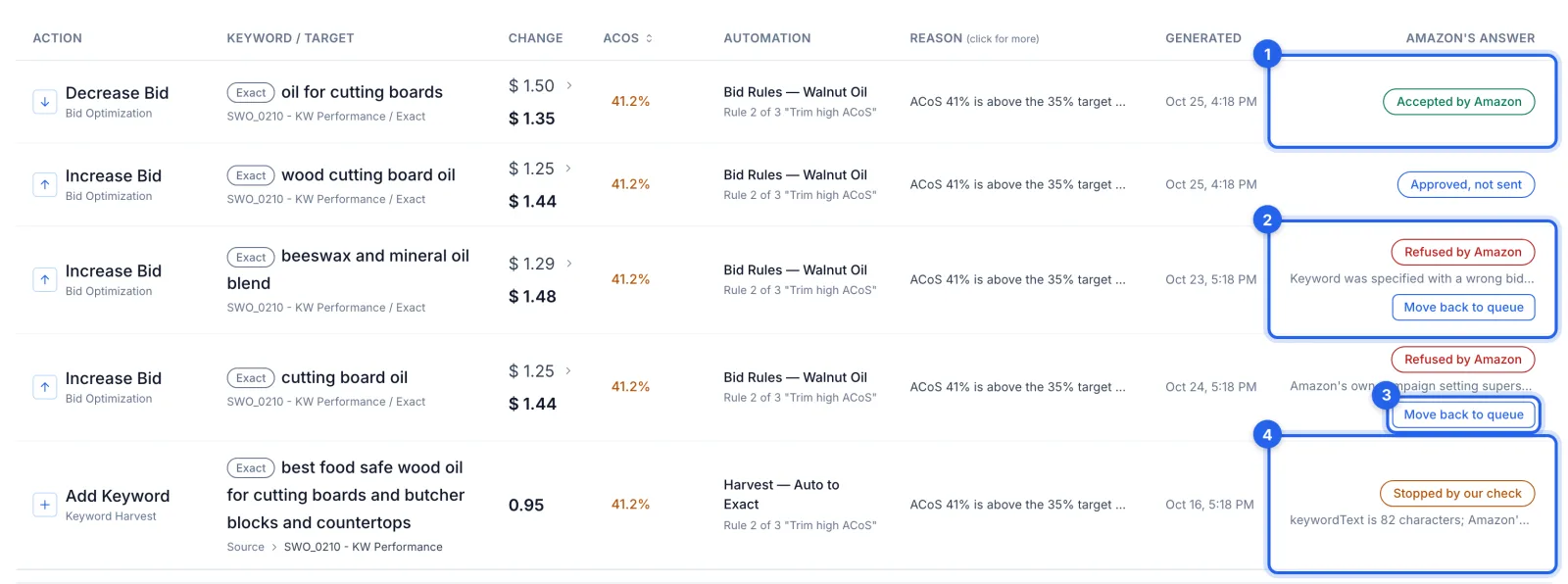
Step 6 · Read Amazon's answer
The Applied tab says what Amazon did with each change: Accepted by Amazon (1), or Refused by Amazon (2) with its reason (hover over it for all of it). Move back to queue (3) returns a refused change to Pending to try again, within a week of when it was suggested. Stopped by our check (4) means one of our own checks held it back, so nothing was sent; Approved, not sent means it hasn't reached Amazon yet.
Good to know
- A suggestion waits 7 days. After that it expires; if it still applies, the automation suggests it again on its next run.
- A no is remembered. A rejected harvest or negative isn't suggested again for that campaign for 14 days. Bid and budget rules suggest again on their next run if the numbers still call for it.
- Skipping the queue. An automation set to apply automatically sends its changes straight to Amazon; they appear in History, where bids and pauses can be undone. Dayparting and spend caps never wait here.
- Paused products. Bid rules skip keywords and targets whose ad group is paused, or whose product ads are all paused, so their bids stay put until the product is live again.
- The AI has its own queue. AI profiles' changes wait on AI Recommendations (see How to review and apply AI bid recommendations).