How to schedule Amazon bids by hour (dayparting)
Set up dayparting in RedHen Labs: pick campaigns, see when your customers buy, lower or raise bids in the hours you choose, and have them put back after.
Dayparting changes your bids by the hour: lower them in the hours your customers rarely buy, raise them in the hours they do, and put them back afterwards. You choose the campaigns, the hours for each day, and how far the bids move.
This guide sets up a schedule with a screenshot of each step (the control to use is ringed and numbered). It takes about four minutes.
Step 1 · Open the Dayparting tab
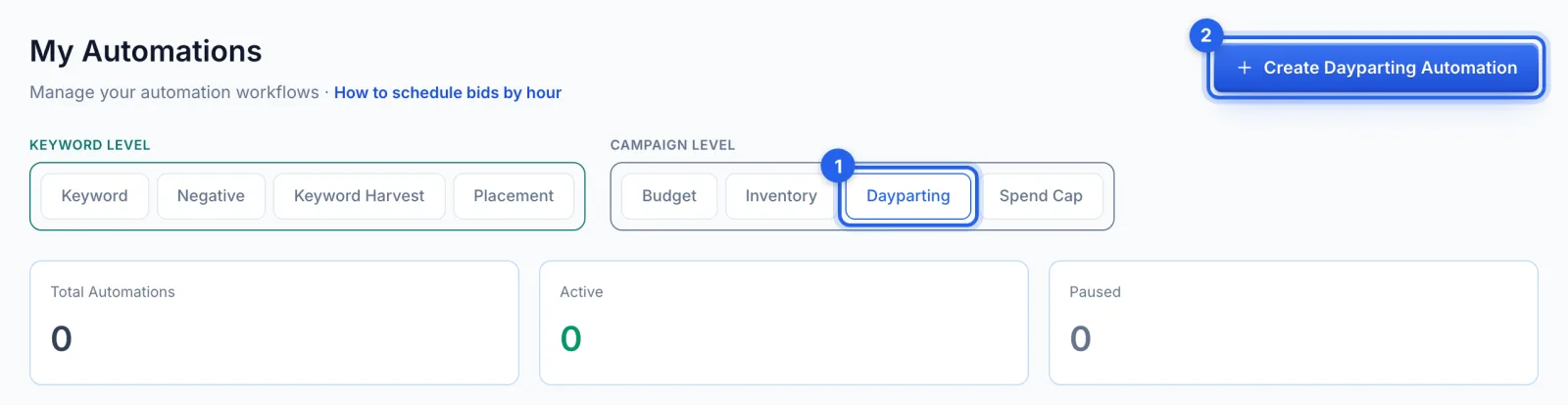
In the side menu, under Automation, click Automations (Professional plan). Under Campaign level, open the Dayparting tab (1) and click Create Dayparting Automation (2).
Step 2 · Name it and pick the campaigns
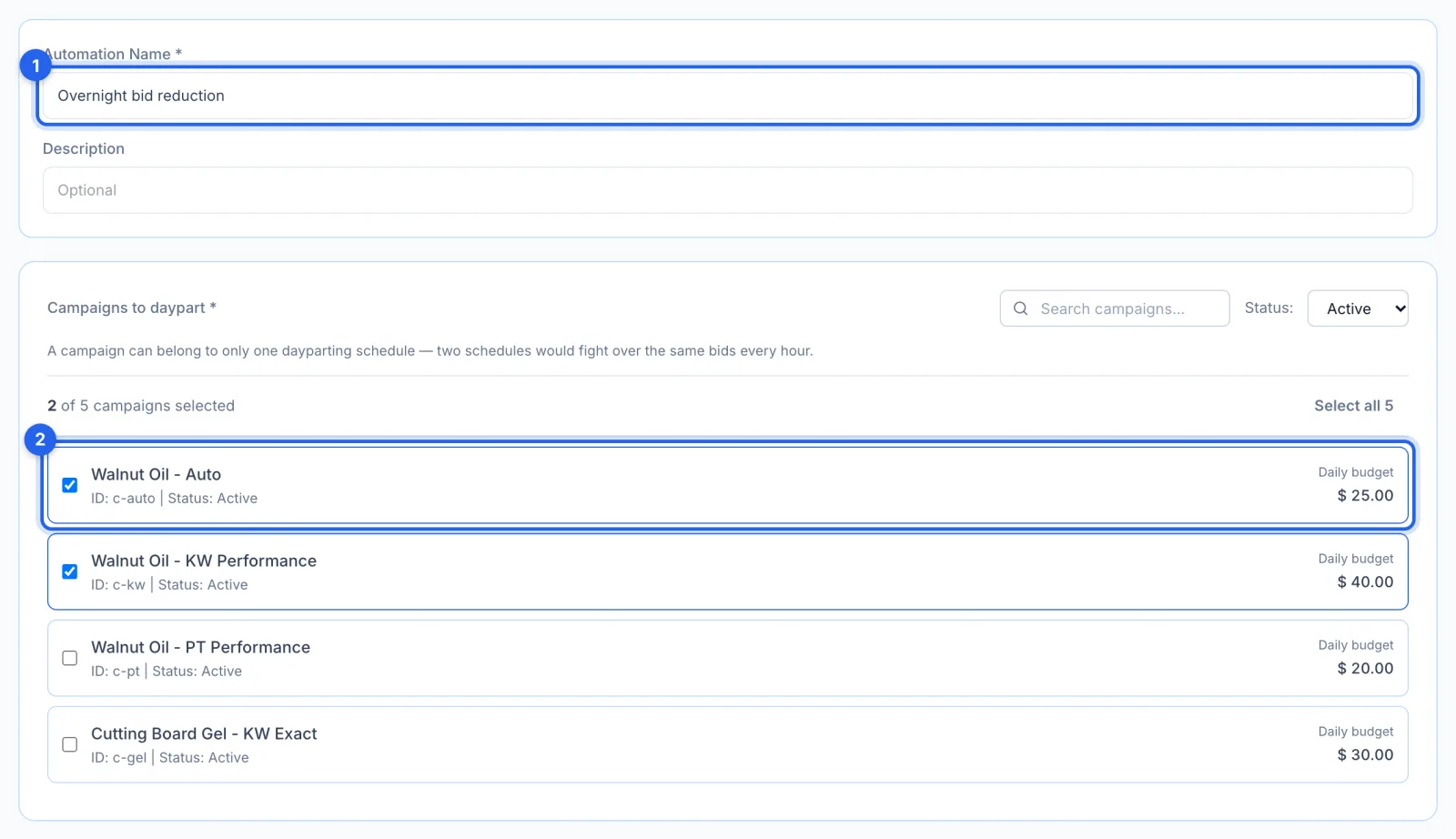
Name the schedule (1) and tick the campaigns whose bids it moves (2). A campaign can belong to one dayparting schedule, so two schedules never fight over the same bids; Sponsored Display campaigns aren't offered.
Step 3 · See when your customers buy
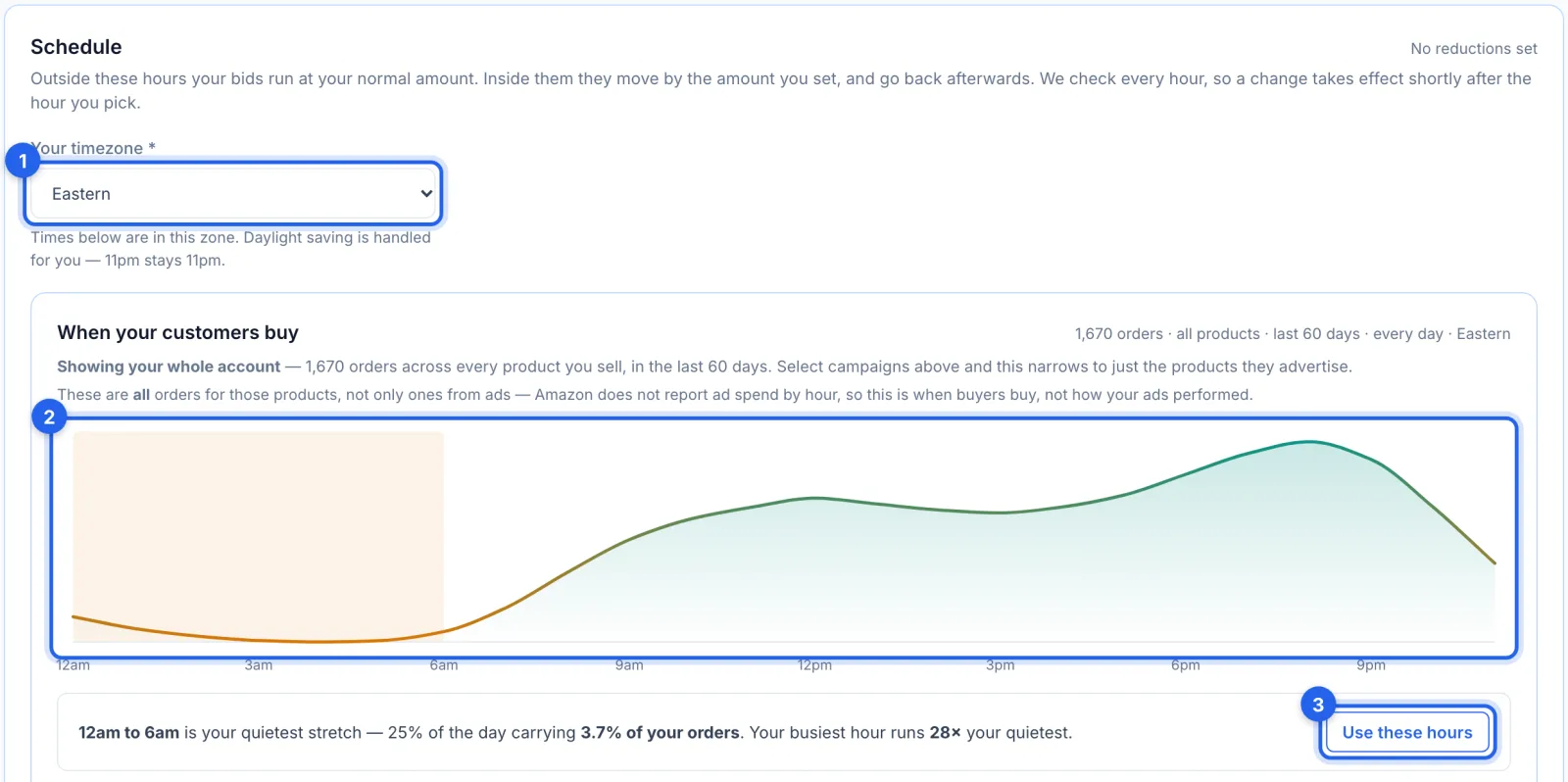
Pick your timezone (1); times are in that zone, and daylight saving is handled for you. When your customers buy (2) charts your orders by hour over the last 60 days, for the products the selected campaigns advertise. These are all orders, not only ones from ads: Amazon doesn't report ad spend by hour, so this is when buyers buy, not how your ads performed. It needs 120 orders to draw. Use these hours (3) fills every day with your quietest stretch at 50% lower bids.
Step 4 · Set the hours and the change
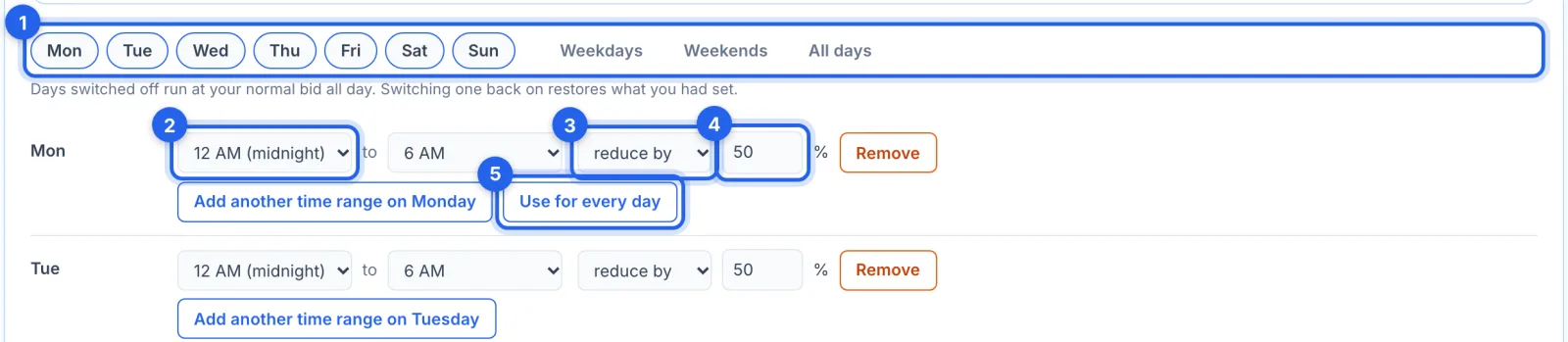
Pick the days (1), or Weekdays, Weekends or All days. For each day, set the hours (2), whether to reduce or increase bids (3) and by how much (4): 1 to 99% down, or 1 to 100% up. Use for every day (5) copies Monday's hours to the rest, and Add another time range gives a day a second window. Outside your hours, bids run at your normal amount.
Step 5 · Save it
Click Save Automation (1). From then on it checks every hour and moves the bids of the keywords and targets that spent in the last 30 days, then puts them back when the window ends.

Good to know
- Every hour. The schedule is checked every hour, so a change takes effect shortly after the hour you pick, and bids go back to your normal amount when the window ends.
- What it moves. The bids of the keywords and product targets in your chosen campaigns that spent in the last 30 days, never below Amazon's minimum bid.
- History lists its changes as Dayparting, without Undo: the next hourly check would put a changed bid straight back while its window is open.
- The chart is a guide, not ad data. It counts every order for the products, organic ones included; Amazon doesn't report ad spend by hour.
Tips
- Start by lowering bids in your quietest overnight stretch, and look at the results after a couple of weeks before raising bids anywhere.
- To keep a month's spend in bounds as well, use a spend cap: dayparting moves bids, the cap moves budgets.