How to manage a campaign's keywords, bids and placements
Work inside one Amazon campaign in RedHen Labs: status and budget, placement bids, products, keyword bids beside Amazon's suggested bids, and negatives.
Each campaign has its own page: its status and budget, its placement bid adjustments, the products it advertises, and tables of its keywords, search terms and negatives, with every figure for the dates you pick.
This guide goes through the page with a screenshot of each step (the control to use is ringed and numbered). It takes about five minutes.
Step 1 · Set the campaign's status and budget
Open a campaign from Campaigns. At the top, set its status (1) and its daily budget (2), in whole dollars from $1 to $100,000, then click Save. The date range below sets every figure on the page, and Export (3) downloads them as an Excel workbook, or a CSV of the tab you're on. Sponsored Brands and Sponsored Display campaigns also have a Bid control switch: your bids, or Amazon's own bid optimization.

Step 2 · Adjust your placement bids
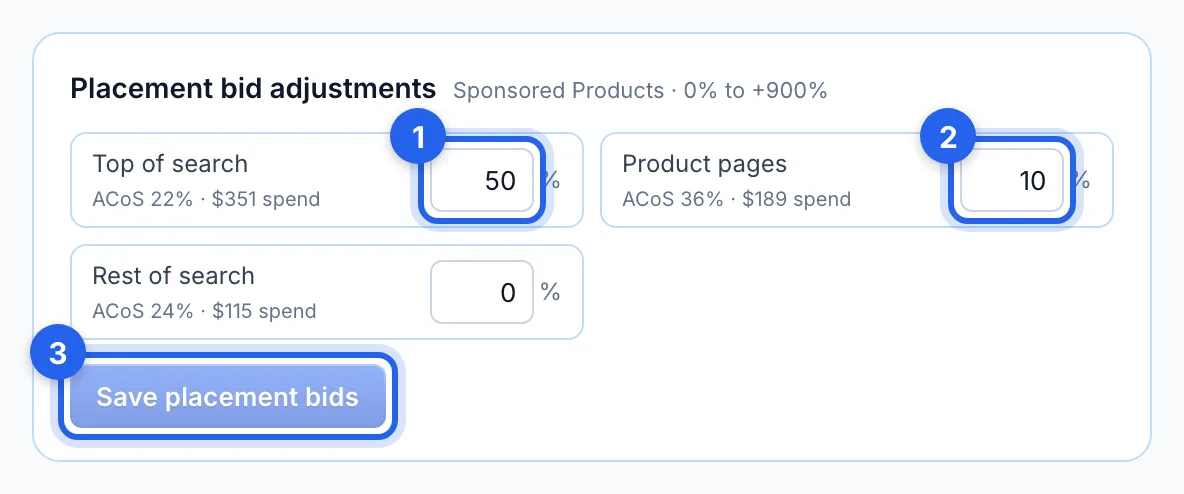
Placement bid adjustments raise your bids where the ad appears: Top of search (1), Product pages (2) and Rest of search, from 0 to 900% on Sponsored Products (Sponsored Brands can also go down to -99%). Each shows its ACoS and spend for the dates, so you can see which placement earns its extra. Click Save placement bids (3).
Step 3 · Pause an advertised product
Advertised Products lists the products this campaign advertises. The pause button (1) stops one product's ad; press it again to switch the ad back on. Click a product to filter the tables below to its ad group. Sponsored Display ads, and Sponsored Brands ads that show several products, can't be paused one by one here.

Step 4 · Read keywords beside Amazon's suggested bids
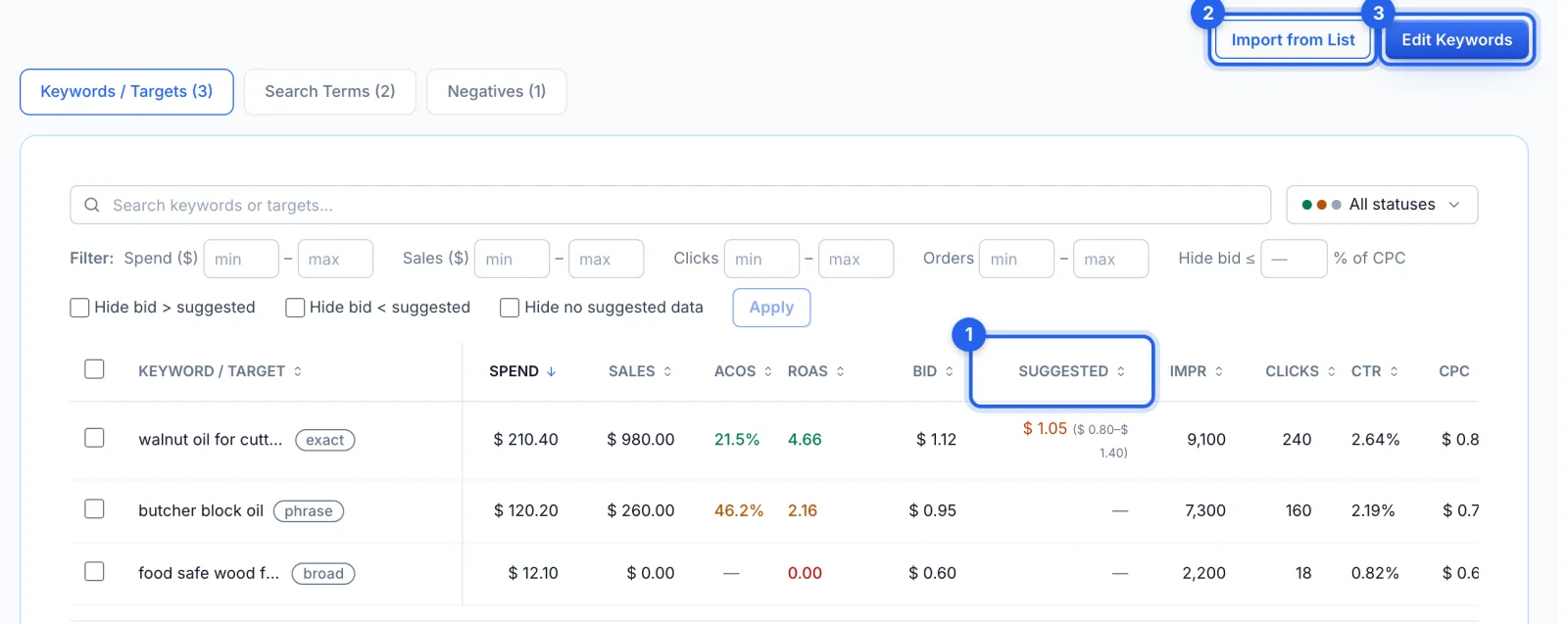
The Keywords / Targets tab lists the campaign's keywords and product targets. Suggested (1) is Amazon's median suggested bid, with its range, on Sponsored Products (it's blank for Sponsored Brands); a bid above it shows in orange. Filter by spend, sales, clicks or orders, or hide bids above or below the suggestion. Import from List (2) adds keywords or ASINs from a saved list, and Edit Keywords (3) turns bids and statuses into fields you can change.
Step 5 · Change bids in bulk
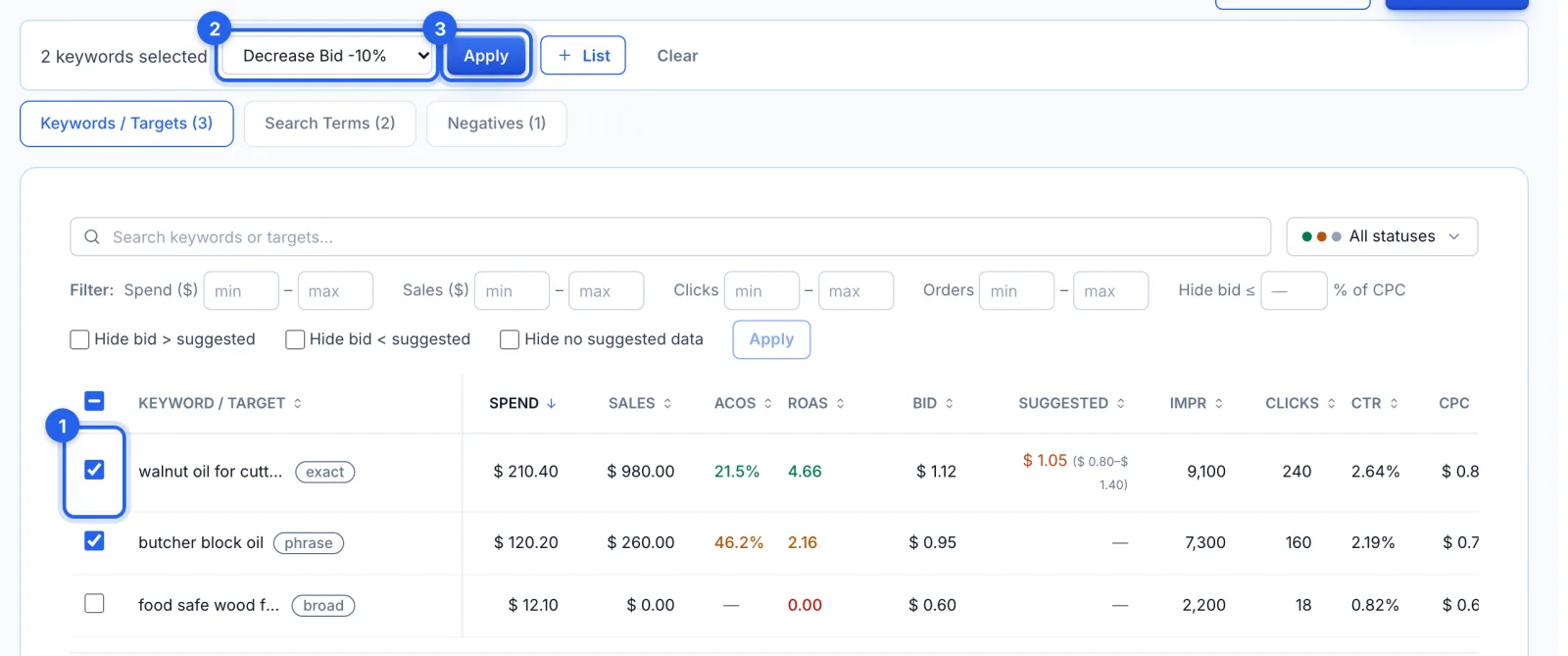
Tick keywords (1), choose an action (2): Pause Keywords, Enable Keywords, Set Bid To…, a bid change of 10% or 20% up or down, or + Add to List, and click Apply (3). Bids stay between $0.02 and $31 ($0.25 at least on Sponsored Brands). Bid and status changes go straight to Amazon, and can be undone in History.
Step 6 · Import keywords from a list
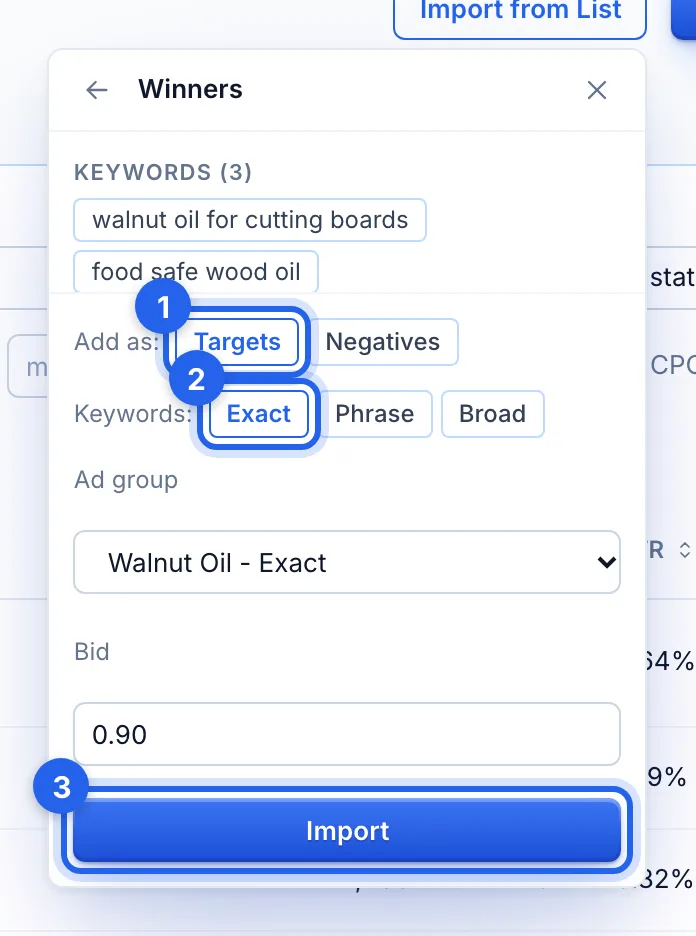
Import from List takes a saved list. Choose Targets or Negatives (1) and the match type (2): exact, phrase or broad for keywords, or exact or expanded for ASINs on Sponsored Products. Pick the ad group and the bid, and click Import (3). Items the campaign already has are counted, not added twice.
Step 7 · Block search terms
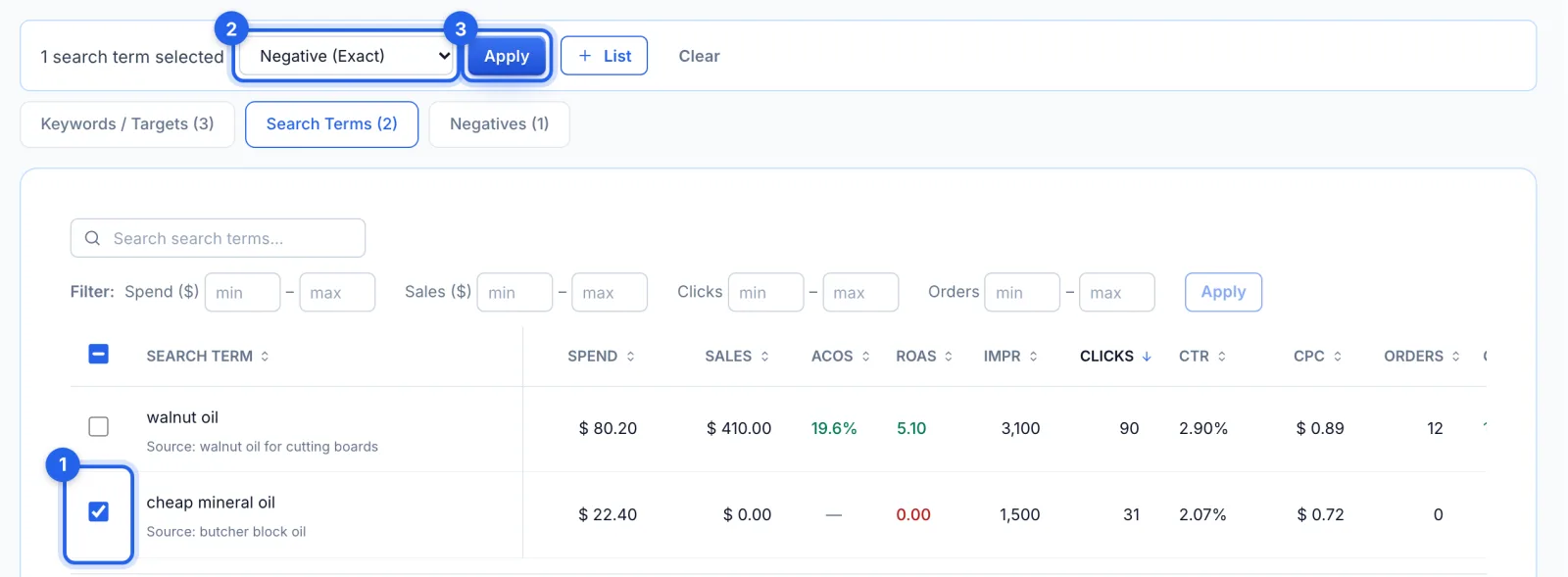
The Search Terms tab lists the searches that triggered your ads, with the keyword each came from. Tick the ones to block (1), choose Negate All Selected, Negative (Exact), Negative (Phrase) or Negative ASIN Target (2), and click Apply (3); each is blocked in the ad group it ran in. The Negatives tab lists everything already blocked.
Good to know
- Undo. Keyword and target bid and status changes can be undone in History. New negatives, imported keywords, and placement and product changes are listed there without Undo.
- Converting searches. To add a search term that sells as an exact keyword, use Add as exact in Keyword Analysis or on Insights.
Tips
- Compare the placements' ACoS before raising Top of search: a higher adjustment buys more top-of-search clicks, at a higher cost per click.
- Sort keywords by spend and look at those with spend and no orders first.