How to manage your Amazon campaigns and budgets
Find, compare and change your Amazon ad campaigns in RedHen Labs: filters, the campaign table, bulk budget and status changes, and editing one at a time.
The Campaigns page lists every Amazon ad campaign you run, with its spend, sales and settings for the dates you pick, and lets you change them one at a time or many at once.
This guide goes through it with a screenshot of each step (the control to use is ringed and numbered). It takes about four minutes.
Step 1 · Open Campaigns and narrow the list
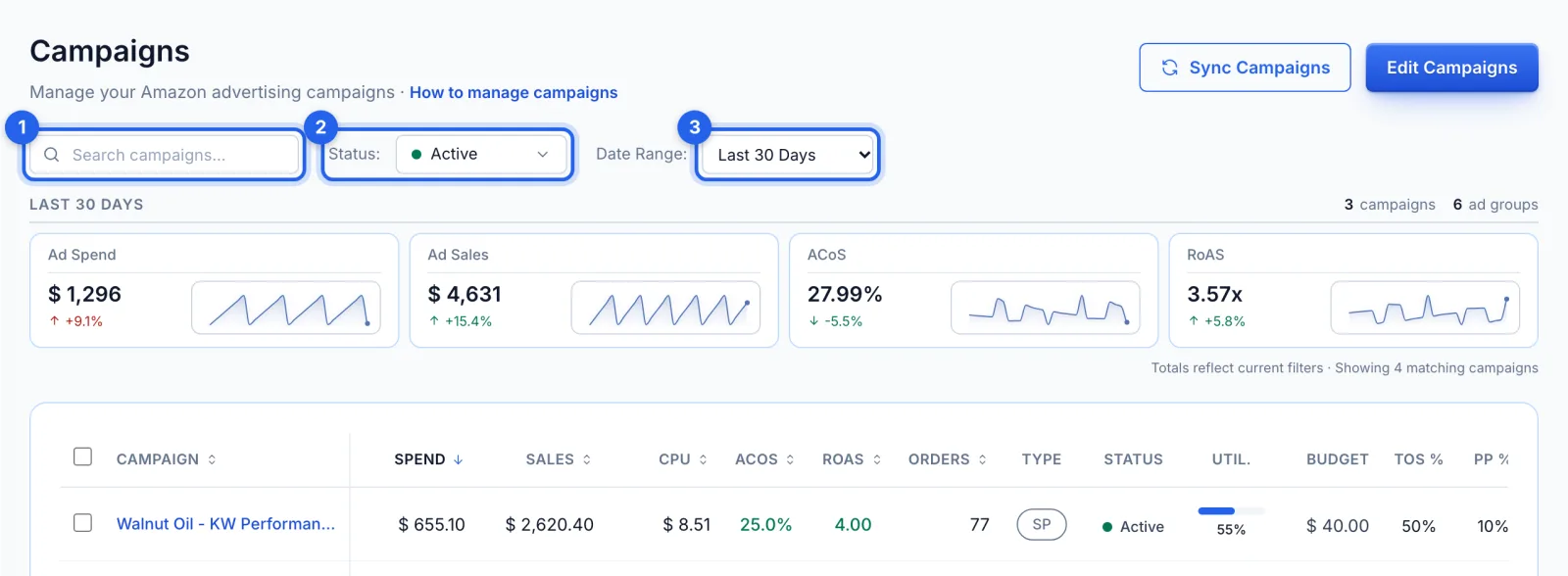
In the side menu, under Advertising, click Campaigns (Growth and Professional plans). Search by name (1), choose which statuses to show (2), Active to start, and pick the date range (3): the last 7, 14, 30, 60 or 90 days, or dates of your own, each ending yesterday. The cards add up ad spend, ad sales, ACoS and RoAS for the campaigns shown, against the period before.
Step 2 · Read the campaign table
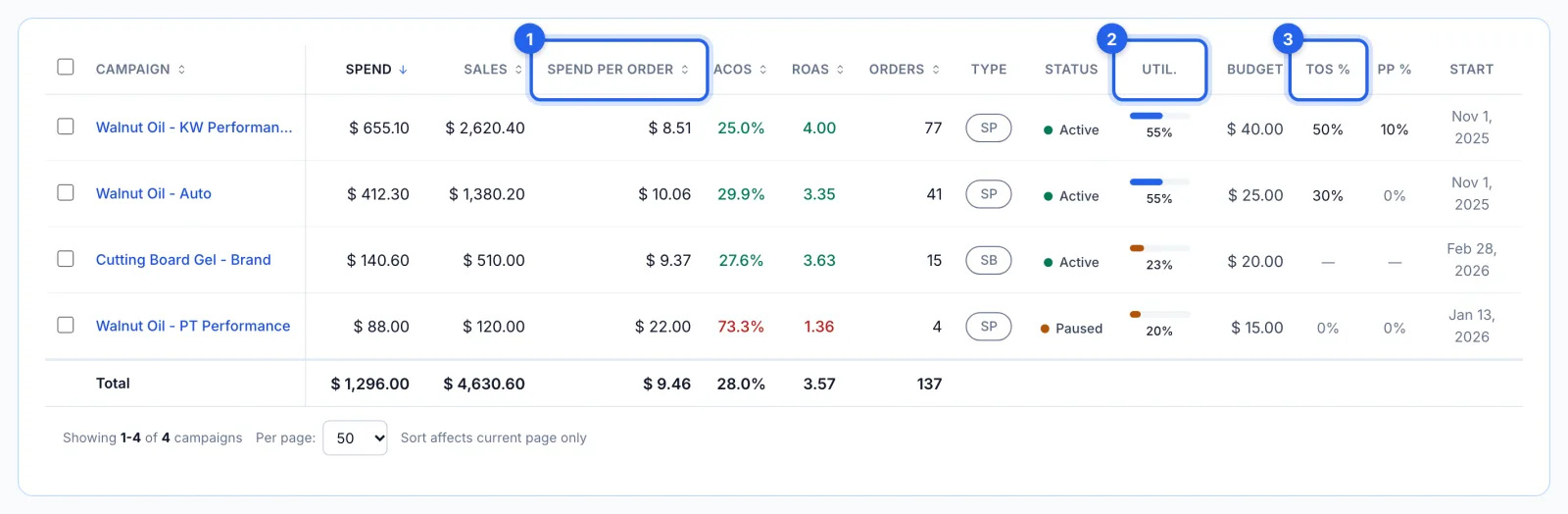
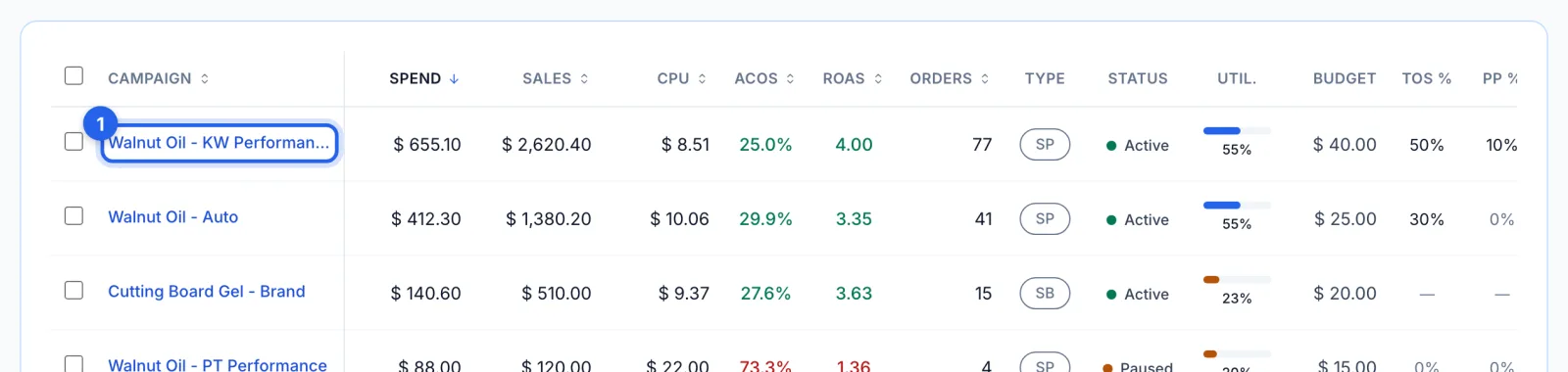
Sponsored Products and Sponsored Brands campaigns share one table, marked SP or SB; Sponsored Display has its own table below it. Beside spend, sales, ACoS, RoAS and orders: Spend per order (1) is the ad spend divided by orders, Util. (2) is how much of its daily budget a campaign has been spending, and ToS % and PP % (3) are its placement bid adjustments for top of search and product pages. Click a column heading to sort what's on the page.
Step 3 · Change several campaigns at once
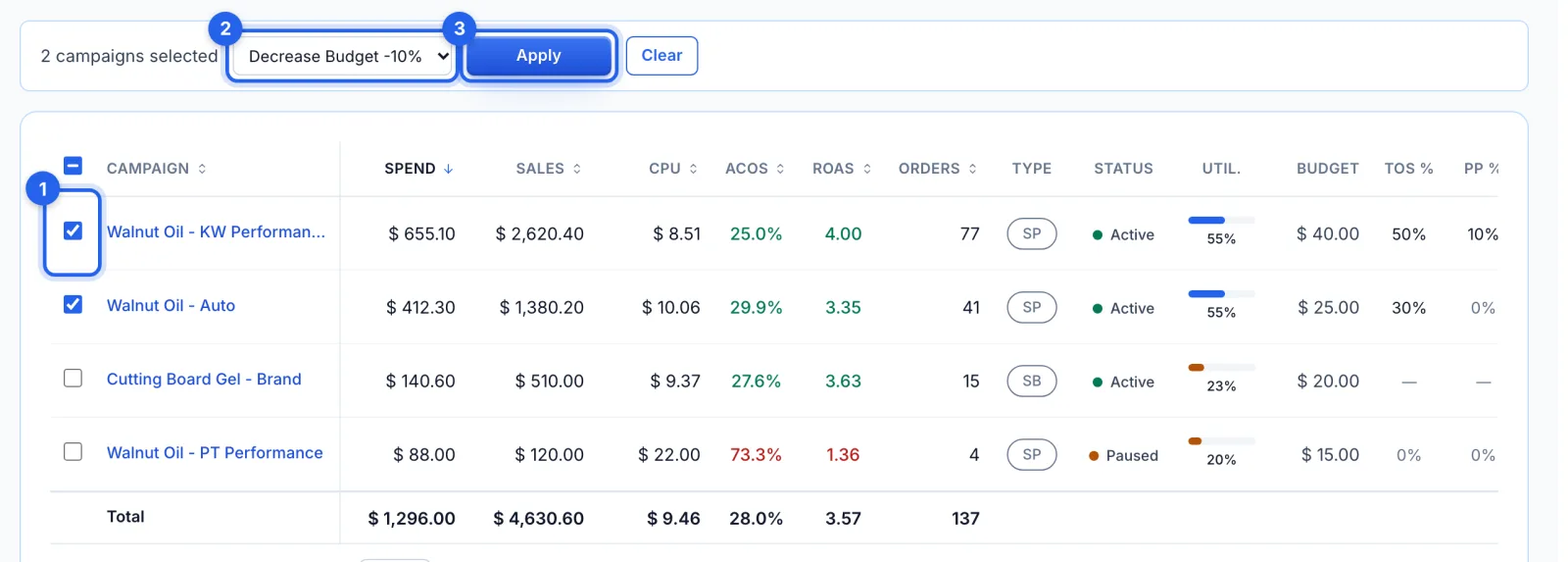
Tick the campaigns (1), choose an action (2): Pause Campaigns, Enable Campaigns, or raise or lower their budgets by 10% or 20%. Then click Apply (3). Changes go straight to Amazon. A campaign Amazon refuses stays ticked, so a second Apply retries only those.
Step 4 · Edit campaigns one at a time
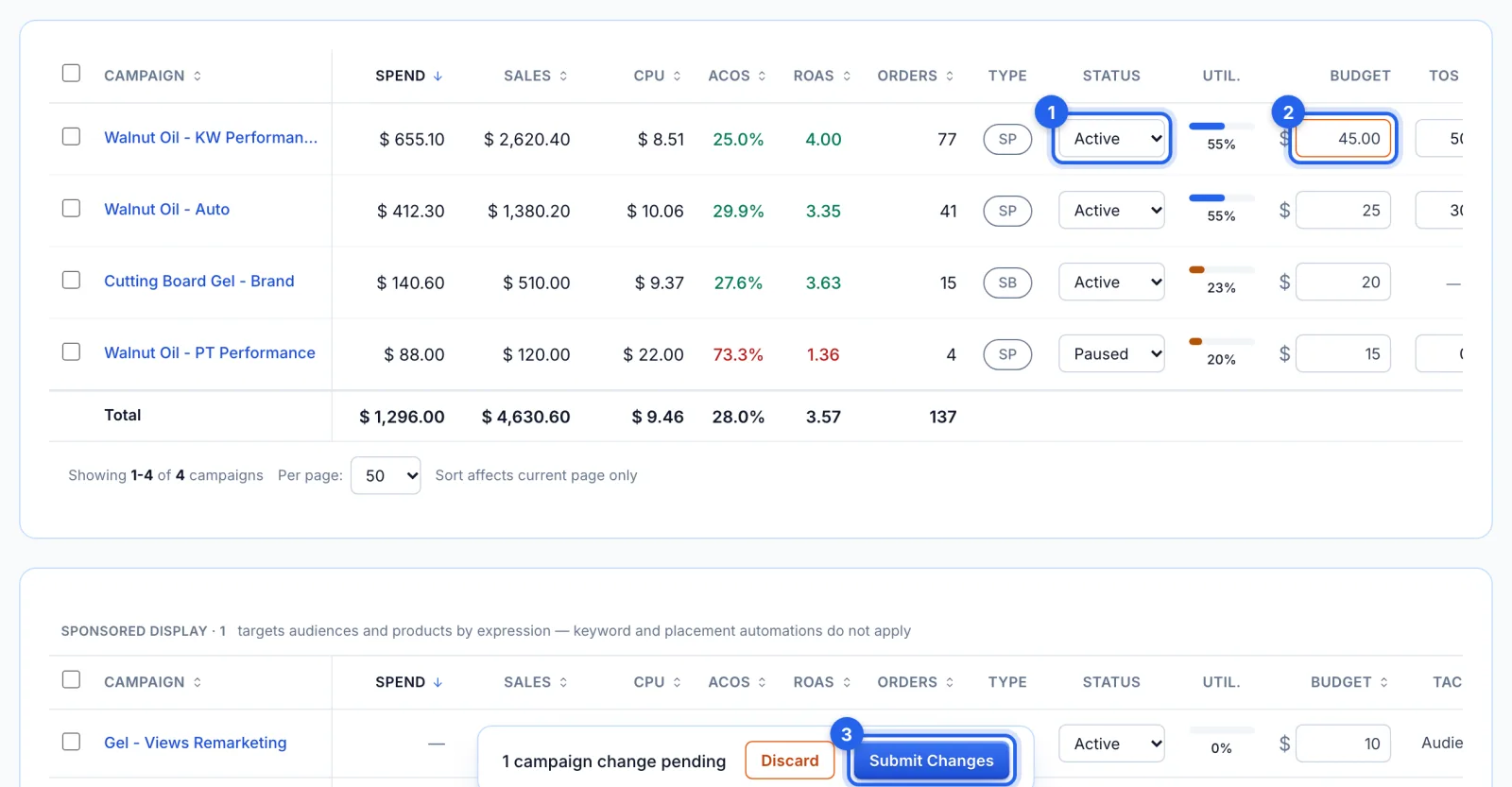
Click Edit Campaigns to turn the table into fields: each campaign's status (1), daily budget (2) and end date, and for Sponsored Products its top-of-search and product-page adjustments (0 to 900%). A budget over $500 is outlined in red, so a slip of the keyboard stands out. A bar counts your changes: Submit Changes (3) sends them to Amazon, and Discard drops them. Archiving asks first, and can't be undone.
Step 5 · Open a campaign
Click a campaign's name (1) to open its own page: its keywords and targets, search terms, negatives, products and placement settings.
Good to know
- Undo. Every change here is listed in History. Status and budget changes can be undone there, once; placement and end-date changes, and archives, can't.
- Budgets a spend cap manages show in orange. A change made here lasts only until the cap's next daily run; to change one for good, edit the campaign in the spend cap.
- Sync Campaigns. Campaigns come in from Amazon every night. Sync Campaigns fetches them now, for example after a change made in Amazon's own console.
Tips
- A campaign at 100% in Util. spent its full daily budget and may have stopped showing before the day ended. Raising the budget of a profitable one keeps it running.
- To find keywords that two of your campaigns both bid on, use Keyword Analysis.