How to find duplicate keywords across Amazon campaigns
Use Keyword Analysis to find keywords and search terms competing across your Amazon campaigns, change bids in bulk, and block or harvest search terms.
Keyword Analysis puts the keywords and search terms of several campaigns in one table, so you can see where your own campaigns overlap: the same keyword running in two campaigns, or one search reaching several of them. From the same table you can change bids, pause keywords, block search terms and add converting searches as exact keywords.
This guide goes through it with a screenshot of each step (the control to use is ringed and numbered). It takes about five minutes.
Step 1 · Pick the campaigns to compare
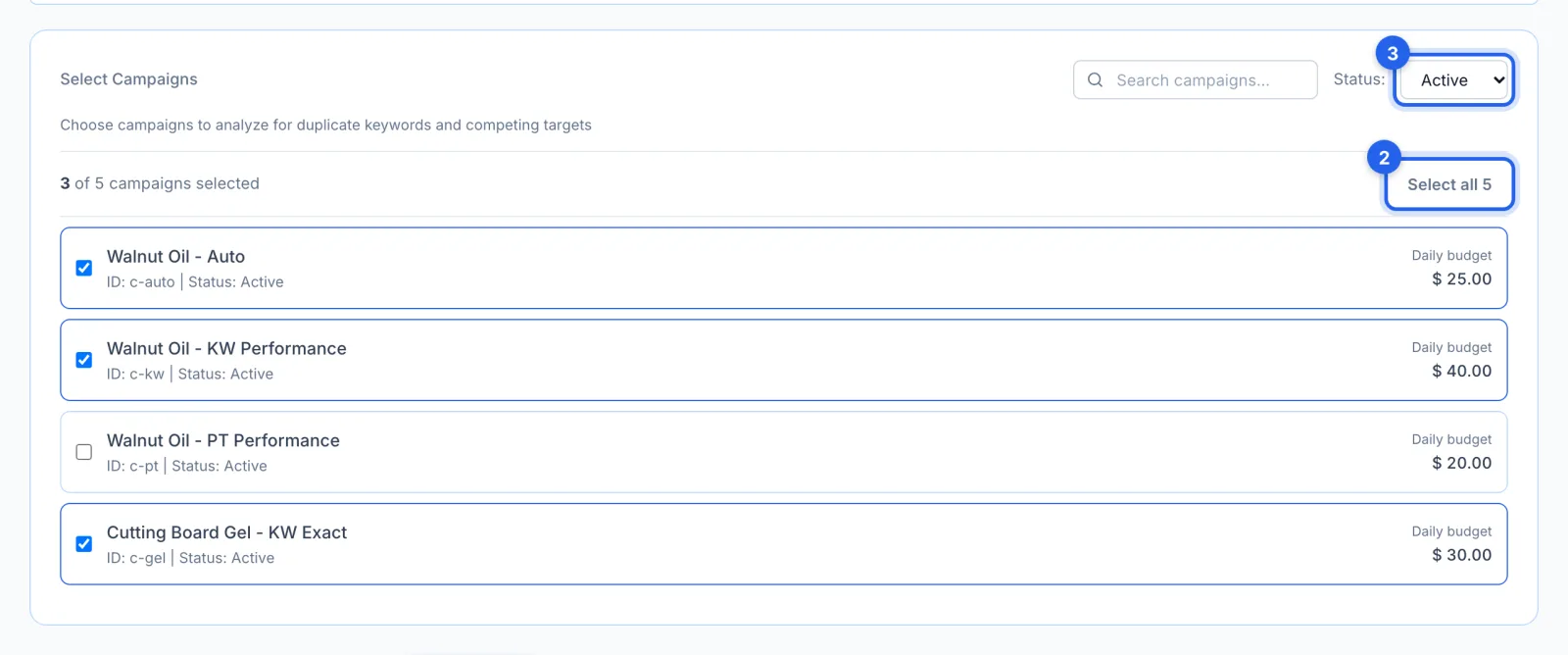
In the side menu, under Advertising, click Keyword Analysis (Growth and Professional plans). Tick the campaigns to compare (1), or Select all (2); Status (3) also lists paused campaigns. With nothing ticked, the Analyze all button picks every active campaign at once. Only the campaigns you pick are compared with each other.
Step 2 · Choose the dates and show duplicates only
Pick a date range (1): the last 7, 14, 30, 60 or 90 days, or Custom. Each ends yesterday, and it changes the numbers, not which keywords are listed. Tick Duplicates Only (2) to keep just the keywords and search terms that appear in more than one of the campaigns you picked.

Step 3 · Read the duplicate groups
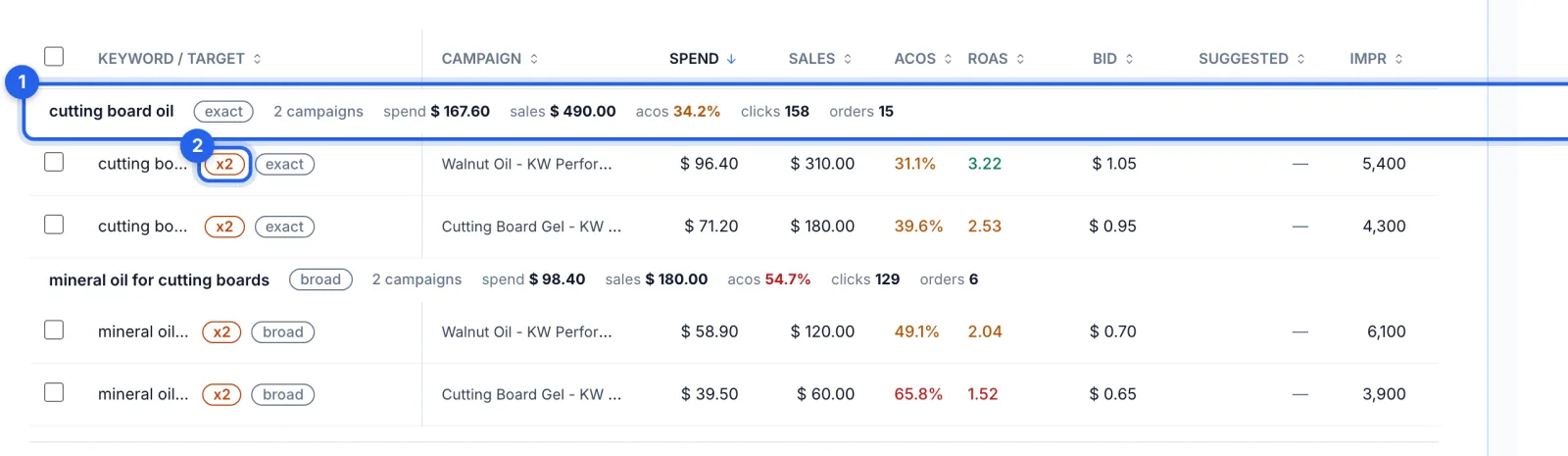
Each group starts with a heading row (1): the words, the match type, how many campaigns run them, and their spend, sales, ACoS, clicks and orders added together. The x2 mark (2) shows how many of your campaigns run each one. A duplicate is the same words at the same match type, enabled in an enabled campaign, so an exact and a broad copy of one keyword don't count. Two campaigns running the same keyword compete for the same searches and split their data.
Step 4 · Change bids or pause in bulk
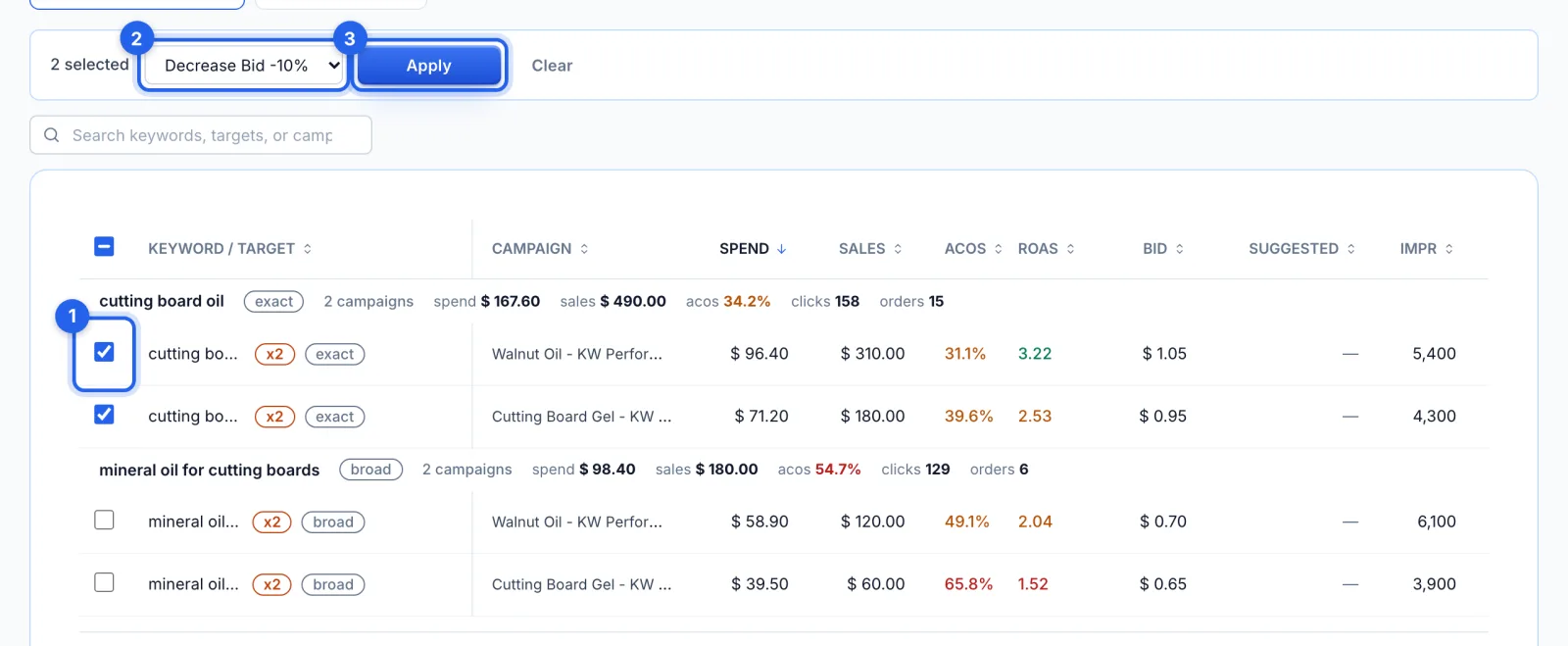
Tick the rows to change (1), choose an action (2): Pause Keywords, Enable Keywords, Set Bid To…, or a bid change of 10% or 20% up or down. Then click Apply (3). Changes go straight to Amazon, with no confirmation step. A percentage starts from the bid Amazon holds, including an ad group's default bid, and bids stay between $0.02 and $31 ($0.25 at least on Sponsored Brands). Ticks on other pages are kept, and the bar says how many.
Step 5 · Edit bids one at a time
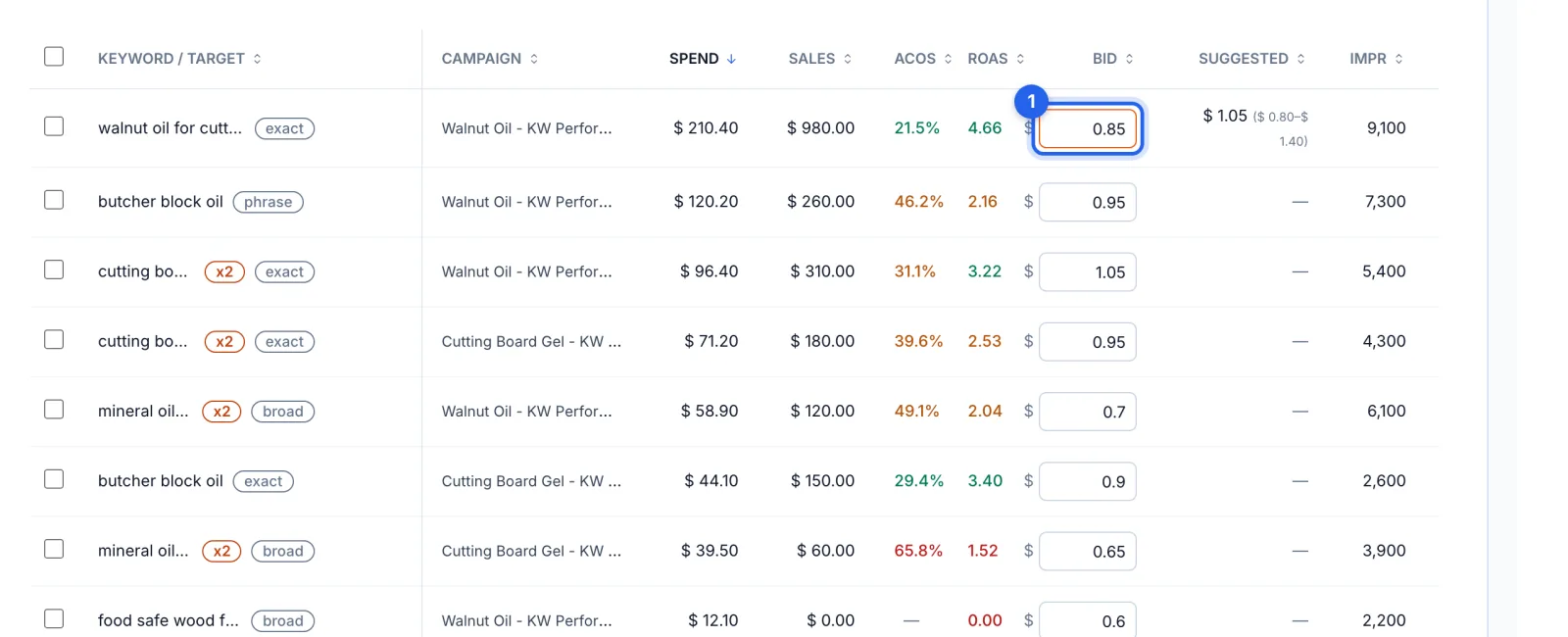
Click Edit Keywords to turn the Bid column into boxes and the Status column, at the far right, into Active or Paused. Type a new bid (1); a changed bid is outlined in orange. A bar at the bottom of the screen counts your changes: click Save Changes to send them to Amazon, or Discard. Unsaved changes are lost if you leave the page.
Step 6 · Review the search terms
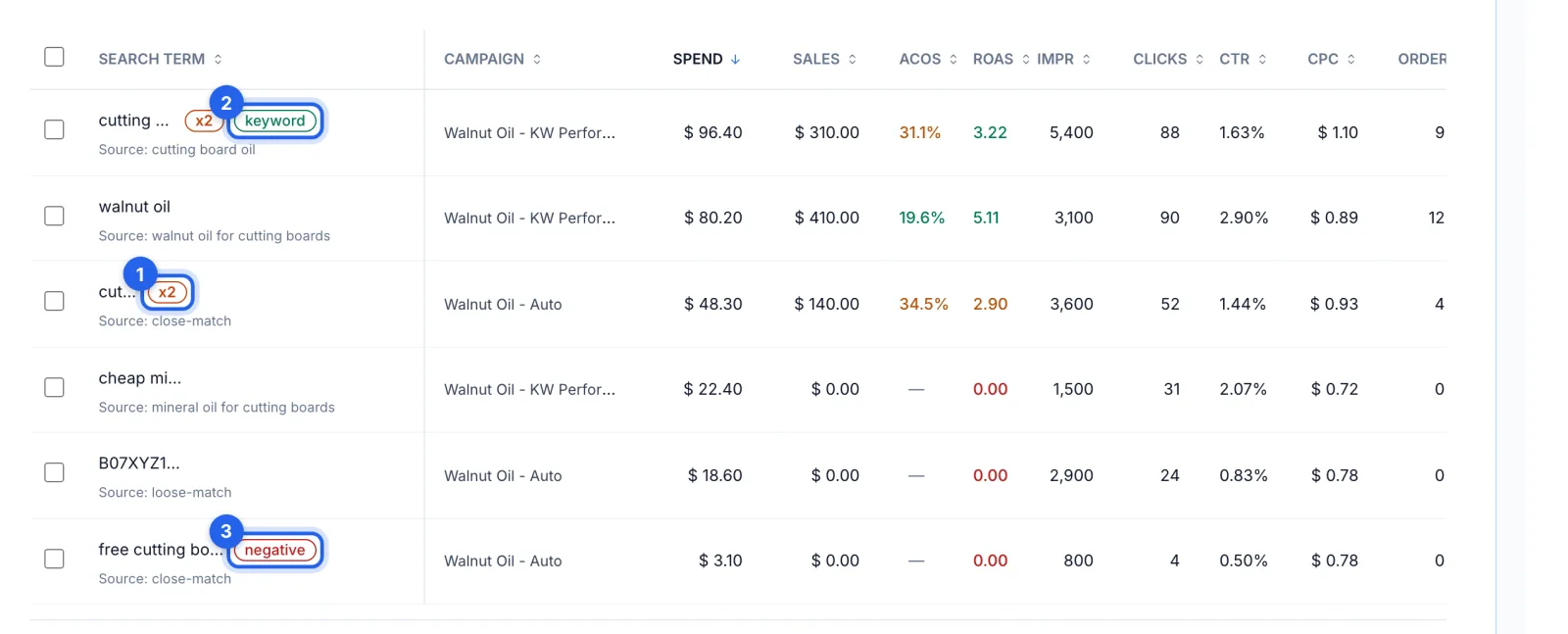
The Search Terms tab lists the searches that ran in your picked campaigns over the date range, each with the keyword or targeting it came from (the Source line). x2 (1) means the search reached more than one of your campaigns. keyword (2) means it's already an exact keyword in that campaign, and negative (3) means it's already blocked there.
Step 7 · Block search terms that waste money
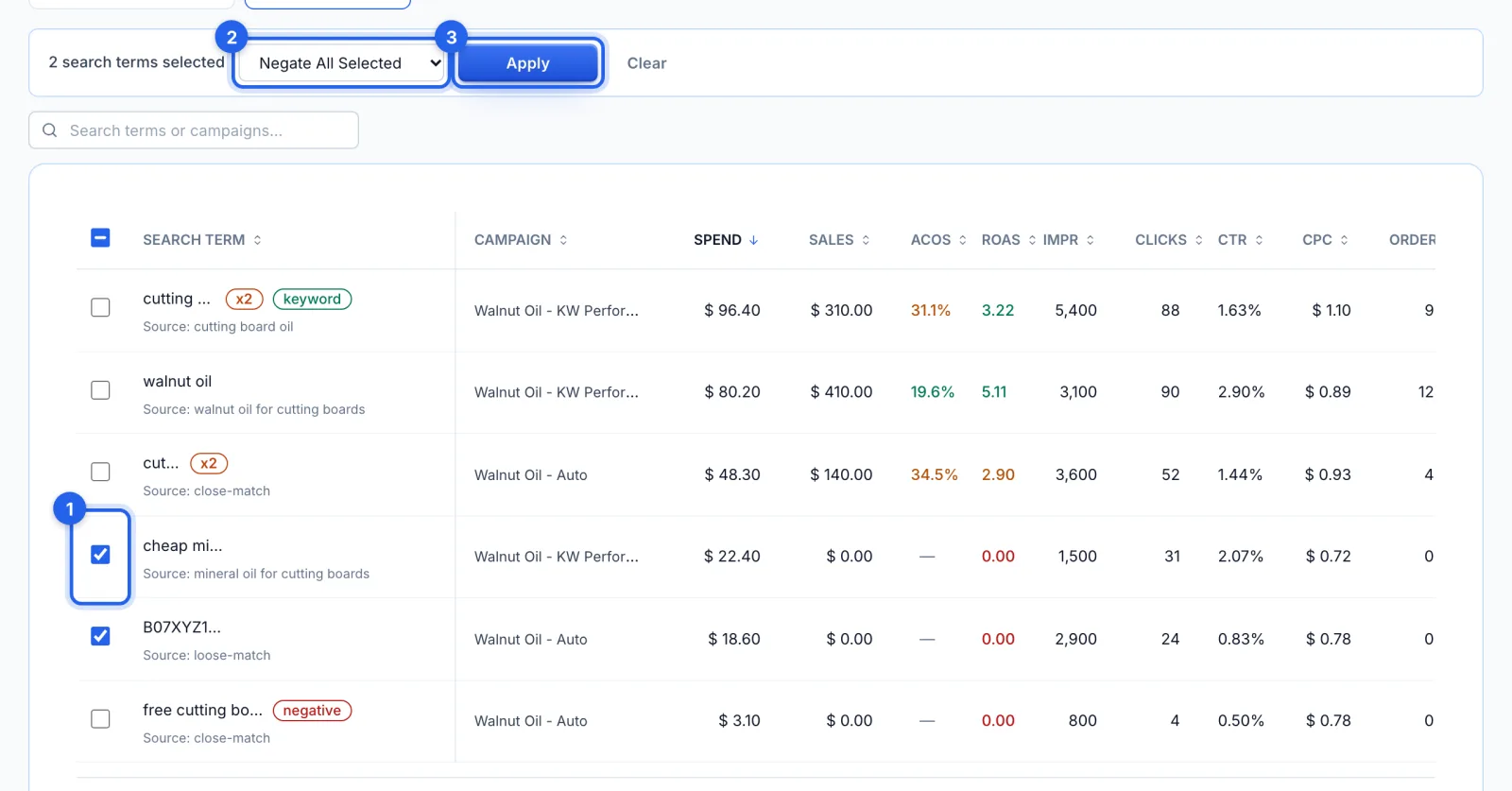
Tick the searches to block (1), choose Negate All Selected, Negative (Exact), Negative (Phrase) or Negative ASIN Target (2), and click Apply (3). Each one is blocked in the ad group and campaign it ran in; Negate All Selected adds a negative exact for words and a negative ASIN target for ASINs. A block that would switch off one of your own keywords or product targets there is refused, and says so.
Step 8 · Add a converting search as an exact keyword
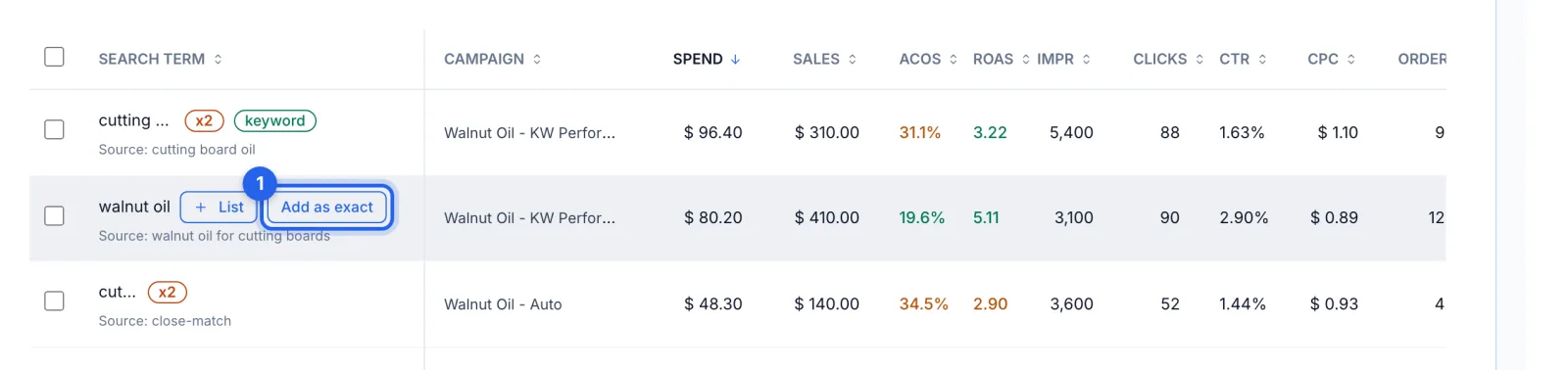
Hover over a search to show + List and Add as exact (1). Add as exact opens the same dialog as on the Insights page: pick the campaign, the ad group and the bid, which starts at what the search has been costing per click, and optionally block it in the campaign it came from. + List saves the search to one of your lists instead.
Good to know
- Straight to Amazon. Every change here goes to Amazon at once; nothing waits in a review queue. Bid and status changes are listed in History with Undo. New keywords and negatives are listed there too, without Undo.
- Large selections are paced. Blocks go out one ad group at a time, up to 10 a minute. Past that, the page waits and sends the rest, and tells you it's doing so.
- Where the numbers come from. Amazon's keyword and search term reports, synced overnight. Bids and statuses also update after every change you make in the app.
- Sponsored Display. Its campaigns have no search terms here: Amazon's search term reports cover Sponsored Products and Sponsored Brands only.
Tips
- Keep one copy of a duplicate: compare the rows in its group, and lower the bid or pause it in the campaign where it does worse.
- Exact and broad copies of one keyword aren't duplicates. Running a keyword as exact in one campaign and broad in another is a common way to find new searches.
- Found a search worth keeping for later? + List saves it to a list (see How to save keyword and ASIN lists).