How to save keyword and ASIN lists for your campaigns
Save keywords and ASINs in RedHen Labs lists, add to them from any campaign or report, and import a list into a new or running Amazon campaign.
My Lists keeps keywords and ASINs you want to use again: proven searches to add as exact keywords, competitor ASINs to target, terms to block. You can add to a list from almost anywhere in the app, then import it into a new campaign or a running one.
This guide goes through it with a screenshot of each step (the control to use is ringed and numbered). It takes about four minutes.
Step 1 · Open My Lists
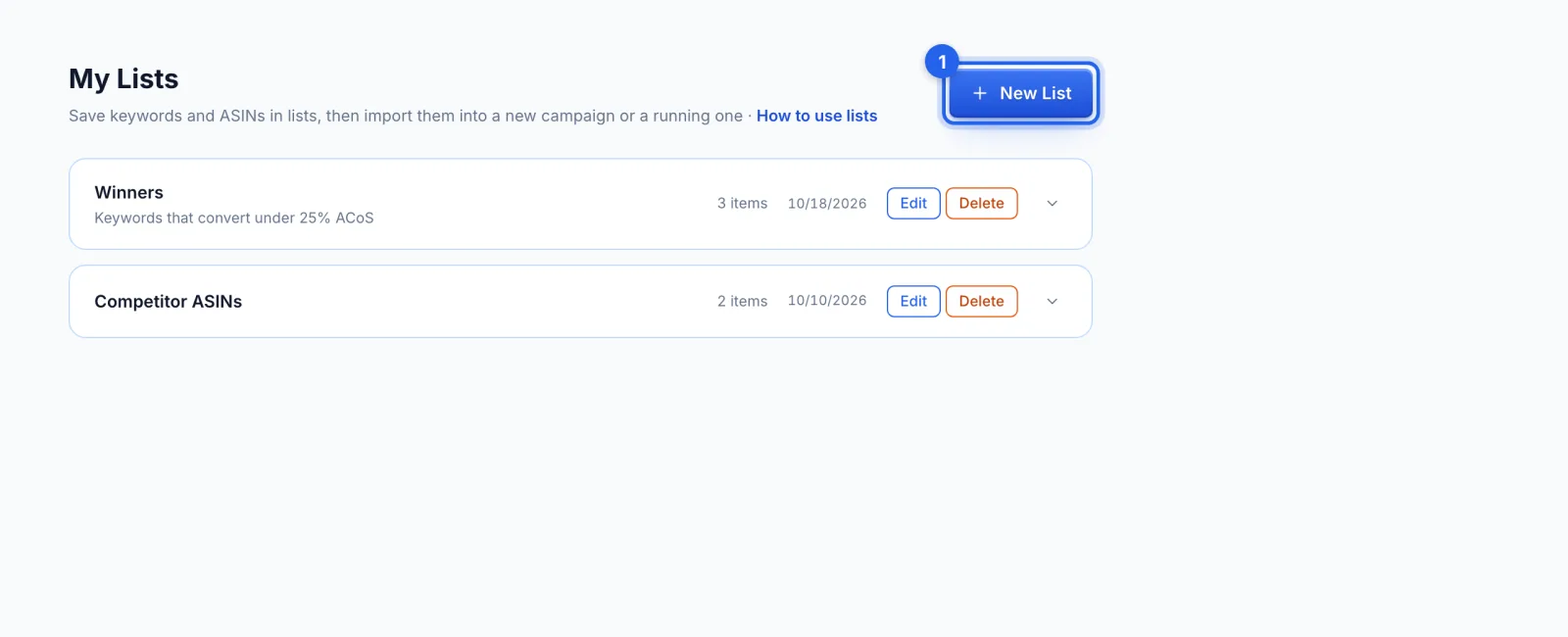
In the side menu, under Advertising, click My Lists (Growth and Professional plans). A list holds keywords, ASINs or both; click New List (1) to start one. Lists belong to your login, so every marketplace sees the same lists.
Step 2 · Name the list
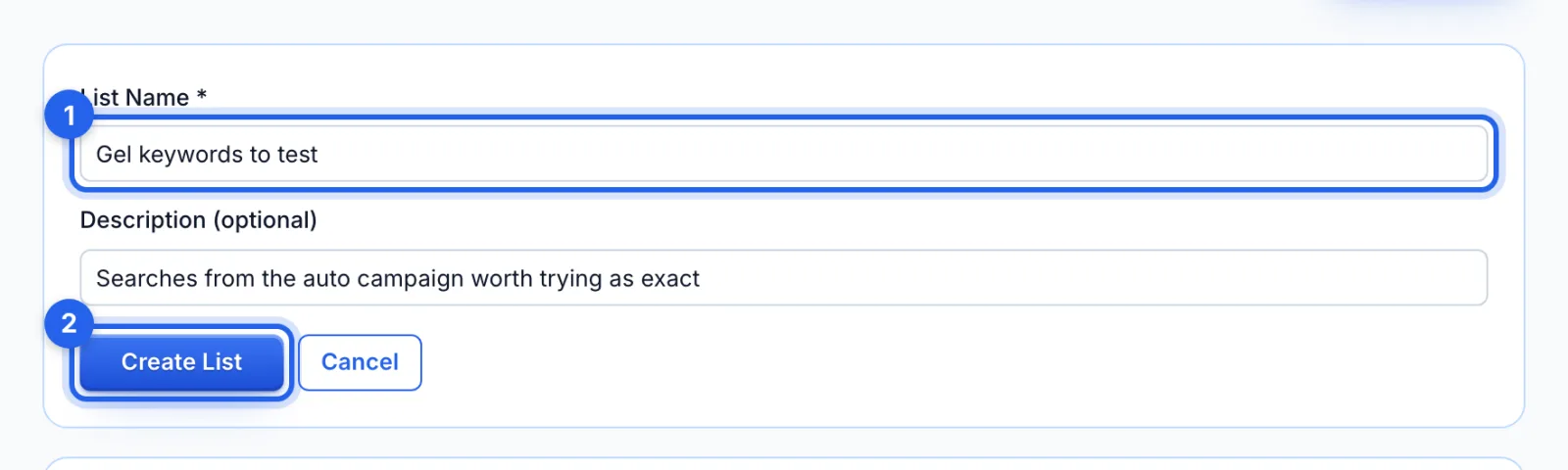
Give it a name (1) of up to 100 characters and, if you like, a description, then click Create List (2). You add the items next.
Step 3 · Add keywords and ASINs
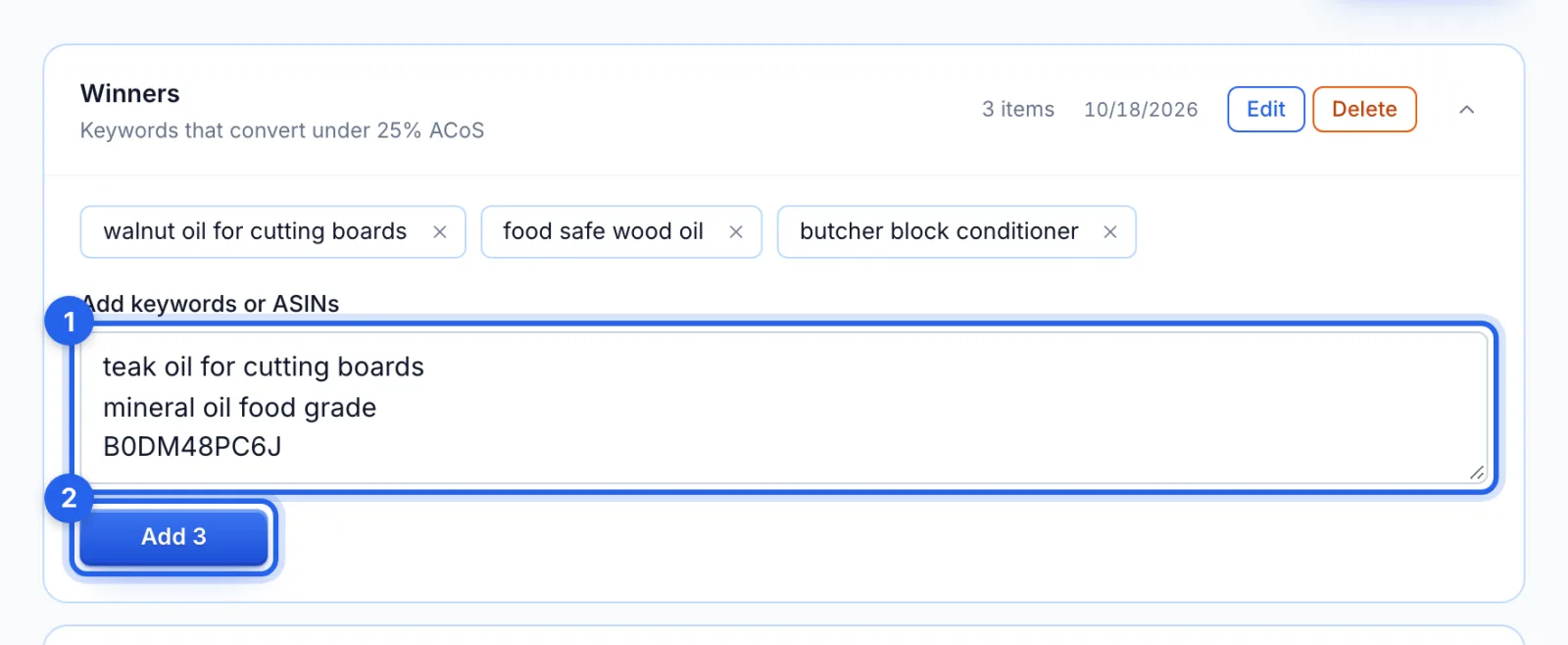
Click a list to open it. Paste a column straight from a spreadsheet, or type items one per line or separated by commas (1), then click Add (2); the button counts what it will add. Anything that looks like an ASIN (B0 then 8 letters or digits) is saved as an ASIN, everything else as a keyword. Repeats are dropped whatever their capitals, and the page says how many were already there. Because commas separate items, a keyword can't contain one. The × on an item removes it.
Step 4 · Save keywords from other pages
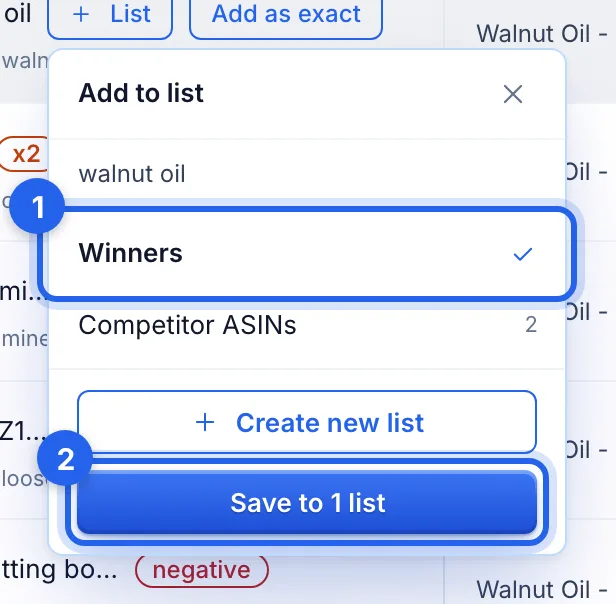
On a campaign's page, in Keyword Analysis and on Insights, + List saves a keyword, search term or ASIN as you go. Tick one or more lists (1), or Create new list, then click Save (2). On a campaign's page you can also tick several rows and save them all at once.
Step 5 · Import a list into a campaign
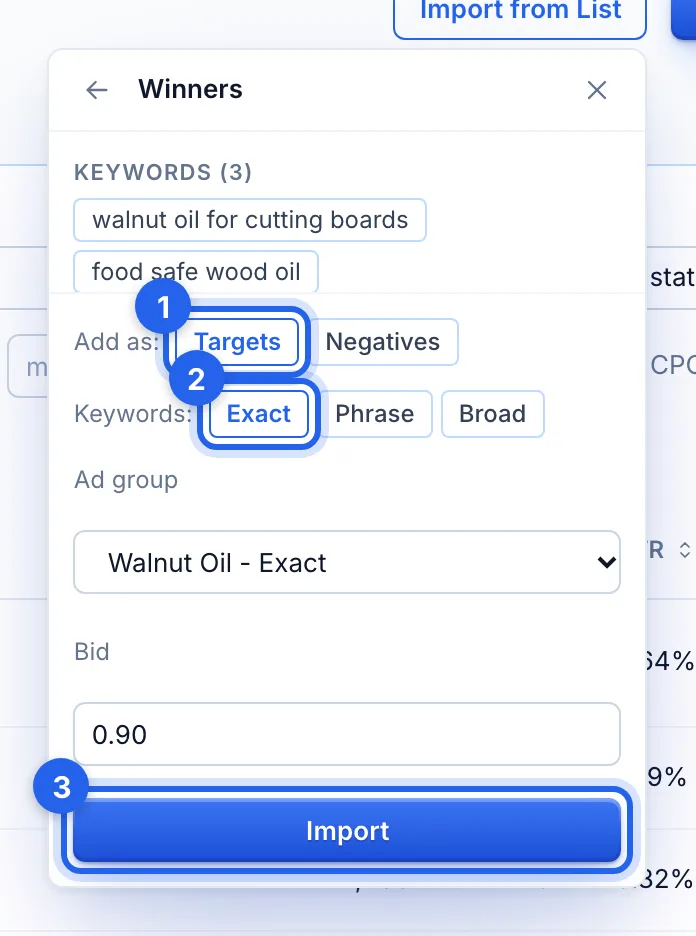
On a running manual campaign's page, the Keywords / Targets tab has Import from List; pick a list to see what's in it. Choose Targets or Negatives (1) and the match type (2): exact, phrase or broad for keywords, or exact or expanded for ASINs on Sponsored Products. Pick the ad group and the bid, then click Import (3). It goes to Amazon straight away, up to 500 at a time, and items the campaign already has are counted, not added twice. In Campaign Setup, the same button fills in a new campaign's keywords, ASINs or negatives, and nothing reaches Amazon until you launch.
Step 6 · Rename or delete a list
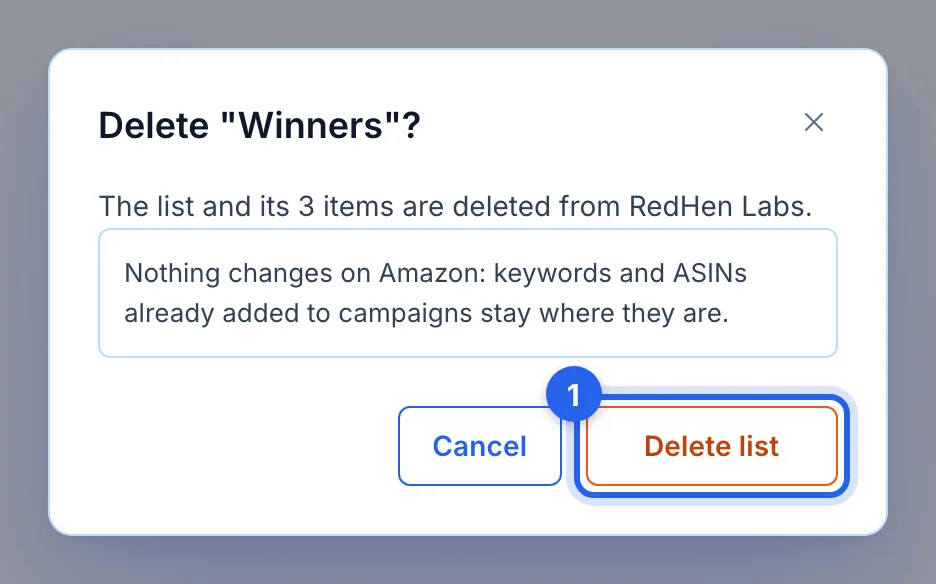
Edit changes a list's name and description. Delete asks first (1) and removes the list from RedHen Labs only: keywords and ASINs already added to campaigns stay where they are on Amazon.
Good to know
- Lists live in RedHen Labs. Saving to a list changes nothing on Amazon; only an import does.
- History. An import into a running campaign is listed in History, as created keywords, product targets or negatives, without Undo.
- What a campaign can take. A keyword campaign takes a list's keywords and a product-targeting campaign its ASINs; the menu says when a list has nothing the campaign can use. ASIN targets go into Sponsored Products campaigns only.
Tips
- Keep separate lists for separate jobs: proven exact keywords, competitor ASINs to target, searches to block.
- Build lists as you work in Keyword Analysis and Insights, then use them when you set up the next campaign.