How to use Insights to cut wasted Amazon ad spend
Use RedHen Labs Insights to block wasted search terms, fix high-ACoS bids, pause what never converts and harvest winners, with a screenshot of each step.
Insights checks your own Amazon advertising data for what is worth acting on today: search terms spending with no sales, bids costing more than your target ACoS allows, targets that never convert, winners that could take more traffic, and converting searches you don't yet own as exact keywords. Each card comes with the buttons to act on it.
This guide goes through the cards one by one, with a screenshot of each (the control to use is ringed and numbered). It takes about five minutes.
Step 1 · Open Insights
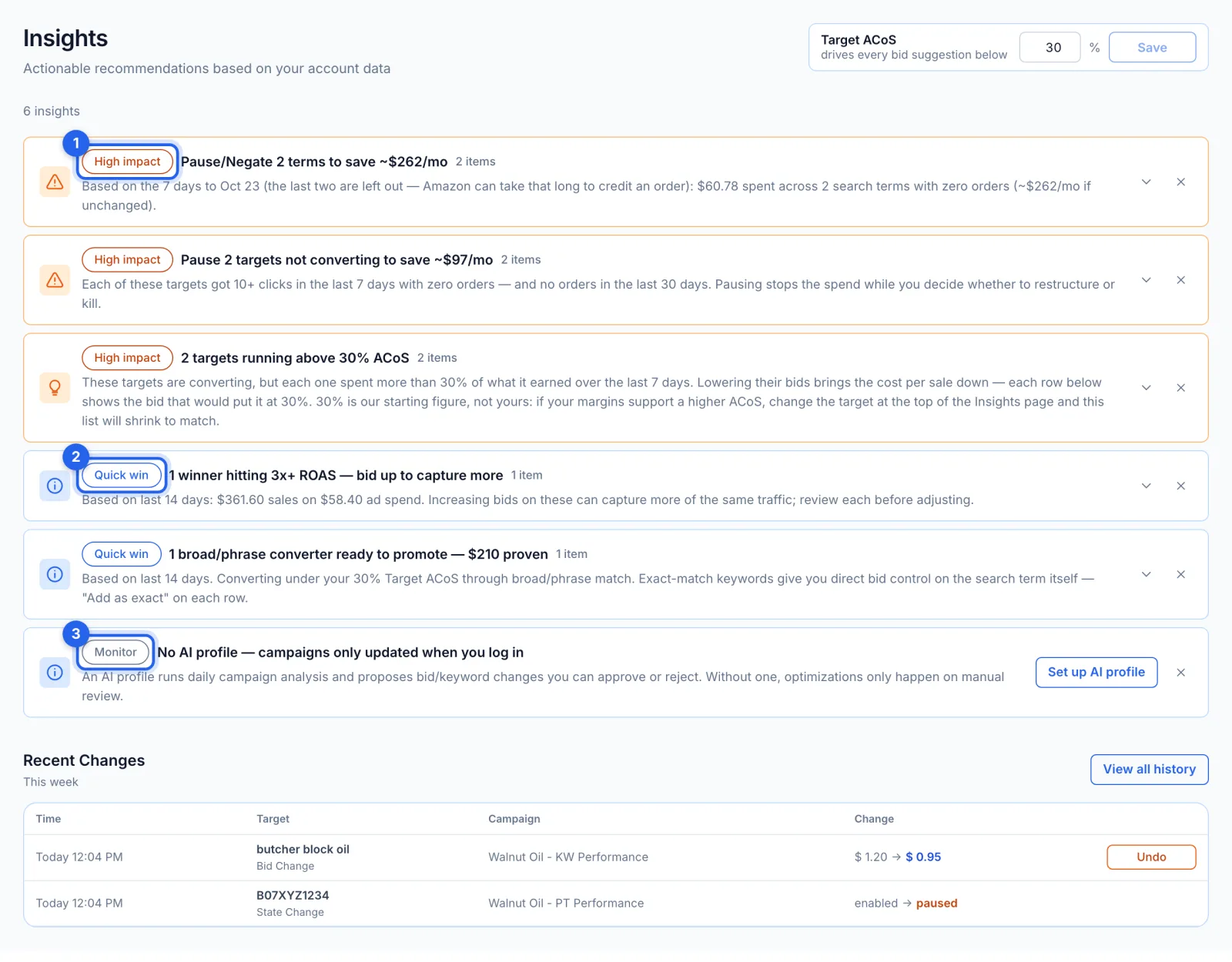
In the side menu, under Reports, click Insights. Each card is one finding from your own Amazon data, most urgent first: High impact (1), then Quick win (2), then Monitor (3). A card's title counts everything it found; its list shows up to 10. Acting on the advertising cards needs the Growth or Professional plan.
Step 2 · Set your target ACoS
The Target ACoS box at the top right drives every bid suggestion on the page: which targets count as high-ACoS, the Lower to and Raise to bids, and which converting searches are ready to harvest. Type your target (1) and click Save (2). It starts at 35%, is kept for each marketplace, and is separate from an AI profile's target ACoS.

Step 3 · Block wasted search terms
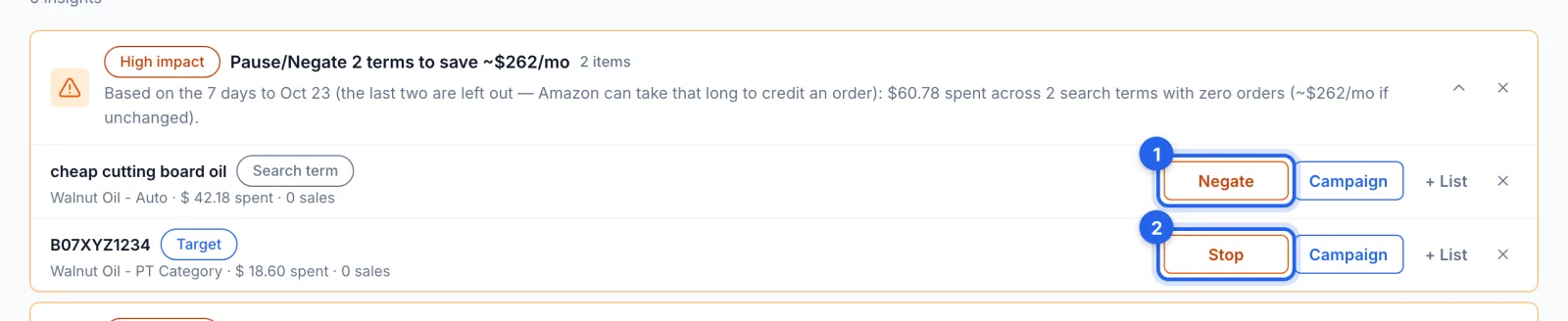
Click a card to open it. The Pause/Negate card lists search terms that spent more than $10 in a recent week with no orders (the latest two days are left out, because Amazon can take that long to credit an order). Negate (1) adds the term as a negative exact keyword in the campaign and ad group it ran in. For an ASIN the button reads Stop (2) and adds a negative product target. If the term is one of your own keywords or product targets there, Negate pauses it instead: a pause can be undone, and a negative can only be removed in Amazon's console.
Step 4 · Pause targets that never convert
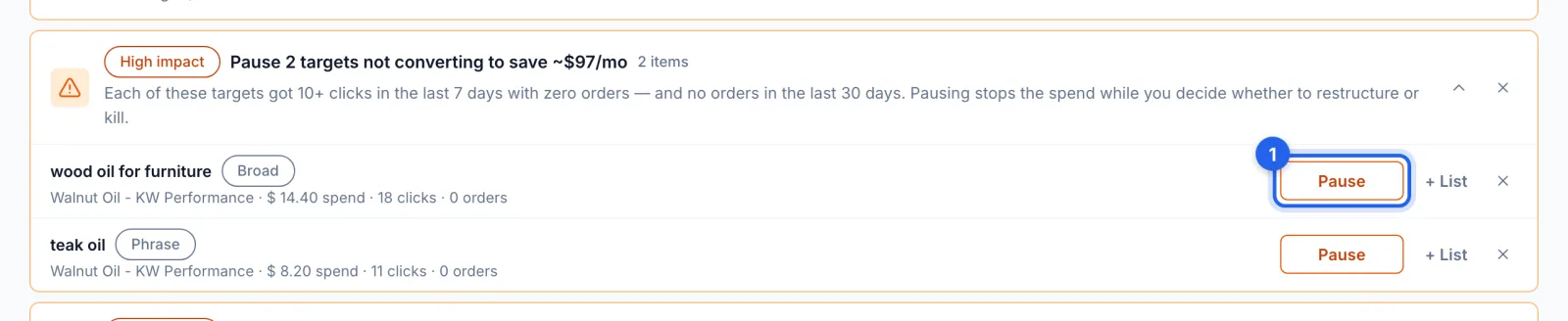
The card for targets not converting lists keywords and product targets with 10 or more clicks and no orders in the last 7 days, and none in the last 30. Pause (1) pauses the target on Amazon; you can switch it back on from History or from the campaign's page.
Step 5 · Lower bids on high-ACoS targets
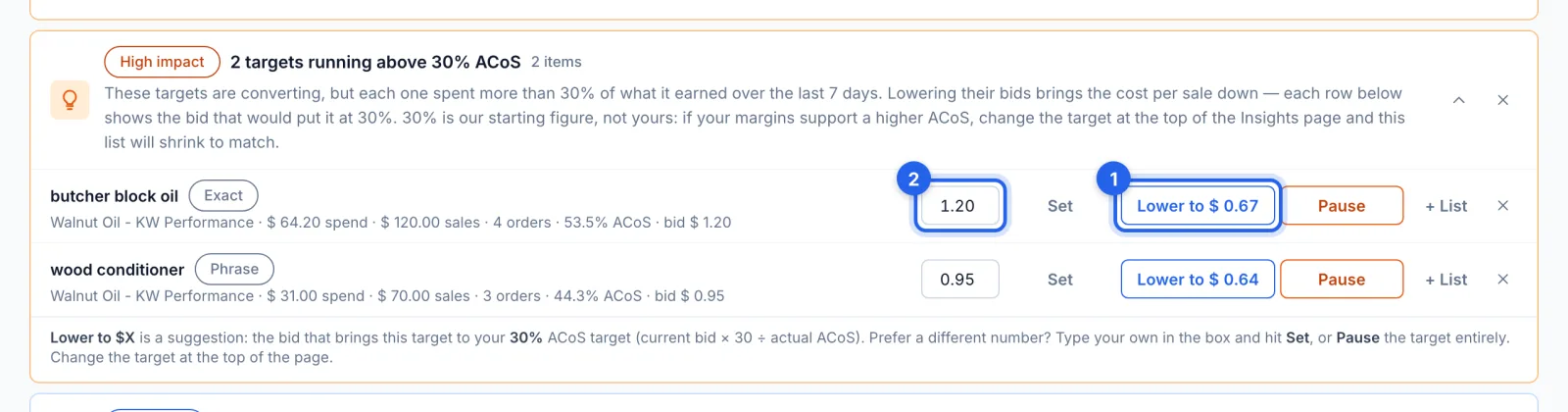
The card for targets running above your ACoS lists keywords and product targets with at least 3 orders in the last 7 days and an ACoS above your target, the biggest overspend first. Lower to (1) sets the bid that would bring the target to your target ACoS: its current bid × your target ÷ its ACoS, never below Amazon's minimum. Or type your own bid in the box (2) and click Set, or click Pause.
Step 6 · Raise bids on winners
The winners card lists keywords and targets that returned at least 3 times their ad spend over the last 14 days, with at least 3 orders and $15 of spend. Raise to (1) uses the same formula upward, capped at $31 and at the maximum bid of an AI profile that manages the campaign. Or type a bid (2) and click Set. A raise is held back on Sponsored Brands and Sponsored Display ads whose product is losing the Buy Box, because the extra clicks would land on a competitor's offer.

Step 7 · Add converting searches as exact keywords
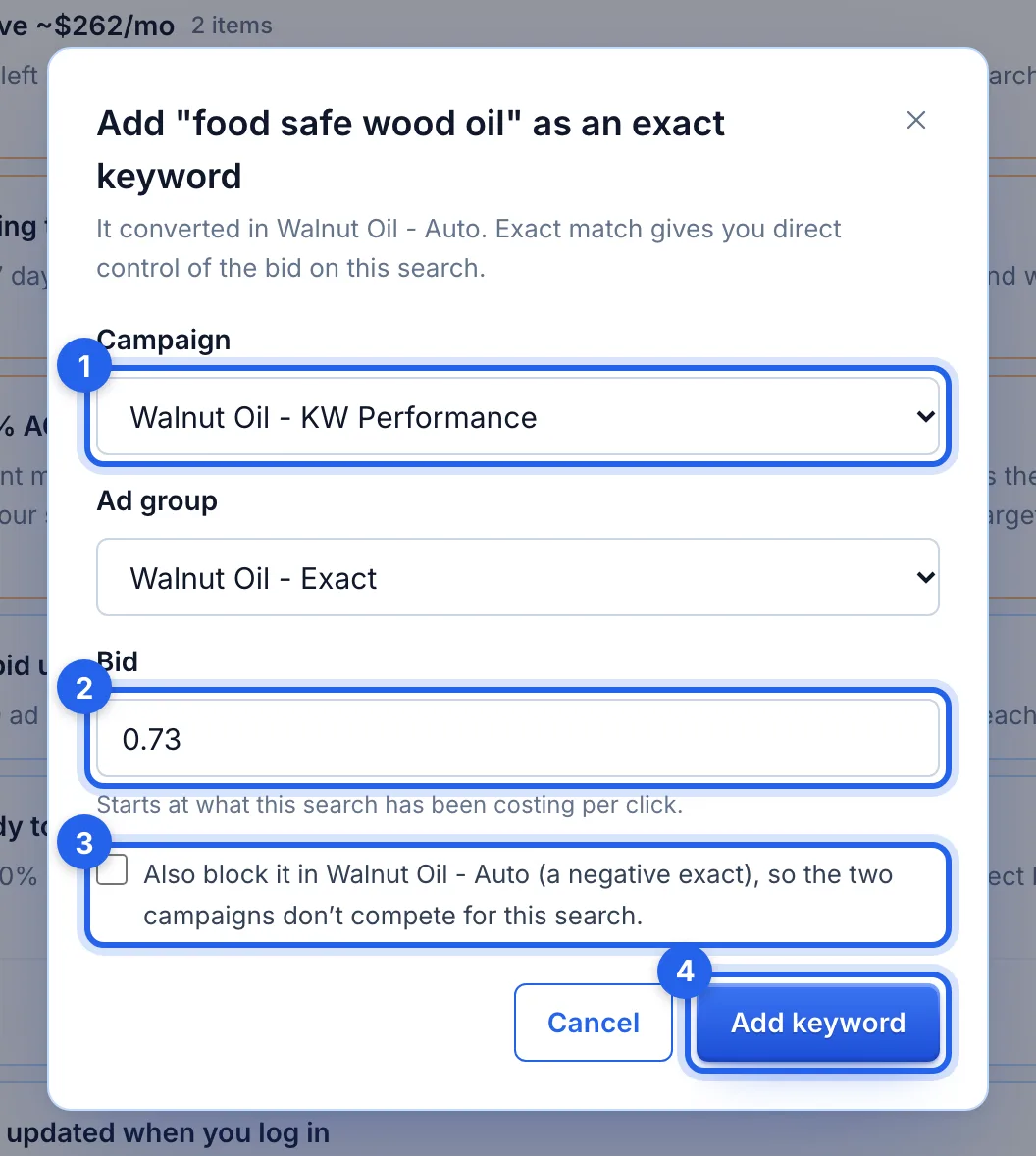
Two cards list searches that are making sales without an exact keyword of their own: broad or phrase matches with 2 or more orders under your target ACoS in the last 14 days, and searches with 2 or more orders in the last 7 days that aren't a keyword at all. Add as exact opens a dialog. Pick the campaign (1): it starts on the one where the search converted, when that campaign can take keywords. Then the ad group, and the bid (2), which starts at what the search has been costing per click. Adding it to a different campaign offers to block it in the campaign it came from (3), off unless you tick it. Click Add keyword (4); for an ASIN, the dialog adds a product target instead.
Step 8 · Hide what you've dealt with
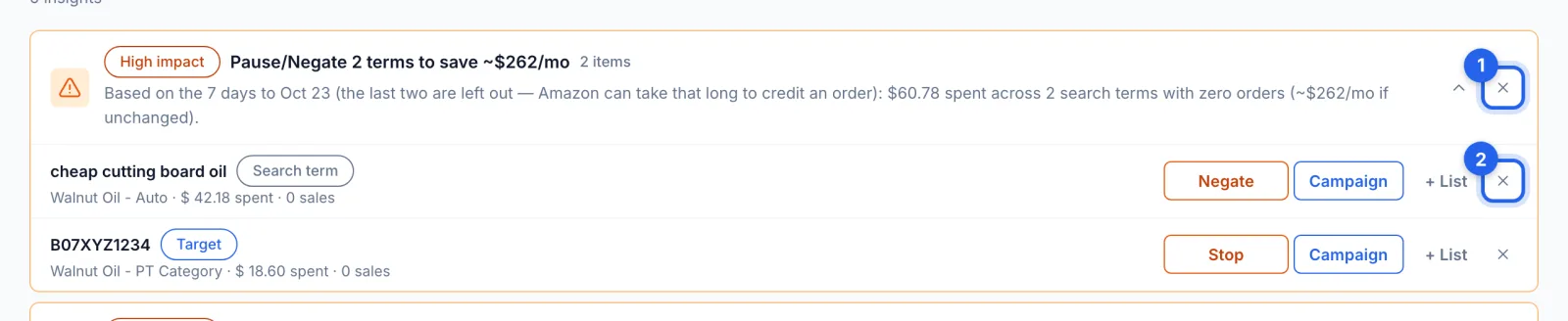
The × on a card's heading (1) hides the whole card for 7 days; the × on a row (2) hides just that row. A row you act on also disappears for 7 days. Hidden items can't be brought back early; if the problem is still there after 7 days, it comes back. Hiding a whole card hides it in every marketplace.
Step 9 · Check and undo your changes
Recent Changes, at the bottom of the page, lists this week's bid, pause and budget changes in this marketplace, from Insights and everywhere else in the app. Undo (1) puts the old value back on Amazon, once; if it has changed again since, you're asked first. View all history (2) opens History, which also lists negatives and new keywords. Those can't be undone in the app.

Good to know
- Every button acts on Amazon straight away. Nothing on this page goes through a review queue. Bid changes and pauses can be undone from History; negatives and new keywords can't be undone in the app.
- Worked out fresh. Insights are calculated from your latest synced Amazon data each time you open the page. Amazon's ad data arrives overnight, so today's spend isn't in it yet.
- Other cards you may see. Campaigns that spent 90% or more of their daily budget on each of the last 3 days; products running low on stock, from Amazon's FBA restock report; brand ads on products that have lost the Buy Box; and reminders when you have no automation, no AI profile or no negative keywords.
- One target ACoS for all of it. The daily email and the AI assistant use the same Target ACoS and the same checks as this page.
Tips
- Start with the High impact cards: they are money already being spent without a return.
- Set your target ACoS from your margins. Your break-even ACoS is your profit margin before ad spend (the break-even ACoS calculator works it out); a target below it leaves a profit on every ad sale.
- + List saves a keyword or ASIN to one of your lists, to add to a campaign later (see How to save keyword and ASIN lists).