How to create an Amazon Sponsored Products campaign
Build an Amazon Sponsored Products campaign in RedHen Labs: products, budget, targeting, bidding strategy, keywords from Amazon's suggestions, and launch.
Campaign Setup builds a new Amazon Sponsored Products campaign from inside RedHen Labs: its products, budget, targeting and bidding, and its keywords, starting from the ones Amazon suggests for your product. It goes to Amazon when you click Launch.
This guide builds one campaign from start to finish, with a screenshot of each step (the control to use is ringed and numbered). It takes about five minutes.
Step 1 · Choose how to build
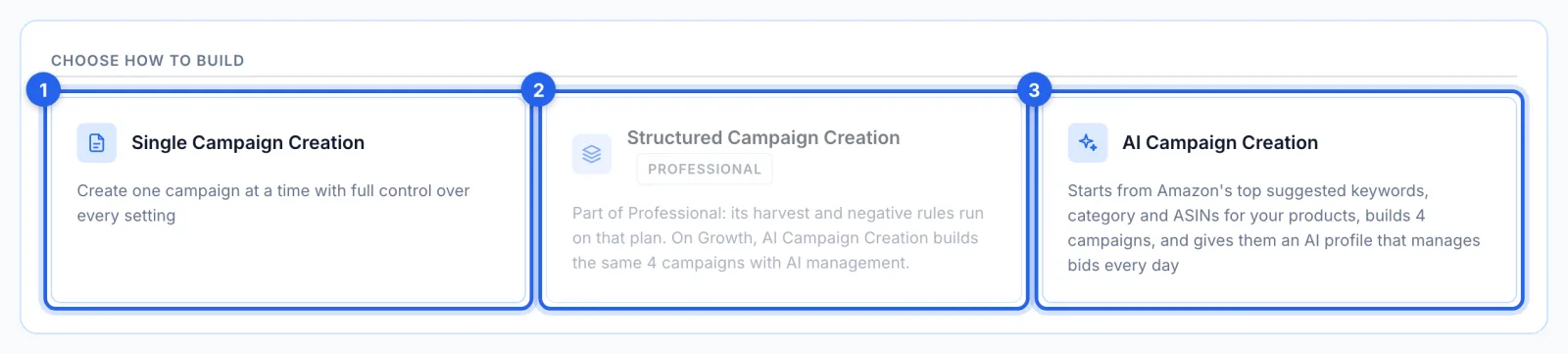
In the side menu, under Advertising, click Campaign Setup (Growth and Professional plans). Single Campaign Creation (1) builds one campaign, with every setting yours. Structured Campaign Creation (2), on the Professional plan, builds 4 campaigns with harvest and negative rules. AI Campaign Creation (3) starts from Amazon's suggested keywords, category and ASINs for your products, builds 4 campaigns and gives them an AI profile. This guide follows Single Campaign Creation: choose it and click Start setup.
Step 2 · Name the campaign and pick its products
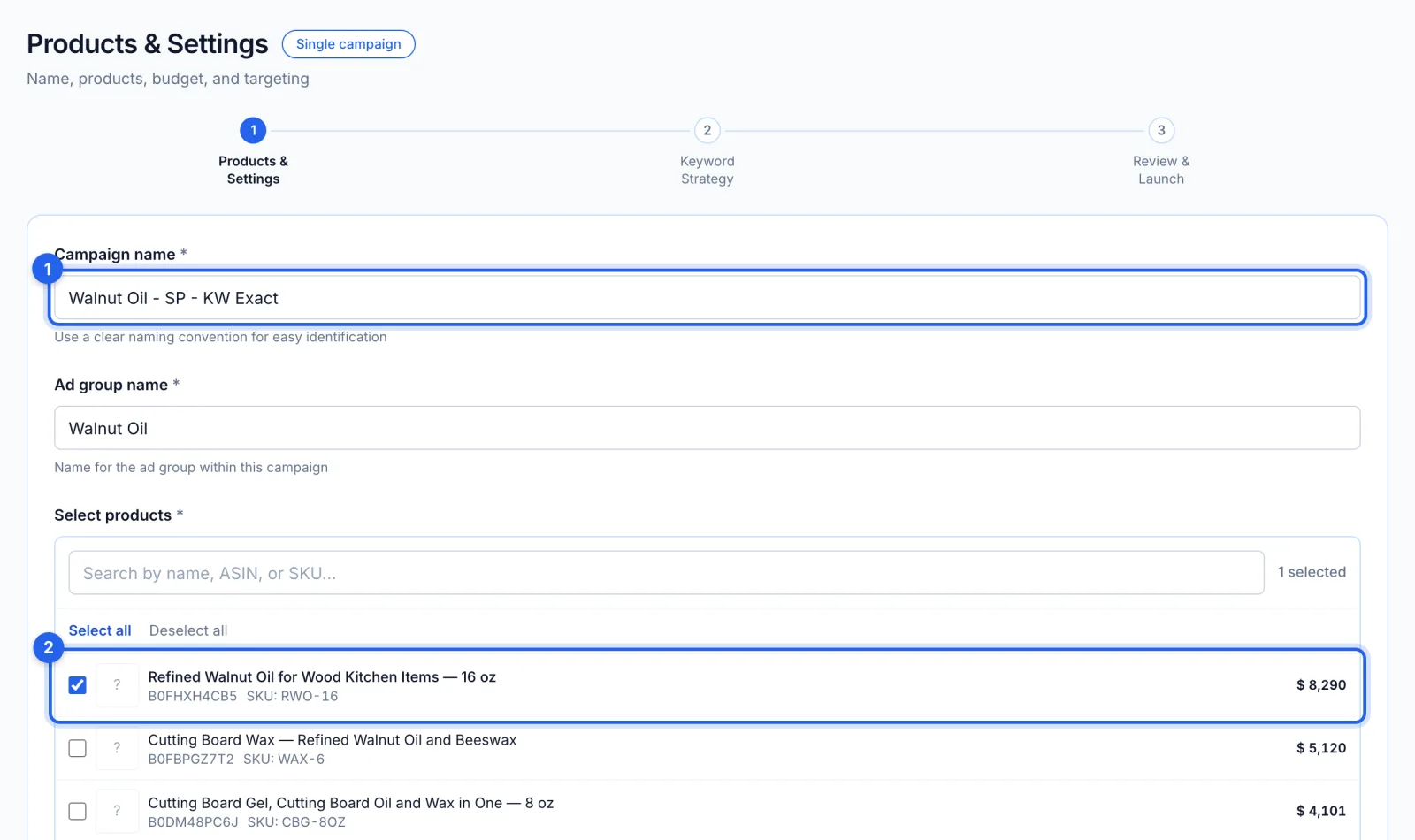
Type the campaign name (1) and the ad group name, then tick the products to advertise (2); search by name, ASIN or SKU. Both names and at least one product are needed to continue.
Step 3 · Set the budget, targeting and bids
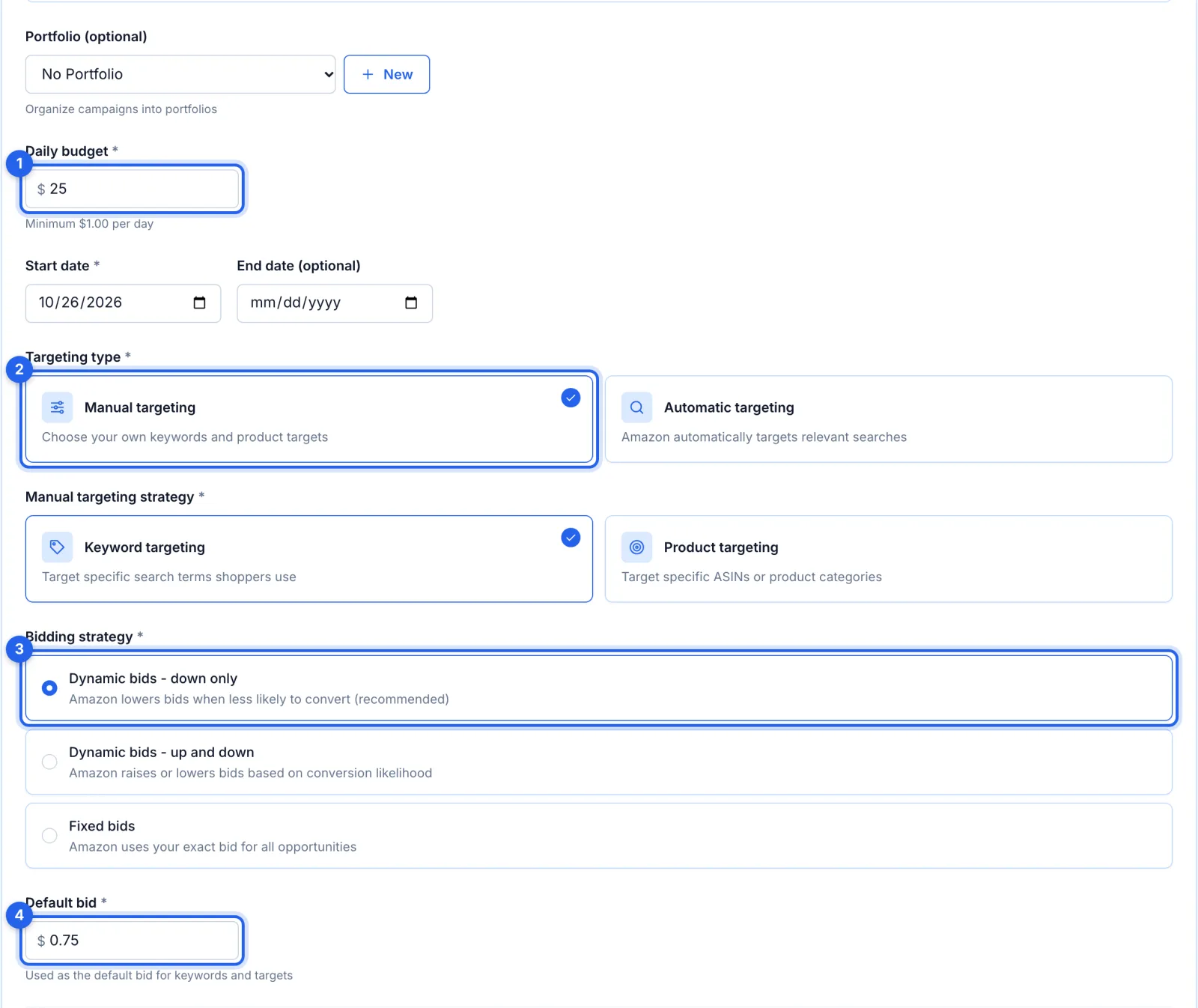
Set the daily budget (1), $1 at least, and the start date; an end date and a portfolio are optional (New creates a portfolio on Amazon straight away). Choose Manual targeting (2) to pick your own keywords or product targets, then Keyword targeting or Product targeting; or Automatic targeting, to let Amazon choose the searches. Choose a bidding strategy (3): Dynamic bids - down only, up and down, or Fixed bids. The default bid (4), between $0.02 and $31, goes on every keyword and target added without a bid of its own. Click Continue.
Step 4 · Add keywords
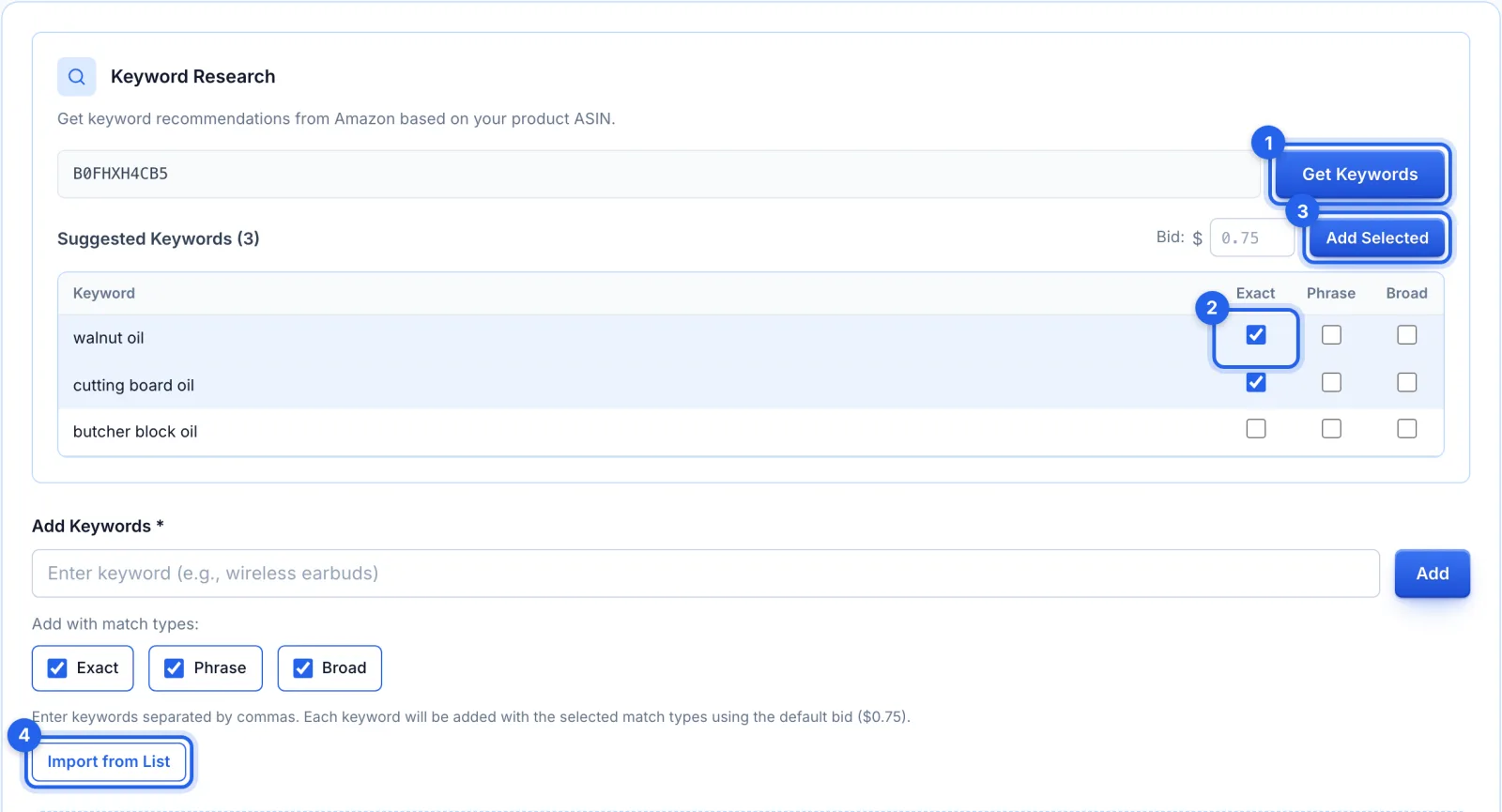
Click Get Keywords (1) for Amazon's suggested keywords for your product. Tick the match types you want on each (2), Exact, Phrase or Broad, set the bid and click Add Selected (3). You can also type keywords, separated by commas, to add with the match types ticked below them, or add a saved list with Import from List (4). Negative keywords, exact or phrase, go further down the page. Product targeting has Find Categories and Add ASINs Manually here instead, and Automatic targeting takes negatives only. Click Continue.
Step 5 · Review and launch
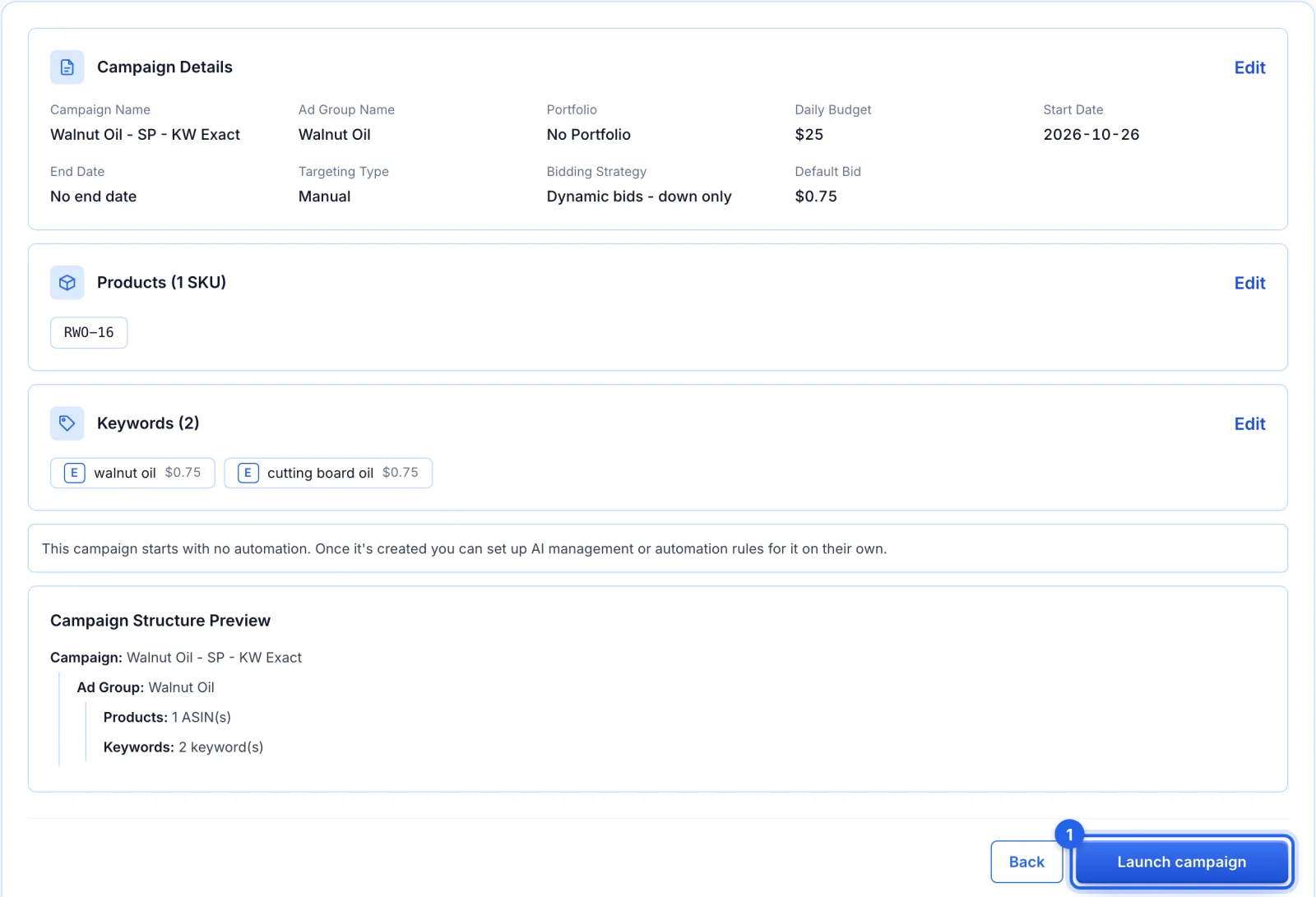
Review & Launch shows every setting, with Edit beside each part to go back to it. Click Launch campaign (1). The campaign is created paused, its products, keywords and negatives are added, and it is switched on only once Amazon has accepted every part. If Amazon refuses any of it, the campaign stays paused and the message says what was refused.
Step 6 · Choose how it is managed
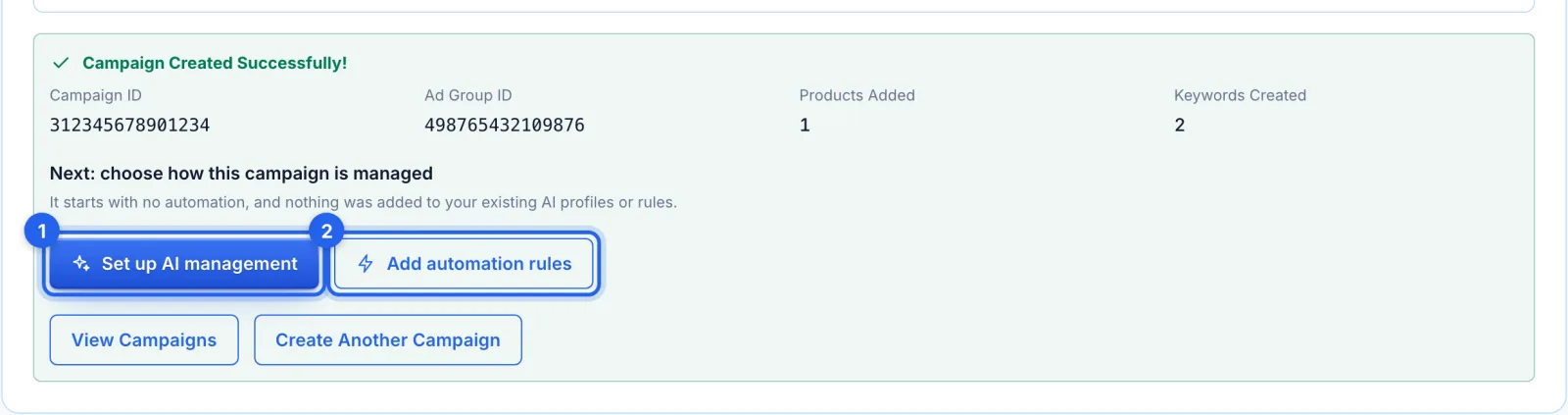
Campaign Created Successfully! lists the campaign and ad group IDs and what was added. The new campaign starts with no automation, and nothing is added to your existing AI profiles or rules. Set up AI management (1) creates an AI profile for it; Add automation rules (2) opens your rules.
Good to know
- Sponsored Products only. Campaign Setup builds Sponsored Products campaigns. Sponsored Brands and Sponsored Display campaigns are made in Amazon's own console, and show up in Campaigns once synced.
- Left paused when something fails. If Amazon refuses part of a launch, nothing runs: the campaign is created but left paused. Fix the problem and switch it on from Campaigns, or archive it. Running the wizard again for the same product would create a second copy.
- The other two ways to build. Structured Campaign Creation (Professional) builds 4 campaigns from one total budget and creates a keyword harvest, an ASIN harvest and a negative rule for them (see How to build an Amazon PPC campaign structure). AI Campaign Creation builds 4 campaigns from Amazon's suggestions and creates an AI profile, named after them, to manage their bids.
Tips
- Name campaigns so you can tell them apart later: product, ad type, targeting and match type, like "Walnut Oil - SP - KW Exact".
- Dynamic bids - down only is the default here: Amazon lowers your bid when a sale is less likely, and never raises it.
- Save keywords and ASINs to a list as you find them in Insights and Keyword Analysis; Import from List adds them here (see How to save keyword and ASIN lists).