How to build an Amazon PPC campaign structure
Launch four connected Sponsored Products campaigns in RedHen Labs: auto and category discovery, exact keyword and ASIN performance, harvest and negative rules.
A common way to run Amazon ads is in pairs: discovery campaigns that find the searches and products that sell, and performance campaigns that bid on the proven ones as exact matches. Structured Campaign Creation builds the whole set in one go: four Sponsored Products campaigns for your products, and the rules that move winners from discovery into performance and block what doesn't sell.
This guide builds one with a screenshot of each step (the control to use is ringed and numbered). It takes about eight minutes.
Step 1 · Choose Structured Campaign Creation
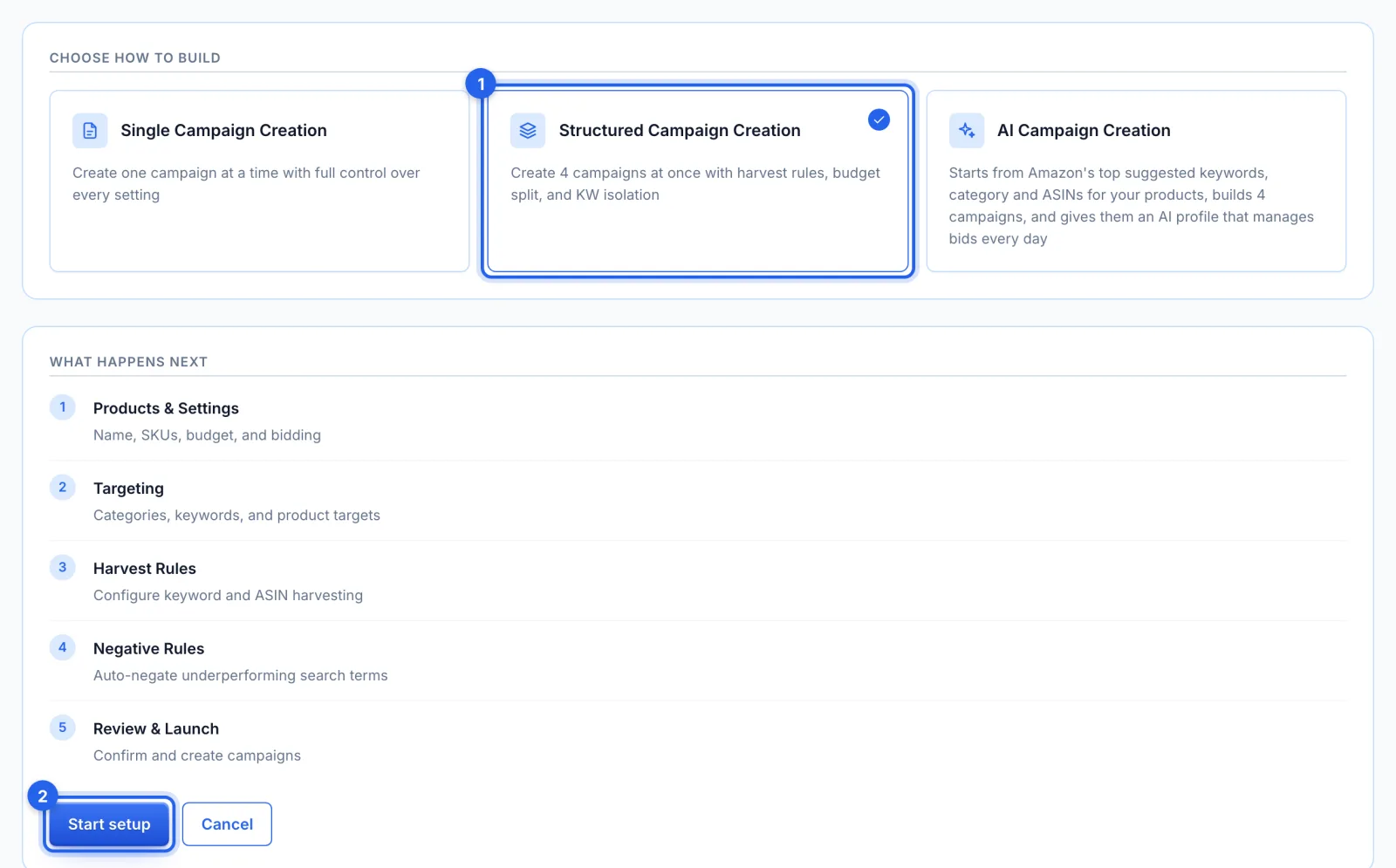
In the side menu, under Advertising, click Campaign Setup. Pick Structured Campaign Creation (1), part of the Professional plan, and click Start setup (2). It builds four Sponsored Products campaigns for the products you pick, and the harvest and negative rules that connect them.
Step 2 · Name it and pick the products
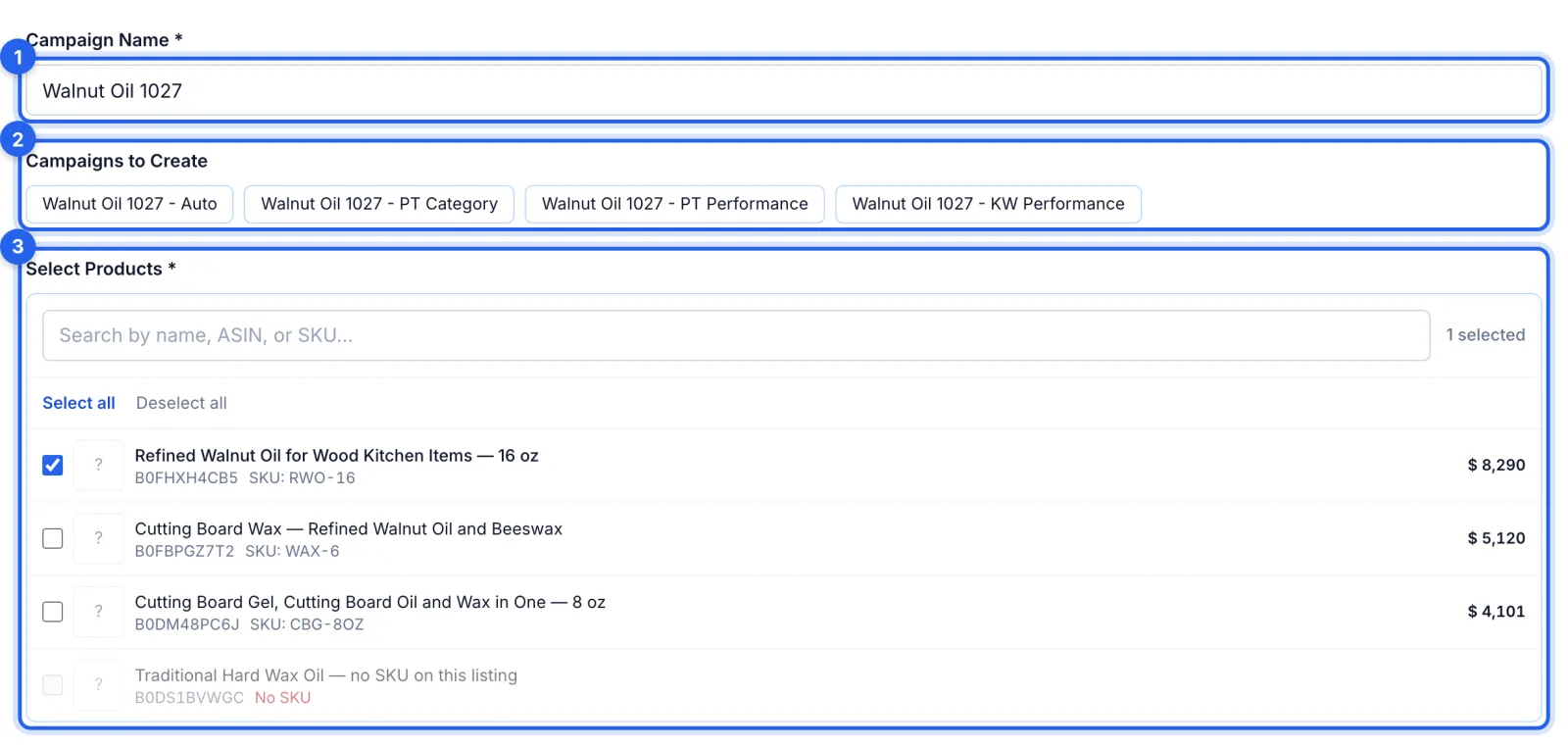
The name (1) starts all four campaign names (2): Auto, PT Category, PT Performance and KW Performance. Pick the products to advertise (3); each needs a seller SKU. Picking a single product fills in a name from its title, so pick the product first, then change the name if you like.
Step 3 · Set the budget and bidding
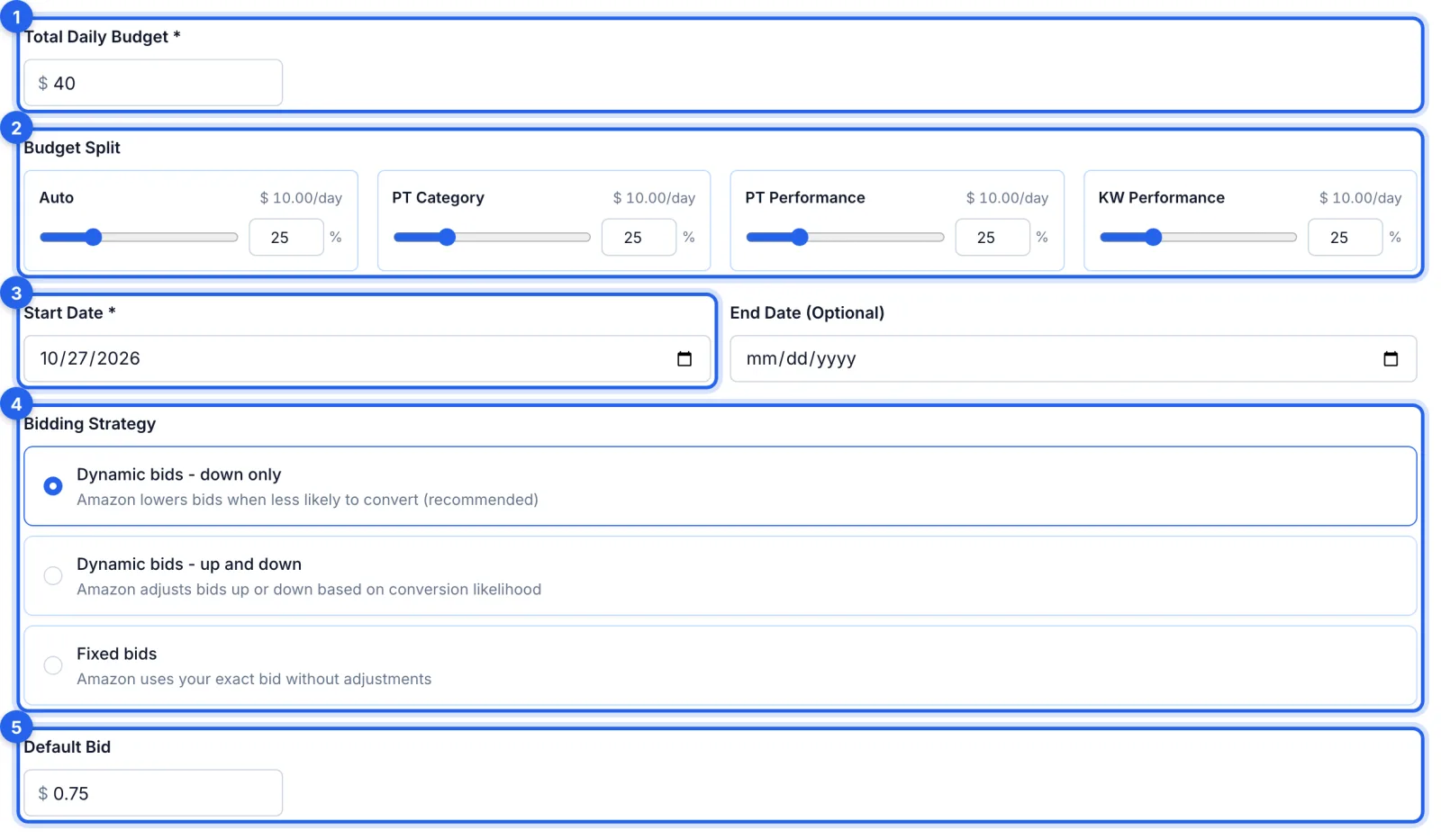
The total daily budget (1) is split between the four campaigns (2), 25% each to start; the split must add up to 100%. Pick the start date (3), the bidding strategy for all four (4), and the default bid (5), used for anything you add without its own bid.
Step 4 · Add categories (optional)
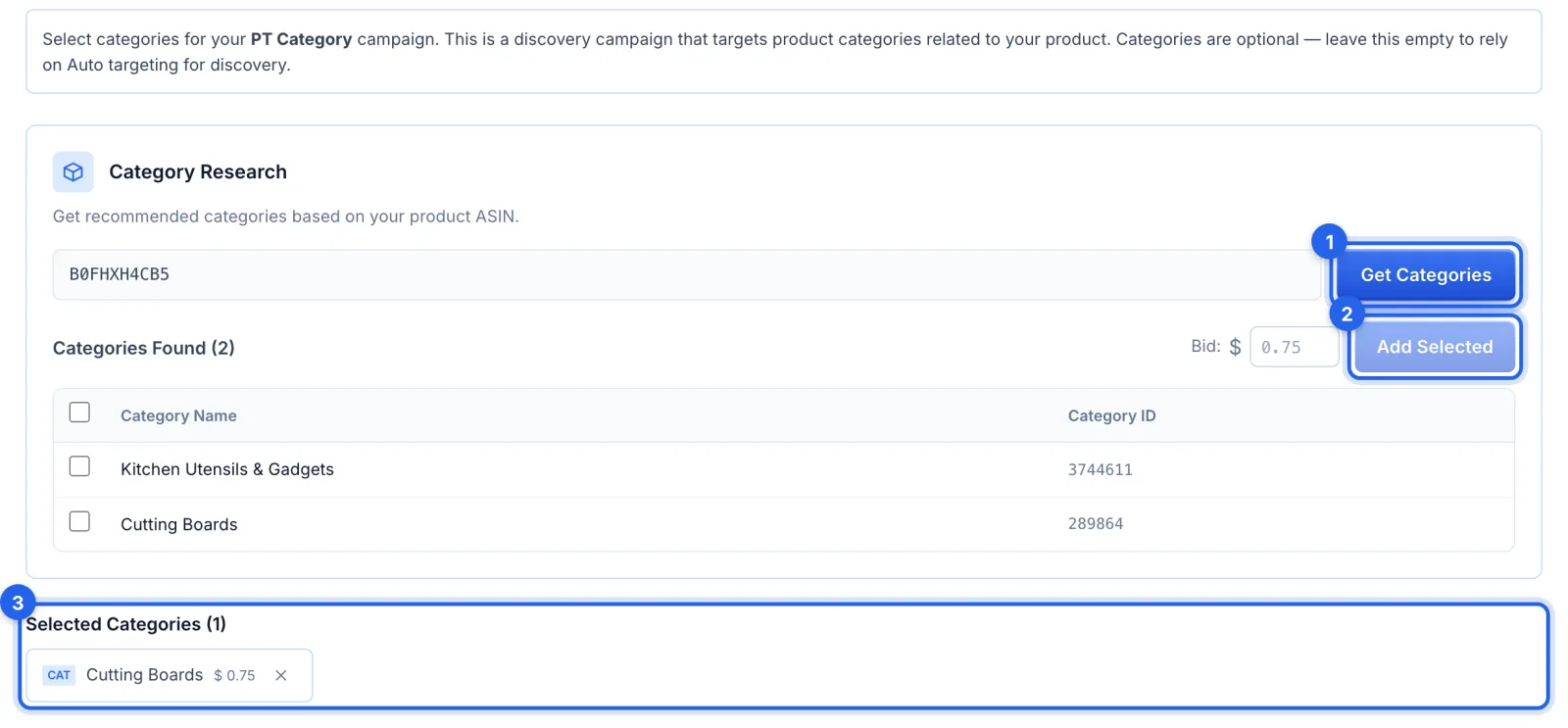
PT Category is a discovery campaign. Get Categories (1) asks Amazon which categories suit your products; tick the ones to target and click Add Selected (2), and they're listed below (3). Categories are optional: without them, the Auto campaign does the discovering.
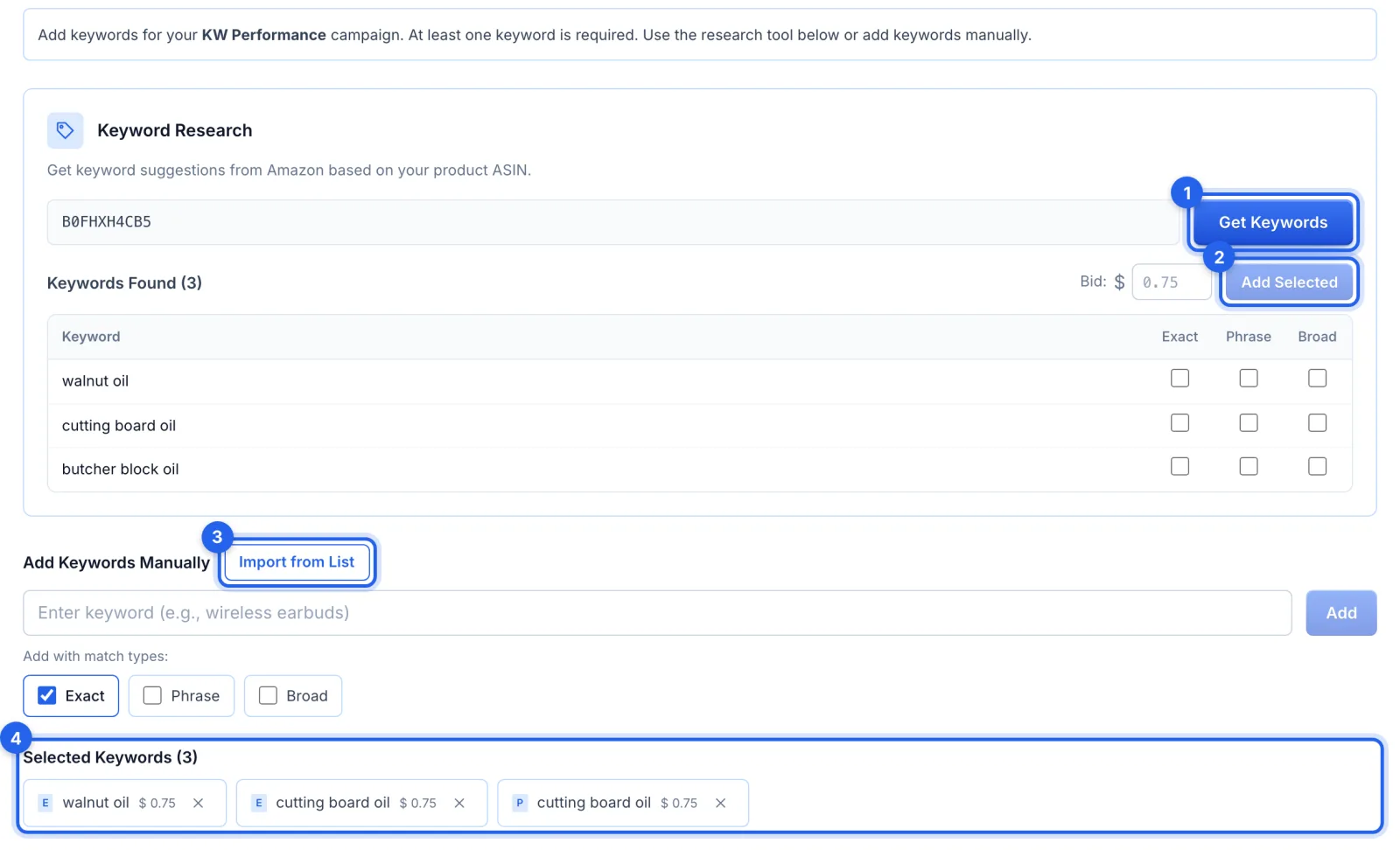
Step 5 · Add keywords
KW Performance needs at least one keyword. Get Keywords (1) lists Amazon's suggestions; tick Exact, Phrase or Broad on each and click Add Selected (2). You can also type keywords, or bring in a saved list with Import from List (3). Every keyword is listed below (4) with its match type and bid.
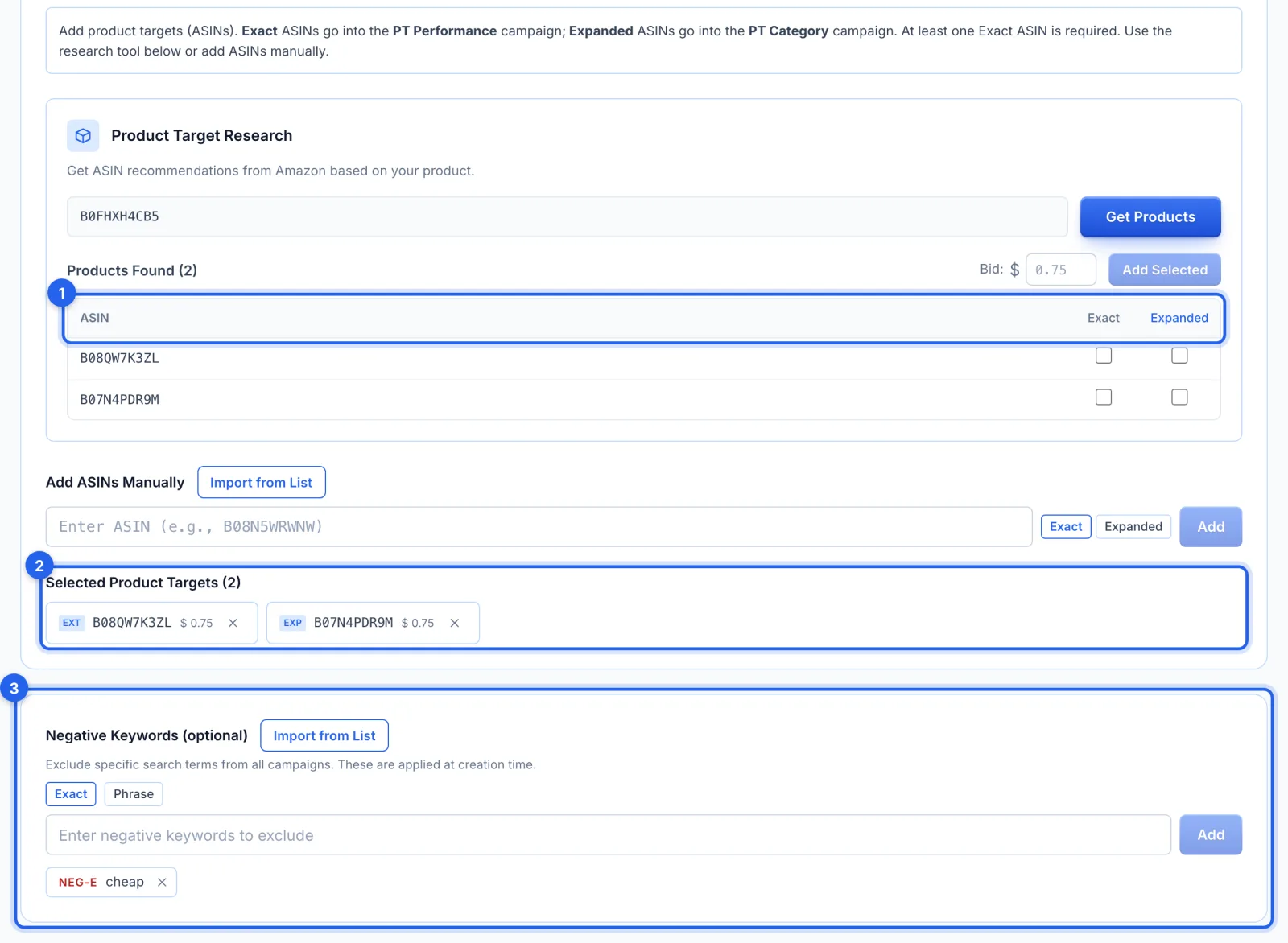
Step 6 · Add product targets and negatives
Get Products lists ASINs Amazon suggests; tick Exact or Expanded on each (1). Exact ASINs go into PT Performance. Expanded ASINs go into PT Category, as discovery, the way broad keywords are used. At least one Exact ASIN is needed, and the ASINs you add are listed (2). Negative Keywords (3) are optional: searches you never want to pay for, blocked in all four campaigns from the start.
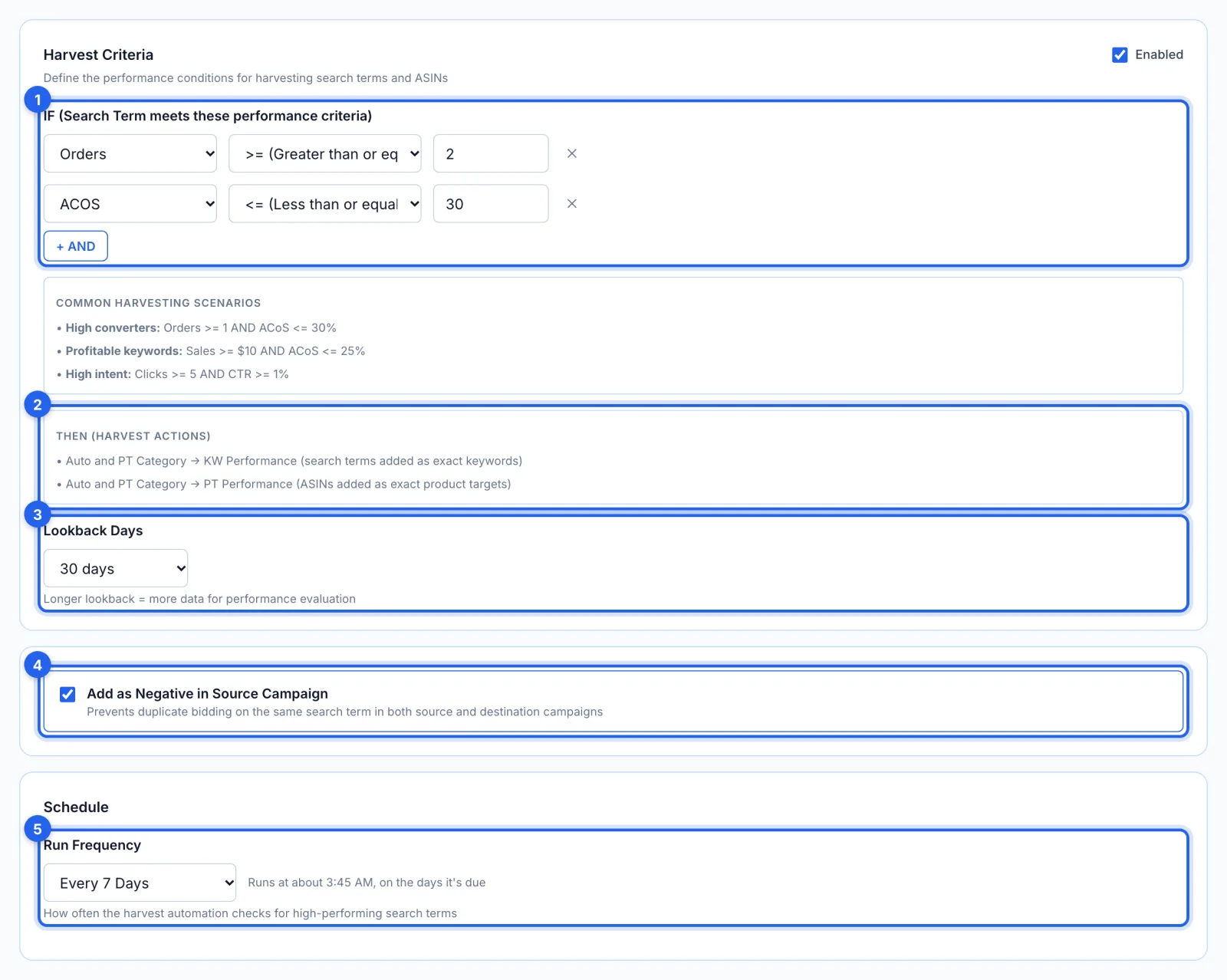
Step 7 · Set the harvest rules
When a search term or ASIN in Auto or PT Category meets your criteria (1), by default 2 orders or more at an ACoS of 30% or less over the last 30 days (3), it is added to KW Performance as an exact keyword, or to PT Performance as an exact product target (2). Add as Negative in Source Campaign (4), on by default, then blocks it where it came from, so two campaigns don't bid on the same search. Run Frequency (5) is every 7 days by default.
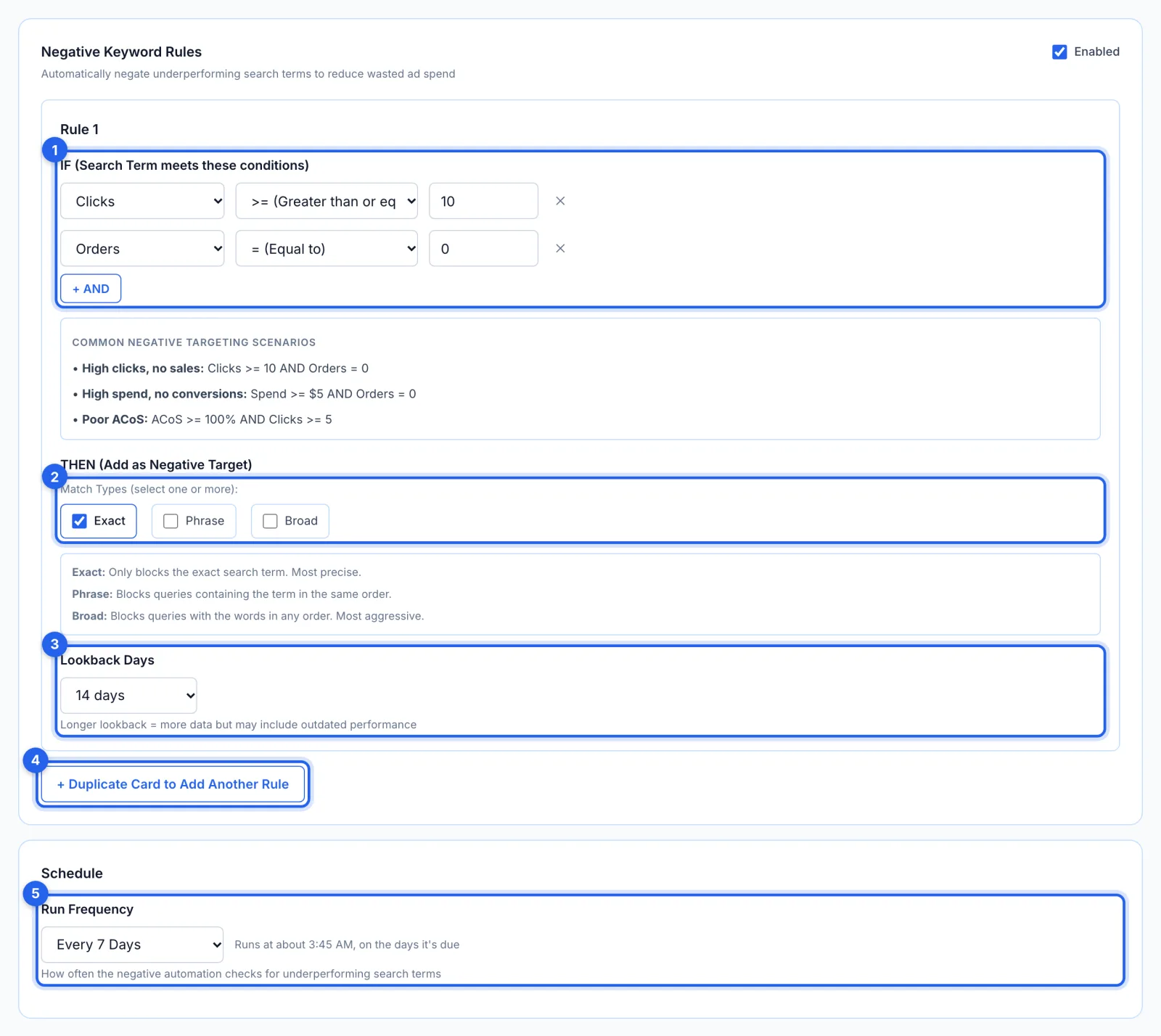
Step 8 · Set the negative rule
Search terms that meet your conditions (1), by default 10 clicks or more and no orders over the last 14 days (3), are added as negatives in the match types you tick (2), in all four campaigns. Duplicate the card (4) for a second rule. Run Frequency (5) is every 7 days by default.
Step 9 · Review and launch
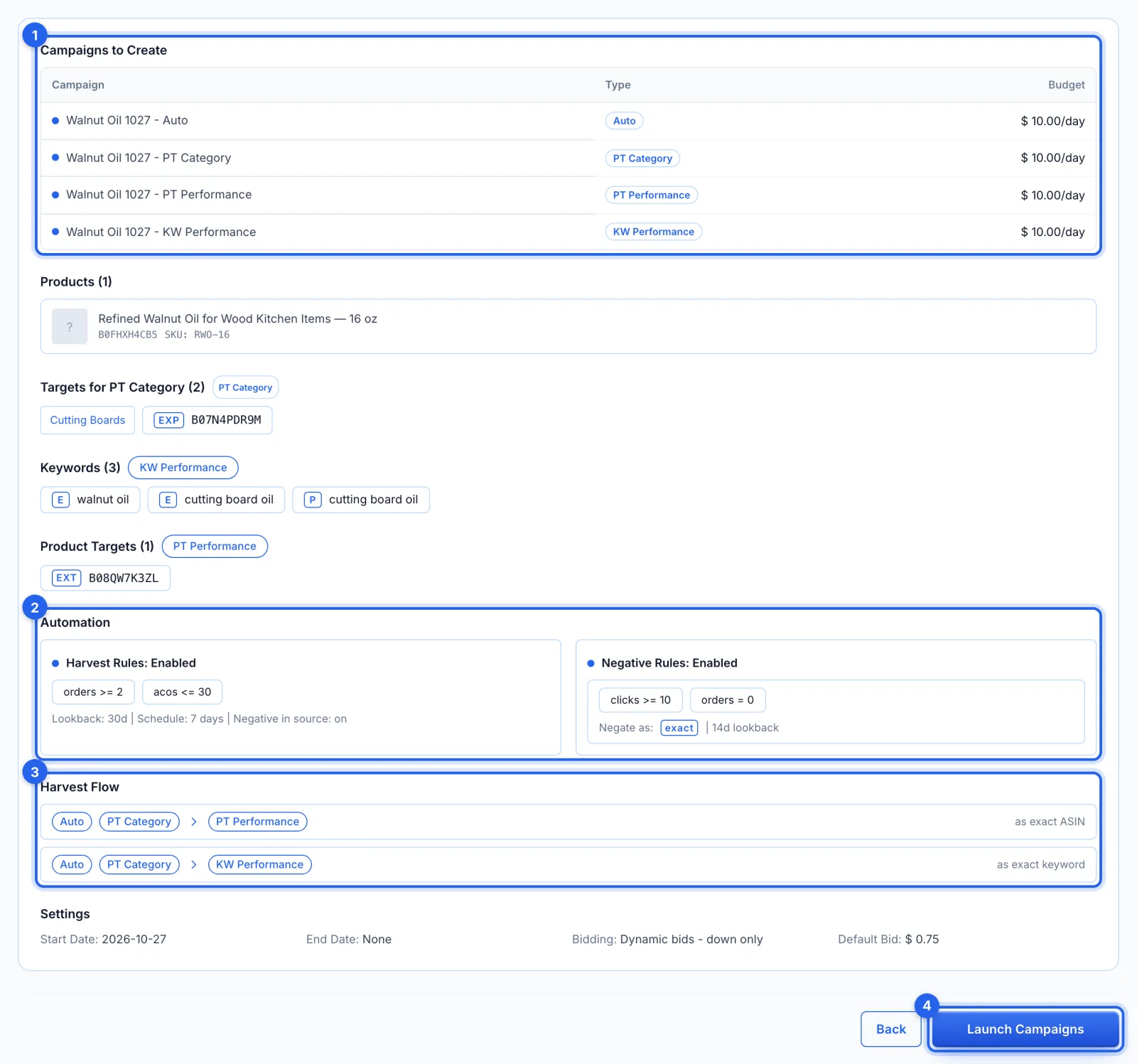
Check the four campaigns and their budgets (1), the rules (2) and where harvested terms go (3), then click Launch Campaigns (4). Everything is created paused, and the four campaigns are switched on only if Amazon accepted every part; if it didn't, they stay paused and the message says what Amazon refused.
Good to know
- Harvests and negatives wait for you. The rules suggest changes, and you approve them on the Suggestions page. To let a rule apply its own changes, switch on auto-apply for it under Automations (see How to harvest Amazon search terms into keywords).
- When the rules run. Early in the morning, about 07:45 UTC (the form shows it in your own time), on the days they're due. The first check is the next morning, usually before there's any data; after that, every 7 days by default.
- Bids and budgets are yours. The wizard creates no bid or budget rules and no AI profile. To have bids managed, set up a bid rule or an AI profile for the four campaigns.
- If the launch stays paused. Fix what the message names, then switch the campaigns on from Campaigns, or archive them. Running the wizard again for the same product builds a second set.
- Finish in one sitting. What you enter stays on the page until you launch; leaving the page or refreshing it starts over.
On the Growth plan
AI Campaign Creation builds the same four campaigns from Amazon's suggestions for your products, and gives them an AI profile that manages their bids (see How to launch Amazon PPC campaigns with AI). For one campaign at a time, see How to create an Amazon Sponsored Products campaign.