How to add negative keywords automatically on Amazon
Set up a negative keyword rule in RedHen Labs: the campaigns, the no-sale conditions, exact or phrase negatives, the schedule, and approving what it blocks.
A negative keyword rule checks the searches that triggered your ads and blocks the ones that keep costing money without selling, by adding them as negative keywords. You set what counts as wasted (clicks with no orders, spend with no sales, a high ACoS) and approve each negative, or let the rule send them itself.
This guide builds one rule from start to finish, with a screenshot of each step (the control to use is ringed and numbered). It takes about four minutes.
Step 1 · Open the Negative tab
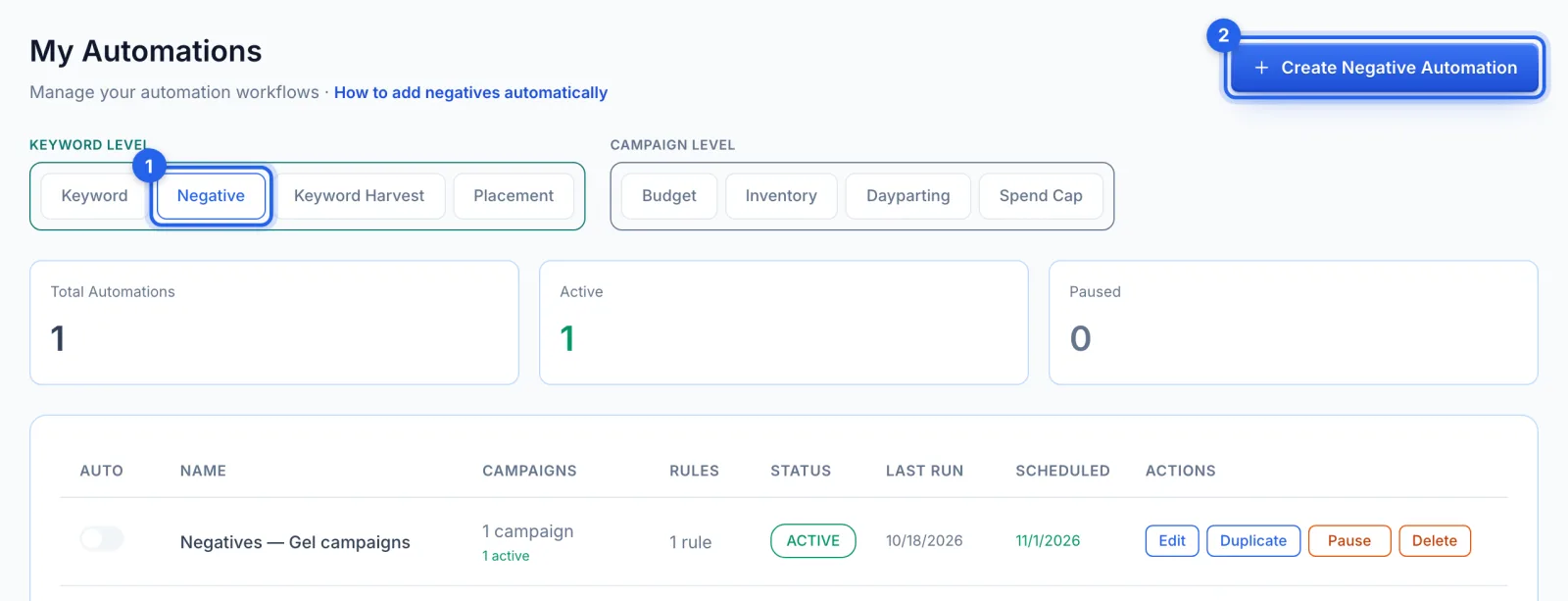
In the side menu, under Automation, click Automations (Professional plan). Open the Negative tab (1) and click Create Negative Automation (2).
Step 2 · Name it and pick the campaigns
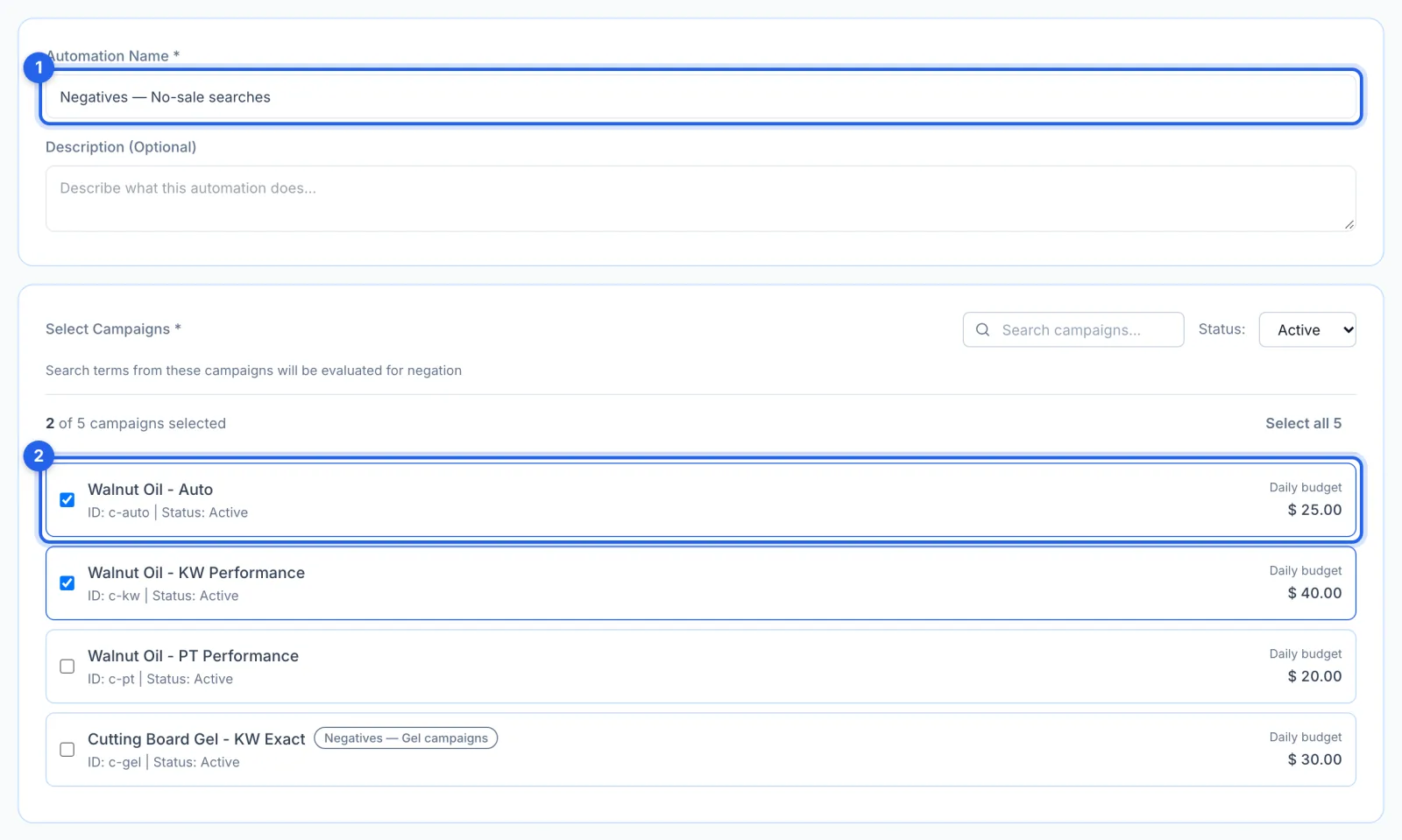
Name the rule (1) and tick the campaigns whose search terms it checks (2), Sponsored Products or Sponsored Brands. A campaign can have one negative rule; one that already has a rule shows its name.
Step 3 · Set the conditions
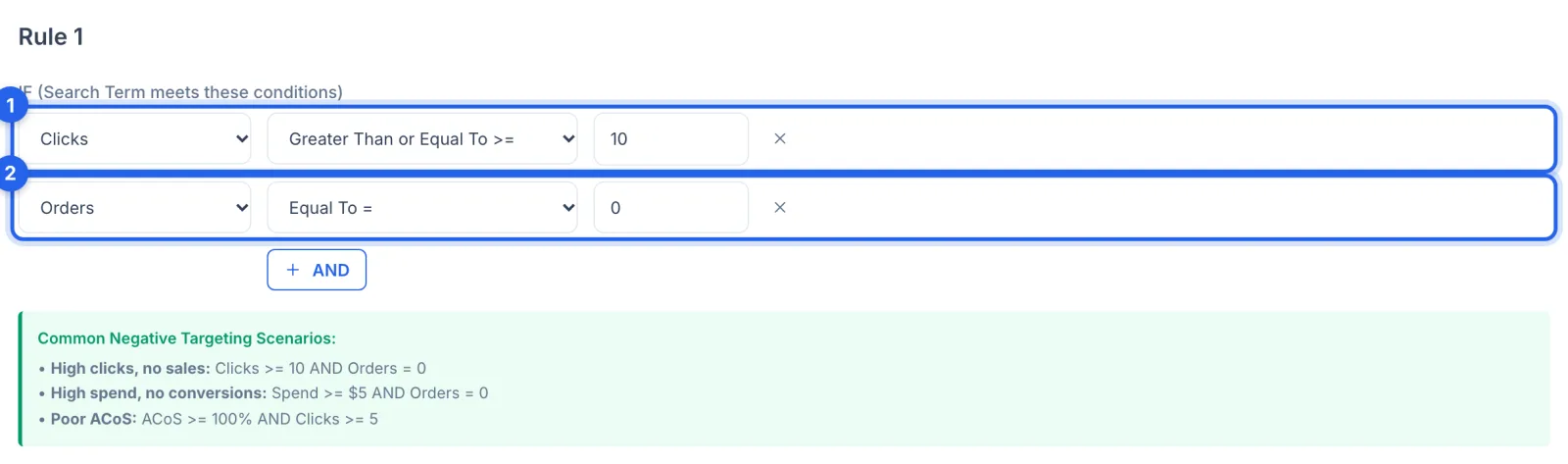
A search is blocked when it meets every condition. By default that's 10 clicks or more (1) and no orders (2) over the lookback; click AND to add another, such as spend of $5 or more. Common combinations are listed below the rule.
Step 4 · Choose the match type and lookback
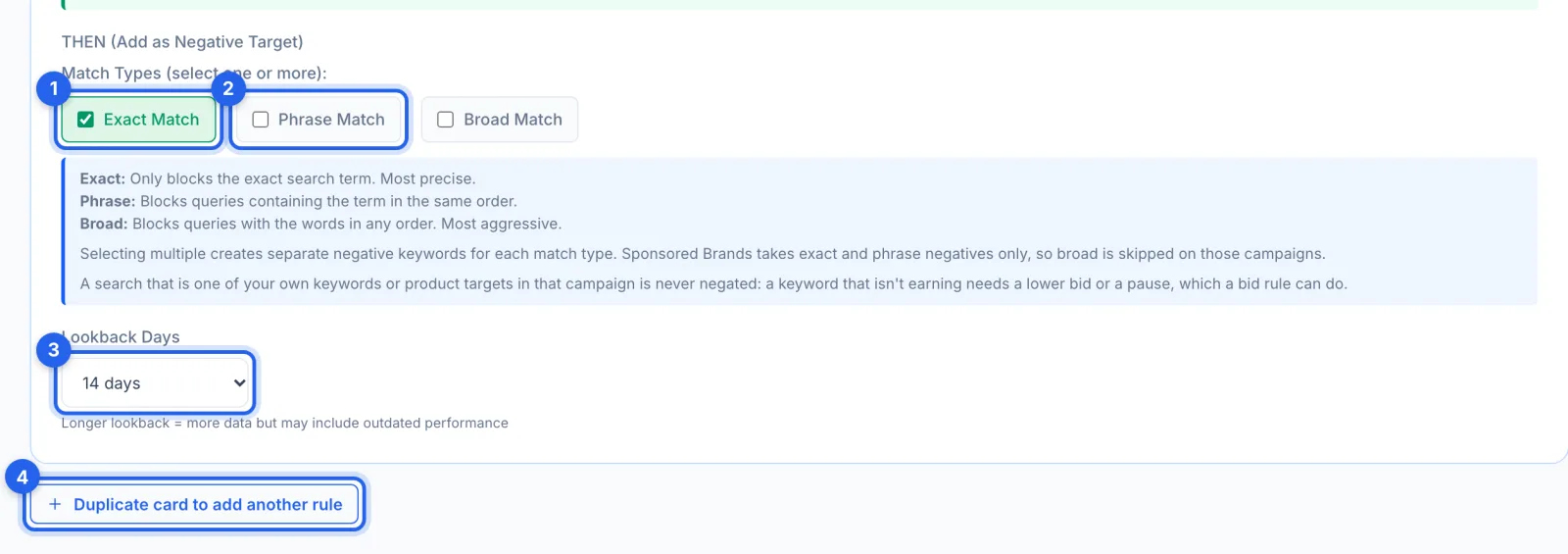
Exact Match (1) blocks just that search; Phrase Match (2) blocks searches containing it in that order; Broad blocks any search with its words. Ticking more than one makes a negative for each; Sponsored Brands takes exact and phrase only. Lookback Days (3) is the period it looks at, 14 days by default. Duplicate card to add another rule (4) adds a second rule: rules are checked from the top, and the first that matches is the one used.
Step 5 · Set the schedule and save
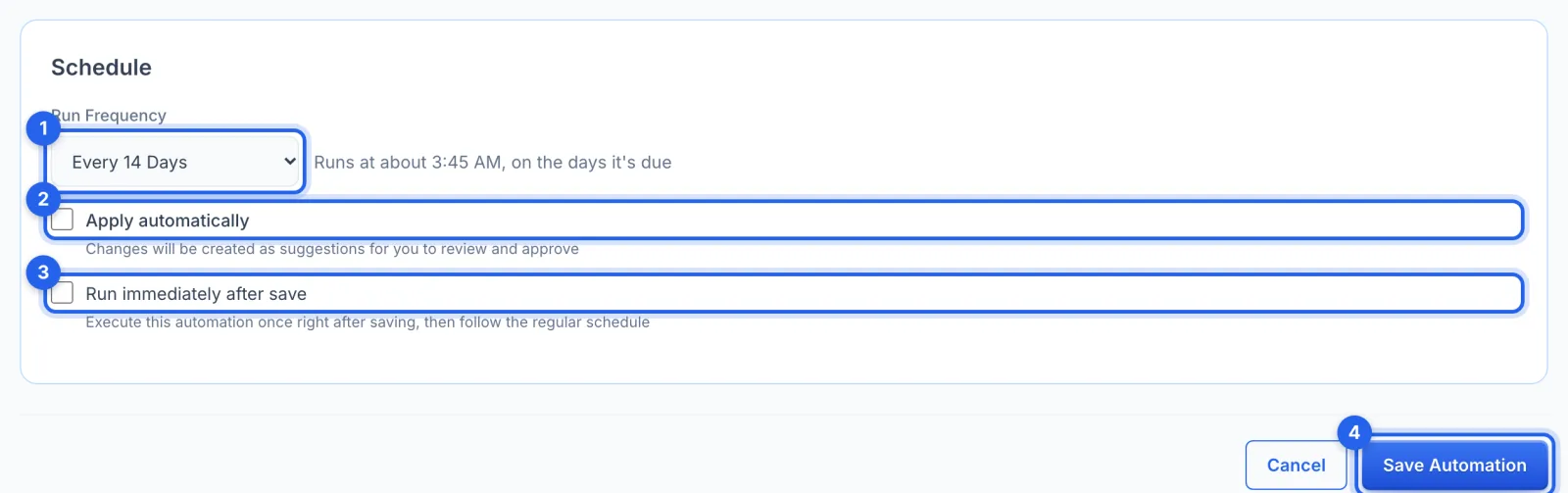
Run Frequency (1), every 14 days by default, runs early in the morning on the days it's due, at the time shown beside it on your own clock. With Apply automatically (2) on, negatives go straight to Amazon; off, each waits for you. Run immediately after save (3) runs it once now. Click Save Automation (4).
Step 6 · Approve the negatives
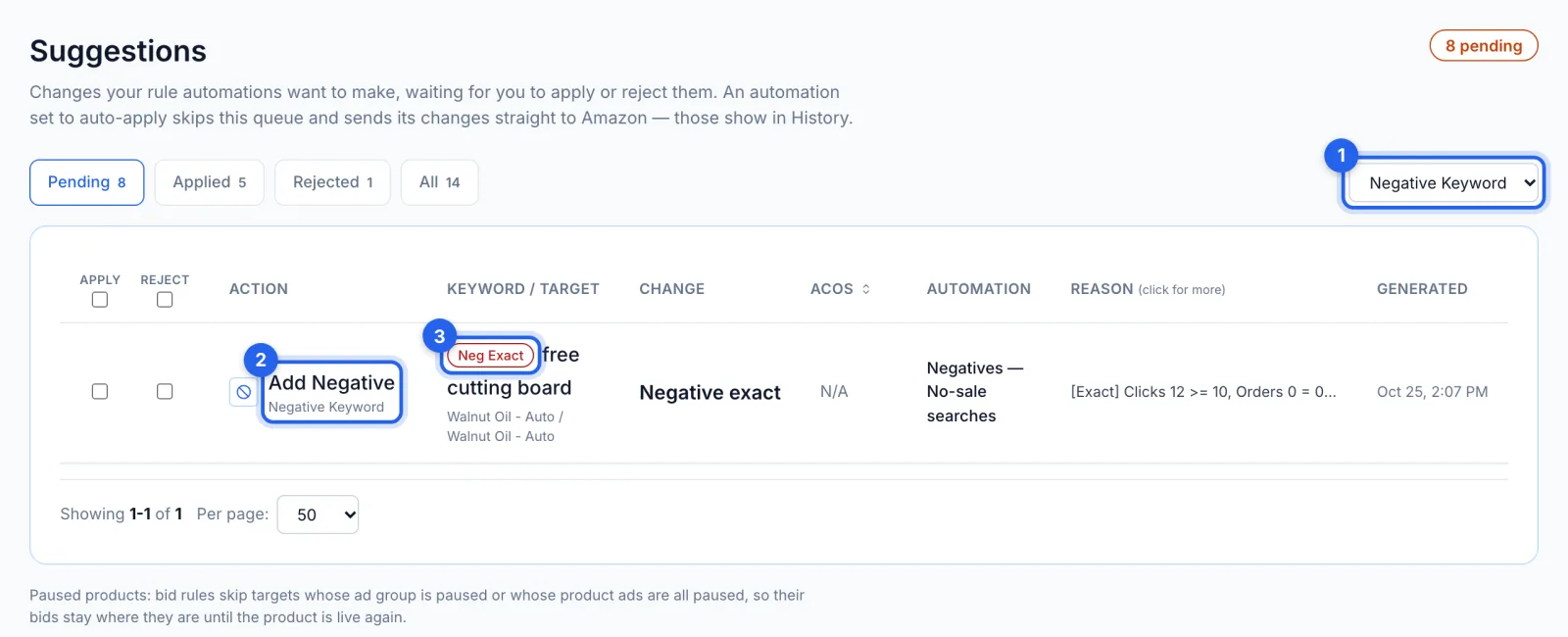
Each negative waits under To review, Suggestions; filter to Negative Keyword (1). A row (2) shows the search and its match type, here Neg Exact (3), with the numbers that matched. Tick APPLY and click Apply N selected to send it to Amazon. A suggestion waits 7 days.
Good to know
- Never your own keywords. A search that is one of your own keywords or product targets in that campaign is never negated: a keyword that isn't earning needs a lower bid or a pause, which a bid rule can do.
- Where the negative goes. In a Sponsored Products campaign with more than one ad group, the search is blocked for the whole campaign; with one ad group, in that ad group. In Sponsored Brands, in the ad group. A product (ASIN) search is blocked as a negative product target in its ad group.
- What it skips. Searches already blocked, already waiting for you, or rejected in the last 14 days.
- Undo. Negatives are listed in History without Undo; a negative can only be removed in Amazon's own console.
Tips
- Start with exact negatives: they block only the search that wasted money.
- Give a search enough clicks before blocking it; 10 clicks with no order is a common starting point.
- For a one-off clean-up, Insights lists the searches spending with no sales today.